———- is not a valid status code for state code entity

Often you see this error in your plugin or Webapi actions when you trying to play with the status and status reasons in microsoft dyamics crm.

so, lets understand this.

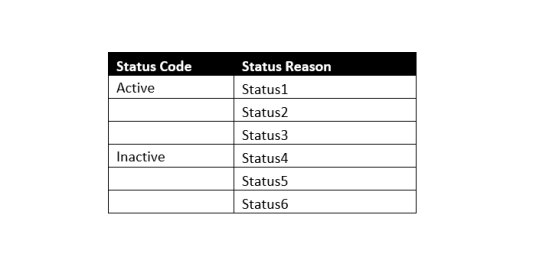
Suppose i have below status and status reasons:

status

as you can see there is a set of status reason you can only combine with and “Active” Statecode and some with “Inactive” statecode.

So ,if you have a status reason which belongs to an active statecode but you use it with an inactive statecode and vice versa, you will be presented with this error.

and in the error first line you can actually see what optionset value it is talking about.

i hope this helps.

Cheers!

Create Text log file – Simplest way possible

We all need to log errors, information, warnings when writing your console application.

while there are several third party tools/methods available which you use in your solution such as Nlog, Log4net… etc. I would still prefer to create my custom code to generate the log file and capture all details as those tools might work on some machine and on some wont also depends badly on the permissions on the system.

below is simple code that i use :

using System;
using System.IO;

namespace YourNameSpace
{
 public static class ErrorLog
 {

public static void Logger(string ErrorCode, string ErrorMsg)
 {
 try
 {
 string path = Directory.GetCurrentDirectory();
 path = path + "\\Logs\\";

// check if directory exists
 if (!Directory.Exists(path))
 {
 Directory.CreateDirectory(path);
 }
 path = path + DateTime.Today.ToString("dd-MMM-yy") + ".log";
 // check if file exist
 if (!File.Exists(path))
 {
 File.Create(path).Dispose();
 }
 // log the error now
 using (StreamWriter writer = File.AppendText(path))
 {
 string error = "\n" + DateTime.Now.ToString() + ":" + ErrorCode + ":" + ErrorMsg;
 writer.WriteLine(error);
 writer.Flush();
 writer.Close();
 }

}
 catch (Exception ex)
 {
 throw new Exception(ex.Message);
 }
 }
 }
}

add this file to your code and later you can use it in your solution anywhere like below :

 ErrorLog.Logger("Info","yourtexthere");

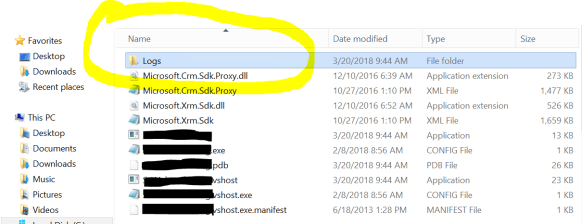
kindly note that this will generate the logs file on your directory where the code is running in that case in the “BIN” folder. You can tweak the code to put it somewhere else if you need.

logs

Hope this helps!

Cheers!

Difference between Primary and Participating field in business rule

In Microsoft Dynamics CRM buiness rule we use two types of fields the one which we are using in our “if” condition and other one which we are calculating or taking an “Action”.

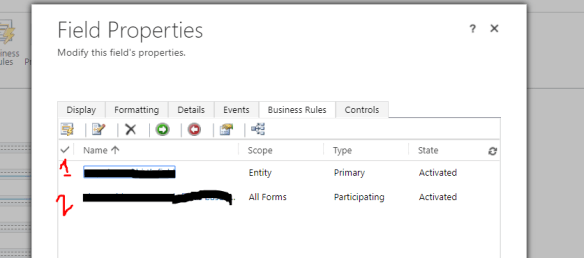
if you have open the form editor and click on a field property  , by navigating to business rule tab you will see , CRM will tell you the current field is a primary field in which business rule and participating on which business rule:

business rule


so the difference is :

  1. Type – Primary : this field is being used in business rule in a “if” conidition and its the base of business rule.
  2. Type – Participating : this field is being calculated based on the other field (Action).


hope this helps!

Cheers!

How to read a CSV file in a simplest way possible

Hello folks,

I am sure if you have been working with Microsoft Dynamics CRM or any other .net related application – you must have got this situation where you need to read data from a CSV file and do something with it for e.g. either to update this in CRM or write to other file.

here is the code that i used recently – i went through alot blogs and tutorials on how to do this but everything looked confusing to me. So I ended up doing this :

public string ReadCsv()
{
try
{

string csvPath = ConfigurationManager.AppSettings[“FilePath”]; // here i have used configuration manager as i am taking path from config file but you can simple pass the path in string “path” format.

//Read the contents of CSV file.
string csvData = File.ReadAllText(csvPath); // once you do this you will be able to read all the rows of the file. the format of the string would be like /r/n12341/r/n12344/r/rn2244……..

//Execute a loop over the rows.
foreach (string row in csvData.Split(‘\n’)) // removing the /n from the string you will get /r1234 in “row now
{

var id = row.Replace(“\r”, string.Empty); // finally removing “/r from the string.

//your logic goes here , either you can check each id , if this exist in CRM one by one using query by attribute or update this field in CRM etc.

}


i hope this helps!

How to enable Image for an entity in Microsoft Dynamics CRM

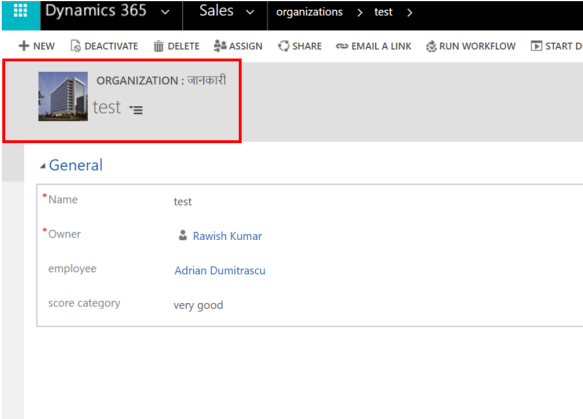
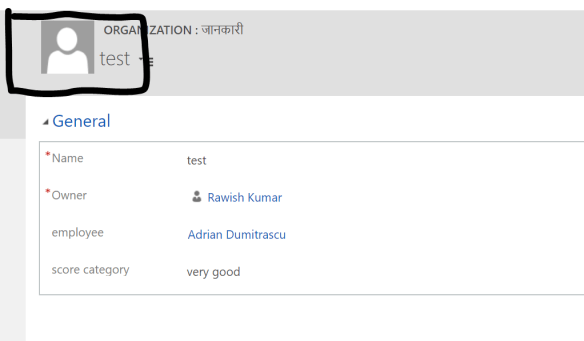
In this blog i am going to discuss about “Image” type attribute/field in CRM and how this can be used to enable image for an entity on the form like below:

8


Lets see how we can achieve this:

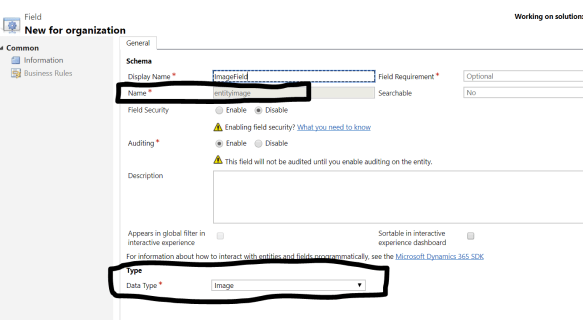
  1. Navigate to Customization>Customize the system>Entities & navigate to the entity for which you want to enable image> go to fields > create a new field as below:2
    Give it a name and select Datatype as image – as soon as you select datatype , you will notice that Schema of the field is set to “entityimage”. Save & close
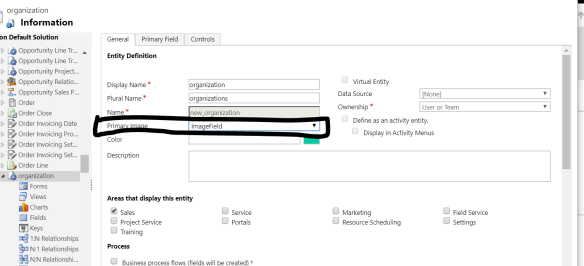
  2. Now 2nd step is to navigate to entity definition as below:3In the property ” Primary Image” – you will see the name has come , if not select it from the dropdown.
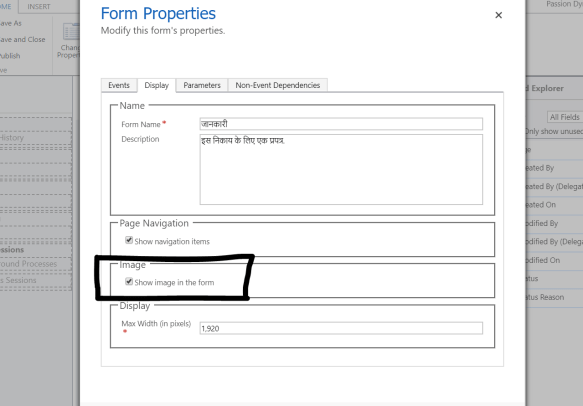
  3. Final Step is to make form changes, navigate to the form and open form editor and click on “form properties” , select the below option:4
  4. Lastly save and close the form and publish all customizations. Navigate to the entity record , you will notice an image icon is now appearing on the form.
    5
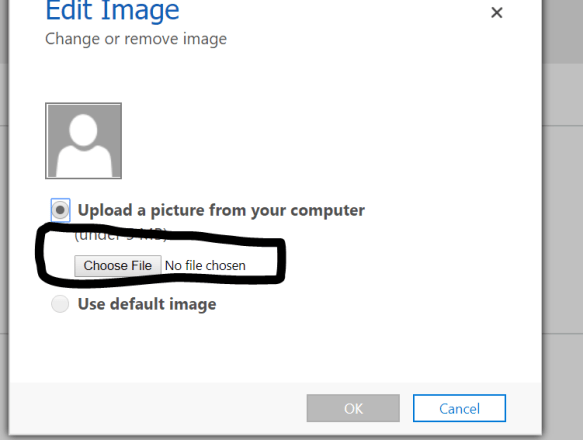
  5. click on the image and browse the image you want to set:6
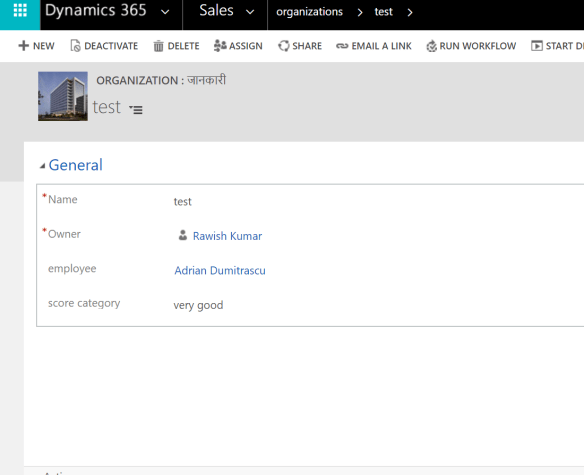
  6. After Selecting the Image click okay and you will see image is appearing now:7


I hope this helps!


cheers!

Difference between Articles, Knowledge Articles & Knowledge Base Record in Microsoft Dynamics CRM

I had so much confusion around these three terms in Dynamics CRM until i didnt actually paid my full attention to them and understood which one is what and where to use them.

  1. Article(kbarticle)
  2. Knowledge Article(knowledgearticle)
  3. Knowledge Base Record(knowledgebaserecord)

Let’s understand one by one briefly

1.Article

Articles are actually an old version of knowledge articles in crm. Currently you will see both are present and can be used as per requirement or as you need them. Knowledge Articles have advanced functionality.

for e.g Engagement hub will use your knowledge article entity and you work on them in engagement hub. Articles are specific to Dynamics CRM.

Knowledge article has functionality like versioning and translation. Apart from these functionality remains the same like creating , reviewing , approving and using them.

for more details you can visit below post : https://msdn.microsoft.com/en-us/library/gg309345.aspx#EarlierKBArticle


2.Knowledge Article

As I Mention above, knowledge article is the latest feature in CRM and has rich functionality above the legacy articles.

you can create minor and major versions of article which can be crucial and important if you have an organization where lot of changes and upgrade happens.

Apart from it you can can create knowledge article translation and can be in more than 150 languages. To understand a knowledge article life cycle and other things , see below post :

https://msdn.microsoft.com/en-us/library/gg309345.aspx


3.Knowledge Base

The knowledge base record entity represents a record containing the metadata of a knowledge base record in Parature.  It is used specifically for parature integration.

Parature is a cloud-based customer engagement solution which Microsoft acquired in 2014.  Enterprises can deploy Parature to provide self-service capabilities to their customers.

Know more about it :  https://msdn.microsoft.com/en-au/library/dn996872.aspx


I hope this helps!

Cheers!


Calculated Vs Roll Up Field

Hi folks , i have gathered a quick summary of important differences between a calculate field and a roll up field:

Calculated Field Roll Up Field
Data is calculated as soon as form is loaded The rollups are calculated by scheduled system jobs that run asynchronously in the background.
calculated fields let you automate manual calculations used in your business processes. . A rollup field contains an aggregate value computed over the records related to a specified record
The calculated fields comprise of calculations that use the fields from the current entity or related parent entities. The roll up fields comprise of Aggregation that use the fields from the current entity or related child entities.
The expression support is available on the current entity and the related parent entity fields in the Condition sections and the Action sections. The built-in functions include:

ADDHOURS, ADDDAYS, ADDWEEKS, ADDMONTHS, ADDYEARS, SUBTRACTHOURS, SUBTRACTDAYS, SUBTRACTWEEKS, SUBTRACTMONTHS, SUBTRACTYEARS, DIFFINDAYS, DIFFINHOURS, DIFFINMINUTES, DIFFINMONTHS, DIFFINWEEKS, DIFFINYEARS, CONCAT, TRIMLEFT, and TRIMRIGHT.

Wide selection of aggregate functions. You can aggregate data by using the following functions: SUM, COUNT, MIN, MAXand AVG.
A seamless integration of the calculated fields with the forms, views, charts, and reports is available in real time. eamless integration with the user interface. You can include the rollup fields in forms, views, charts and reports.
The available data types for the calculated field:
Single line of text,Option Set,Two Options,Whole Number,Decimal Number,Currency,Date and Time
The data types include decimal or whole numbers, currency, and date/time.

Above data has been collected from Microsoft technet.

if you wish to know more about these fields in-depth, please follow below:

Calculated Field :  https://technet.microsoft.com/en-us/library/dn832103.aspx

Rollup Field :  https://technet.microsoft.com/en-us/library/dn832162.aspx


Hope this helps!

Cheers!

How to get value from a lookup or parent entity using Calculated field in Microsoft Dynamics CRM

Did you ever need to get values from other entity or from a lookup on current entity? What comes to your mind, bet it is javascript , plugin etc?

Well, lets pause the coding life for minute and do it using Calculated Fields which used simple UI like business rules.

In Scenario below , i am retrieving the Budget Allocated amount from source campaign on a lead record.

  1. Create a currency Calculated field on lead record :1Give the appropriator name , select data type as Currency or as per your need > Select Field type as Calculated and click on Edit. As soon as you click on edit, system will actually create this field for you.
  2. After clicking on Edit button , you will be presented with the UI where you have put in  your logic:2

    As a first step i am checking if Budget Allocated field on campaign actually has data.To do this you have select Source campaign in the Entity and the corresponding field.

  3. Once this condition is set click on the Action :3

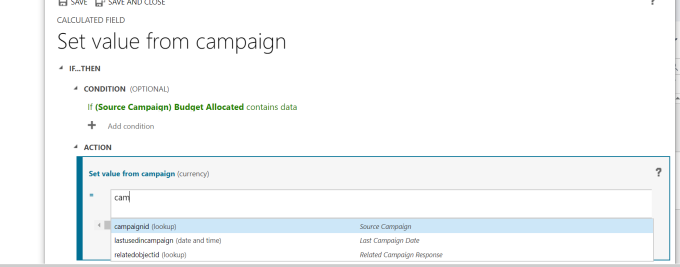
    In the editor start the typing the name of source campaign lookup or you can scroll though all fields/lookups available on the lead entity. Here i have select campaignid

  4. Once selected the campaignid , enter a dot(.) – post which you will start getting fields from the campaign:4

    Here i am selecting the budgetcost(Allocated Budget)

  5. Finally it will look like below :5Save and close the editor and also the field property window.
  6. Put this calculated field on the form and publish customization.
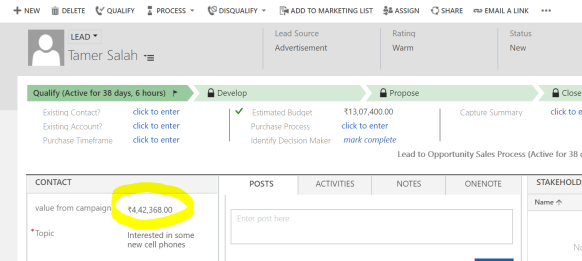
  7. Open a lead which has campaign associated to it:

    6campaign :

    7It is a very basic example i showed , i tried not to make it complex as it might become very confusing for a beginner.  You can do a lot manipulation with the data by using out of the box functions that are available for a calculated field or apply your custom logic.hope this helps!

    cheers!

RIP SDK – Dynamics CRM 365 v9

As per the recent communication from Microsoft, Microsoft Dynamics CRM SDK will not be available on Microsoft downloads. If you are working on Dynamics 365 v9, well you have to download every component which was available in the SDK individually.

Every tool will be available via NuGet Manager.

The name will be : Developer Guide not Dynamics CRM SDK.

For more information, visit the below blog :  https://blogs.msdn.microsoft.com/crm/2017/11/01/whats-new-for-customer-engagement-developer-documentation-in-version-9-0

Here is the step by step information on how to download these tools using powershell :  https://docs.microsoft.com/en-us/dynamics365/customer-engagement/developer/download-tools-nuget


i hope this helps.

Cheers!