How to set PartyList in Microsoft Dynamics CRM using Javascript

Let make it a smallest blog possible.

below code i have been using without any issue when it comes to setting a partylist or multi lookup in CRM. In the below code i am retrieving the contact id or the id of entity which is there in the regarding field & setting it on the “From” field.

function setCallFrom() 
{
 var lookup = new Array();
 lookup = Xrm.Page.getAttribute("regardingobjectid").getValue();
 if (lookup != null) {
 var name = lookup[0].name;
 var id = lookup[0].id;
 var entityType = lookup[0].entityType;
 if (entityType == "contact") {

var value = new Array();
 value[0] = new Object();
 value[0].id = id;
 value[0].name = name;
 value[0].entityType = "contact";

Xrm.Page.getAttribute("from").setValue(value);
 }

}
}

With slight modifications you can use the code on any other activity if you need to set partylist.

Call this function on Onload of the record or on onchange of the regarding field.

hope this helps!

Cheers!
Show entity form based on a field value in Microsoft Dynamics CRM

Having multiple forms for an entity is definitely amazing since you can control visibility of fields without having to write business rule or Javascript to hide hundreds of fields based on some value.

Now out of the box you can control CRM forms visibility/preference using security roles. However it is not you would always want to to do; sometimes you might have to control form preferences based on field value.

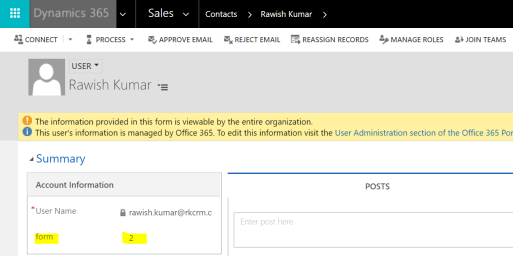
here is the sample code that i am using – on load of create/update/all forms i am retrieving a value from owner of that record – since on creation only owner gets filled up.  I have create a field “new_form” as a whole number on system user :

1

i have currently have it a value as “2”. lets see how i am going to retrieve this value in my code and set the correct form :

//do a webapi action to retrieve the form value from systemuser.

var formnewvalue = ' ';
function retrieveFromValue() {
 debugger;
 var userid = Xrm.Page.getAttribute("ownerid").getValue();
 var newid = userid[0].id.slice(1, -1);
 var req = new XMLHttpRequest();
 req.open("GET", Xrm.Page.context.getClientUrl() + "/api/data/v8.2/systemusers(" + newid + ")?$select=new_form", true);
 req.setRequestHeader("OData-MaxVersion", "4.0");
 req.setRequestHeader("OData-Version", "4.0");
 req.setRequestHeader("Accept", "application/json");
 req.setRequestHeader("Content-Type", "application/json; charset=utf-8");
 req.setRequestHeader("Prefer", "odata.include-annotations=\"*\"");
 req.onreadystatechange = function () {
 if (this.readyState === 4) {
 req.onreadystatechange = null;
 if (this.status === 200) {
 var result = JSON.parse(this.response);
 var new_form = result["new_form"];
 var new_form_formatted = result["new_form@OData.Community.Display.V1.FormattedValue"];
formnewvalue = new_form_formatted;

 showForm();

 } else {
 Xrm.Utility.alertDialog(this.statusText);
}
 }
 };
 req.send();
}
function showForm() {
 debugger;
var lblForm;
var relType = formnewvalue

switch (relType) {
case "1":
lblForm = "Portal Contact";
break;

case "2":
lblForm = "Profile Web Form";
break;

default:
lblForm = "Contact";

}
 //check if the current form is form need to be displayed based on the value
 if (Xrm.Page.ui.formSelector.getCurrentItem().getLabel() != lblForm) {
 var items = Xrm.Page.ui.formSelector.items.get();
 for (var i in items) {
 var item = items[i];
 var itemId = item.getId();
 var itemLabel = item.getLabel()
 if (itemLabel == lblForm) {
 //navigate to the form
 item.navigate();
 } 
 } 
 }
}

if you notice my switch statement you will see i m assigning the name of the forms to the values that i will be setting on the user profile.

Once it gets the form name – it than runs through all the forms for this entity untill it fins the correct form and then navigates to it.

i would say this script is majorly needed for first time or for a new system – since Internet Explorer or Chrome keep the form preference , so once our code the job and opened the required form -next time even if we remove the script -it will opening that form.

Another good is – this script prevents user to switch to other form as whenever  a user try to switch the form – on load event triggers and again check the value from owner id and change it back to the required one.

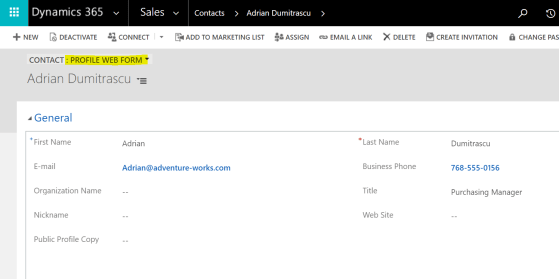
so since i have assigned value “2” to my user i should see “Profile Web Form” , lets see if this works :

2.jpg

woo , it did work.

point to note is you will have to attach this script to all the forms in the entity and call the function on onload for all forms.

hope this helps!

cheers!

Calculation Using Business Rules in Microsoft Dynamics CRM

Hi Guys,

We all love business rules & i am a big fan of them since they save alot of your time developing javascript for small actions that you need perform for e.g from making a field mandatory to setting fields value or showing error message.

Well , fortunately business rules can help if you need to perform some simple calculation on a form based on field values too. Lets get into action.

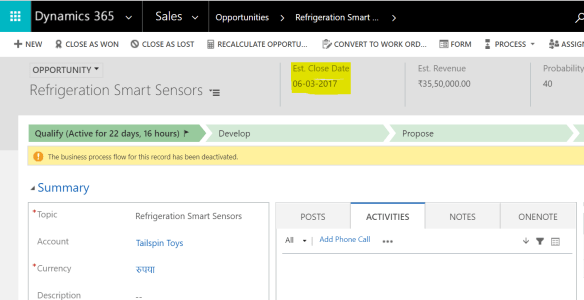
I have thought of a silly scenario where if i have estimated closed date on opportunity – i would like to set a date of 10 days before the estimated closed on a custom date field that i have created. Based on that i can then perform some other action using this new value either with JavaScript or business itself. This is dynamics crm 365 trial that i am using but its pretty much similar in 2016 or 2015.

So lets create a business role.

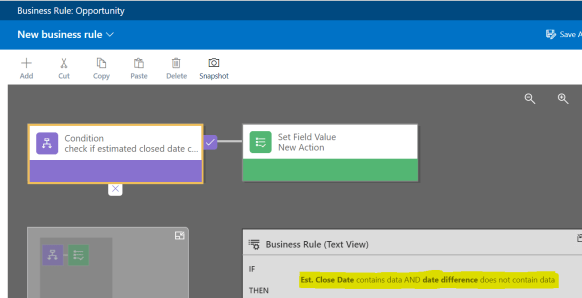
  1. Add a new condition to check if Est. Closed date contains data AND the new field(date difference) doesn’t not contains data.
    please note that if we don’t check the second condition the business rule will run every time and set the value to date difference on every on load even if date difference has been set last time :1
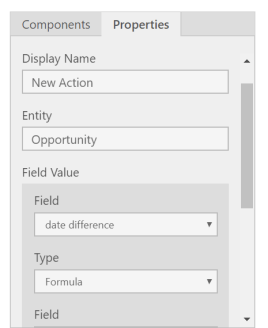
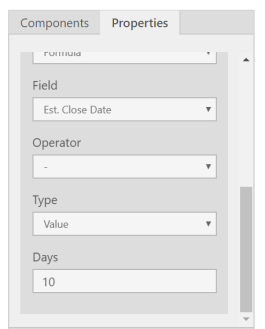
  2. Now once we are done with condition , lets add the action to it “set field value”. and from right side select the field = “date difference” , Type = “Formula”, other field = “Est Closed Date” , Operator = “-“, Type = “Value” , Days = “10”. Take a look at reference below:
    2
    3
  3.  now lets apply , save , Activate the business rule.
  4. Lets open a record a with estimated closed date and see it in action 🙂
    4
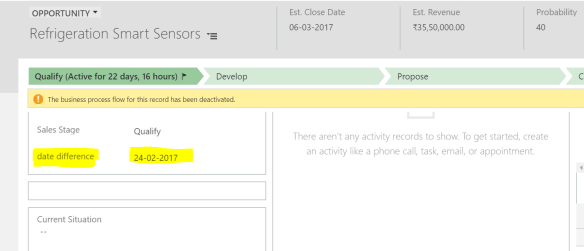
  5. the date difference field has been set to 10 days before the est close date which is 24-02-2017.
    5.PNG

There you go , it was simple example but i am sure you can perform some more complex calculation and not on just date fields but on currency and other fields.

Hope this helps!

Cheers!
Learn Microsoft Dynamics CRM – Basics, Customization & Configuration

aads-education-offers-microsoft-dynamics-crm-training-2-638

In office, while i am blogging or in dynamics community ; i always get this question that how a fresher can start learning CRM. Well let me tell you learning CRM is very easy since it is a Microsoft technology in which we have been living & using from our outlook to windows.

Well on internet ; information is pretty much distributed and in bits & pieces but i have collected the below information in sequence on how you  can you start from zero and go till 100 🙂

  1. First things first you should know what is CRM , well according to microsoft definition is :
             crm definition.PNG

    “CRM solutions streamline processes and increase profitability in your sales, marketing, and service divisions. A strong CRM solution is a multifaceted platform where everything crucial to developing, improving, and retaining your customer relationships is stored. Without the support of an integrated CRM solution, you may miss growth opportunities and lose revenue because you’re not maximizing your business relationships.”

  2. Next i would suggest you to see above everything in action :  https://www.chalkstreet.com/microsoft-dynamics-crm-tutorial    ,  https://mva.microsoft.com/en-us/training-courses/introduction-to-microsoft-dynamics-365-17593?l=J6OdOYtqD_906312570
  3. Once you have done this – i think you will be pretty much comfortable having your own CRM environment to get your hands dirty in, therefore go ahead and get your trial :https://trials.dynamics.com/
  4. Time to know how CRM can be available to you(to be technical “deployment options available in CRM”) :  https://www.powerobjects.com/2015/10/21/upgrading-crm-crm-online-vs-on-premises-finding-the-best-fit-for-your-organization/
  5. Once you understood all above, my suggestion for you is to now understand the core concepts which makes the whole CRM :

https://www.tutorialspoint.com/microsoft_crm/microsoft_crm_overview.htm

In this tutorial you will learn about what are the core components of  CRM like Entities , Fields, Forms, Business process flows etc. This blog also pretty much explains how you can customize the crm.

6. Now go though this blog and do same in your trial version :

https://crmbook.powerobjects.com/system-administration/customization/

i will talk about customizing, fields, forms , entities , charts, dashboards,solutions etc.

7. Security model – Now this is a major topic which you must understand very well without which it will be very difficult for you to master dynamics crm else you will be missing out on very small/minor things during your career

https://www.youtube.com/watch?v=_vfp3C11a3Mhttps://www.youtube.com/watch?v=An-VgsHEp9A

8. Now , one of the main features of crm is “Processes” , processes are the main component in CRM which helps you to perform actions based on your needs :

a. business rules :  http://www.inogic.com/blog/2016/12/business-rules-dynamics-365/

b. Workflows :  https://crmbook.powerobjects.com/system-administration/processes/workflows/

c.Plugins :  https://crmbook.powerobjects.com/extending-crm/plug-in-development-and-workflow-extensions/plug-ins/developing-a-plug-in/

9.Apart from it most of the stuff you would do through JavaScript which you coudnt  using business rule, mainly javascript is used to perform complex logics else i always recommend you to use business rules  :  https://www.youtube.com/watch?v=wxMB-cIQPUw


if you go through all of the above carefully , you will be in a position to work on dynamics crm confidently.

Please leave your comment if i have missed out anything major or you have any question, need guidance on any of the topics above.

happy crm learning, cheers!

Lock all fields on a form using Javascript- Microsoft Dynamics CRM

Hi Guys,

We all get requirements to lock the whole form to stop people from editing the record.

There are some out of the box options available to achieve this :

  1. Create a business rule : you can easily create a business and use lock field feature however you will have to select all the field on the form one by one – for .e.g if you have 50 fields on the form, you will have to add action for all of them. Moreover another limitation is if a field is removed from the form – you business rule will stop working.
  2. We all know if record is status is set to inactive – form become uneditable but in this scenarios we want to keep the record but uneditable.

Therefore, we come down to our final easy solution to tackle all problems above, the Javascript. Have a look on the below code :

 function disableFormFields()

{

       Xrm.Page.ui.controls.forEach(function (control, index) {

           var controlType = control.getControlType();

           if (controlType != “iframe” && controlType != “webresource” && controlType != “subgrid”)

           {

               control.setDisabled(true);

           }

       });

}

above code takes the control of the form directly rather then of each field & locks all of them. Just call the function on Onload , I have used this on my form and it looks like below:

lockfield


Now you can definitely add your own logic into this code for .e.g you put a if condition to check some value based on which you want to lock all fields and another things if you need to leave some fields unlocked you can again you a if condition , check the value and use below

just add the below code to above code :

if (crmfield = abc)

{

Xrm.Page.ui.controls.get(“CrmFieldShcemaname1”).setDisabled(false);

Xrm.Page.ui.controls.get(“CrmFieldShcemaNam2”).setDisabled(false);

Xrm.Page.ui.controls.get(“CrmFieldShcemaNam2”).setDisabled(false);

}


hope this helps you!

cheers

How to insert dynamic values from custom entities in an email template – Microsoft Dynamics CRM

if you work with email templates; you might have to create a template which is to be sent from a custom entity & hence you will need field values from that entity.

Now out of the box – CRM doesn’t provide you an option to populate the field values from a custom entity.

So lets dig in and understand ; how this can be done.

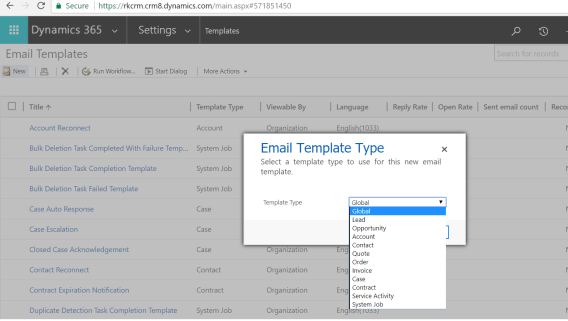
1.Go to Templates from CRM settings and click on email templates ; click on “new” & in the popup select template as “Global”:

1

now if you notice – CRM gives you templates for individual entities as well but since we need one for custom entity – we will have to select global.

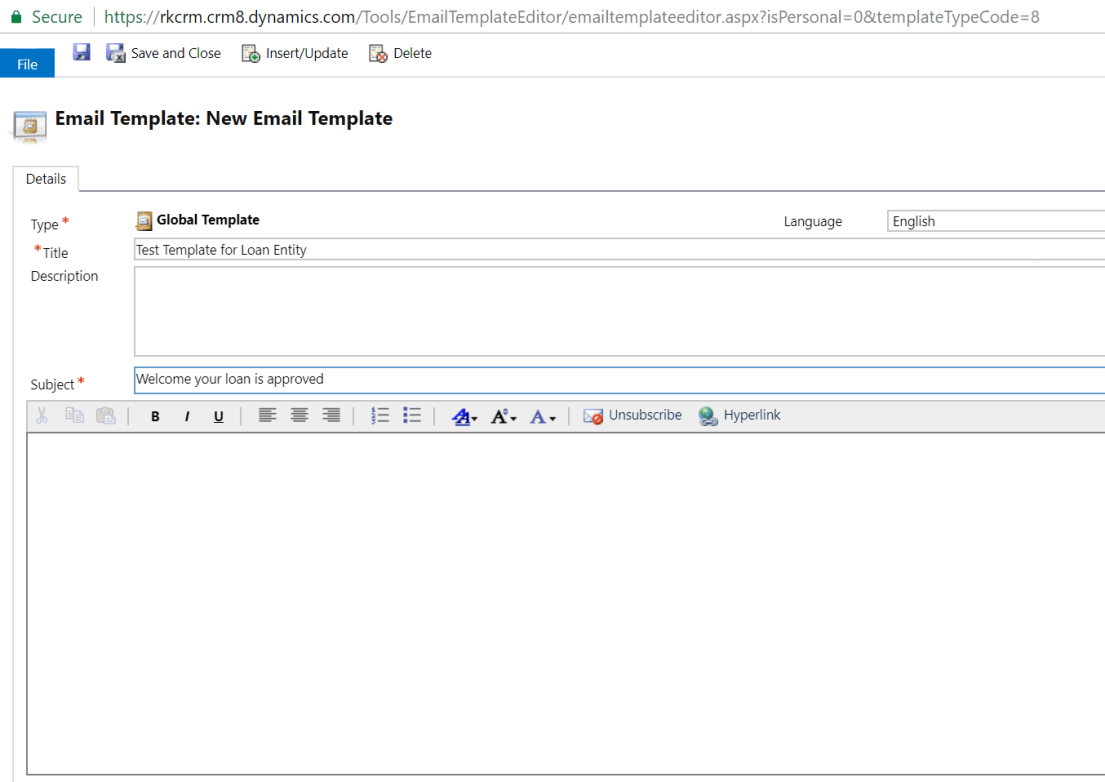
2. In the Template form, fill subject & Title.

2

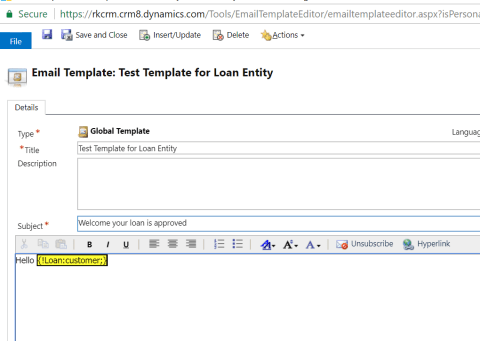
3.In this example – i have a custom entity Loan, i would like to send email from this entity using an email template with Loan amount and customer populated. Customer is a lookup so lets do it.

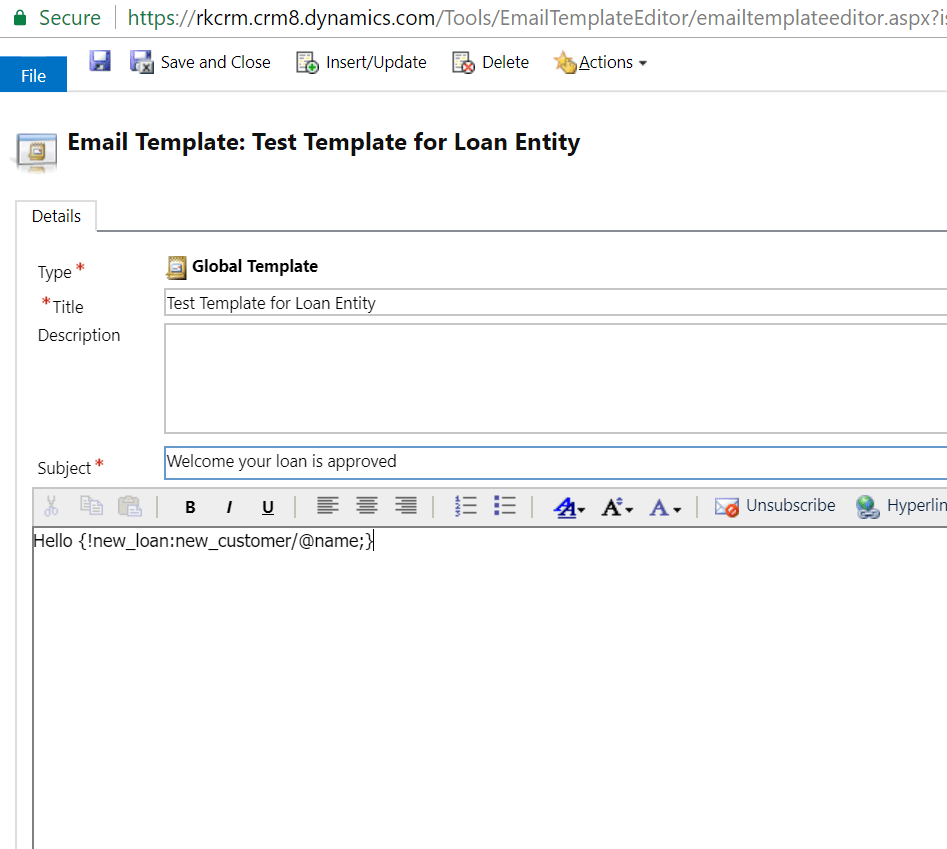
Standard format is : {!EntityLogicalName:FieldLogicalName;}

for lookup values ; you would want to retrieve the name so you have to do it like below :

3

4. Hit save and it will be resolved:

4.png

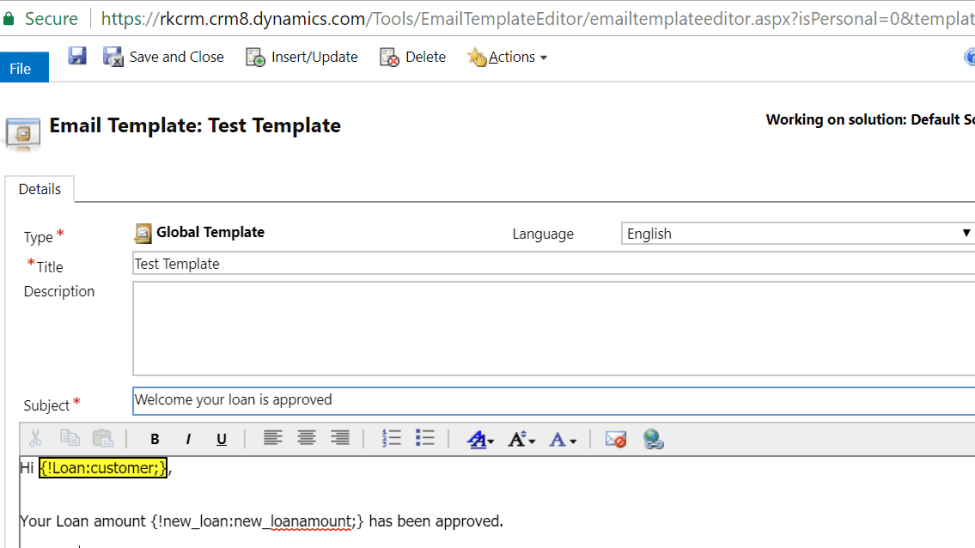
5. now lets retrieve the loan amount which is a currency field:

5

6. Hit save and see the how this resolves as well:

6

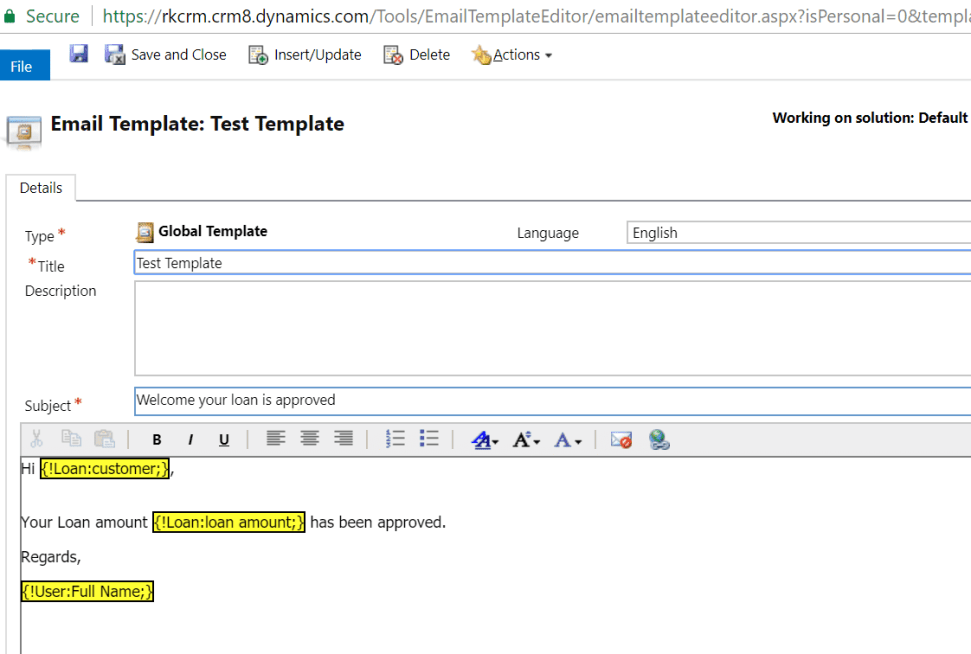
if you have noticed – i have also inserted the current user name from out of the box feature “insert/update” from top button.

Similarly, you can do this with other fields like below :

single line of text : {!EntityLogicalName: FieldLogicalName; Default Text}

Date :  {!new_loan:new_approvaldate/@date;}
Time : {!new_loan:new_approvaldate/@time;}

Lookup : as we did above

Optionset : {!new_loan:new_loantype/@name;}

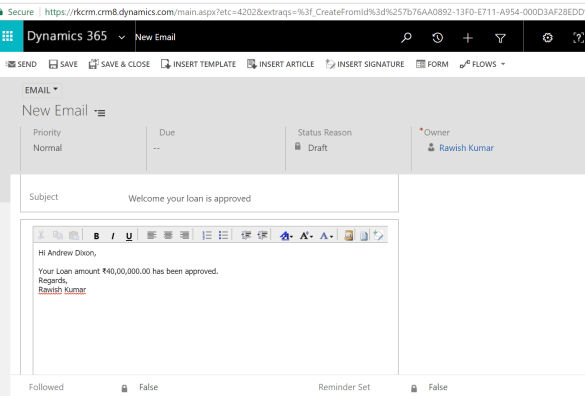
7. Now lets see our template in action ; i will go the loan entity record and insert a template:

7

Yay! it worked like a charm.

so , that is how it is done. Let me know if you face any difficulties.

Cheers!!


Sample code to retrieve more than 5000 records using FetchXML in CRM

Fetch XML – fetch 5000+ record in plugin – blog by Nishant

Nishant Rana's avatarNishant Rana's Weblog

Hi,

Sharing a sample code to retrieve more than 5000 records using the Fetch XML.

Version 1 :

Version 2 :

Hope it helps..

View original post

Create a Gantt Chart in MS CRM

Nice blog by crm chart guy – made it look easy and simple.

Ulrik (CRM Chart Guy)'s avatarcrm chart guy

Until recently I thought that Gantt charts couldn’t be done in MS Dynamics CRM without turning to some serious development, which I found unfortunate because this is a popular type of chart and users find them easy to read. Turns out you can, and it’s not that difficult to create a simple Gantt Chart in MS CRM.

EDIT regarding CRM2011: This post relies on changing the aggregate of a date field to “min”, which seems to be exclusive for CRM2013. CRM2011 will give you an import error when you make that change to the xml. However, a reader has been kind enough to send me the details of how make it work for CRM2011. In the fetchxml you will need to remove the aggregate=”min” from each of the attributes, and also remove the groupby=”true” along with its corresponding alias in the categorycollection. Thank you Nils for sharing.

In this…

View original post 1,163 more words

Run On-Demand Workflows on bulk records using XrmToolBox – bulk workflow execution

Microsoft Dynamics CRM On-Demand workflows are great and help in so many ways/

you can easily run these on records such as 100 , 500, 1000 & may be on 2000? But wait… how about 10000 records? thats where it might become very hectic but with introduction of a new plugin/tool in XrmToolBox – it has become very easy. – thanks to Andy Popkin 🙂

All you have to do is download XRM toolbox from the main website or github :

https://www.xrmtoolbox.com/

https://github.com/MscrmTools/XrmToolBox

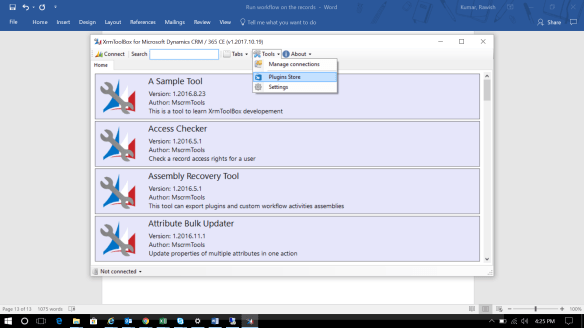
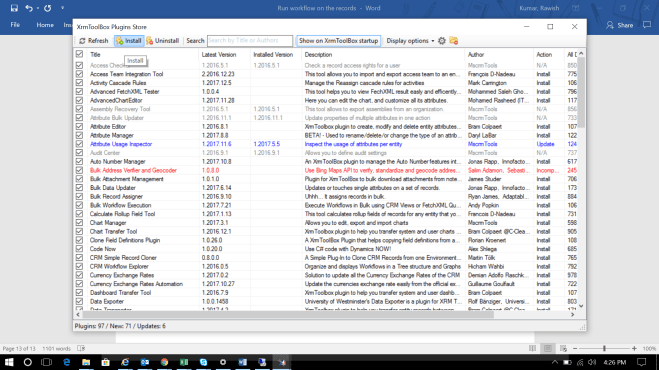
Now once you have this tool and extracted – you might not have the bulk workflow execution tool in it. you will have to go to plugin store from the xrm tool and add it as belowpluginstore

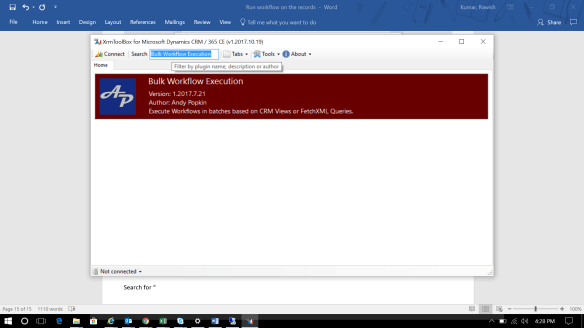
once you go there it will give you hell lot of plugins you have to look for “bulk workflow execution” plugin and install it as below :

installplugin

once this is done you should be able to search this tool in your XRMtoolbox :

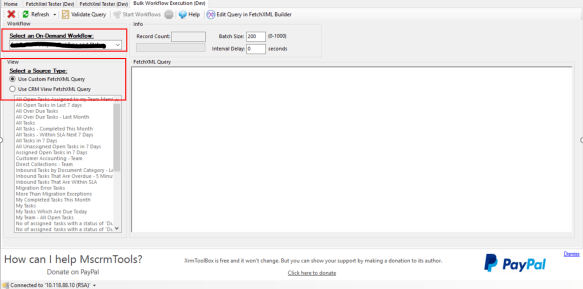
search&run

double click on it and get into action

  1. make sure your workflow is already is configured to run as ondemand
  2. all ondemand workflows in the organization will come under the dropdown i have highlighted.
  3. once you select the wofklow – it will give a list of all views from the entity which is a primary entity of the workflow. you can select the view and run your workflows on view returned records.
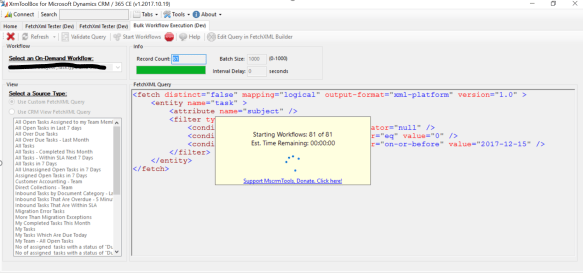
  4. you can also define your own custom fetch XML query ; which we will do now.

1

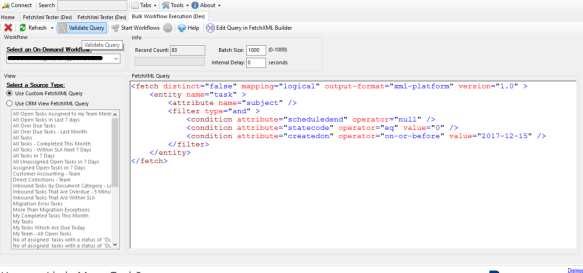
here i am using the below fetch XML as an example :

<fetch distinct=”false” mapping=”logical” output-format=”xml-platform” version=”1.0″ >

<entity name=”task” >

<attribute name=”subject” />

<filter type=”and” >

<condition attribute=”scheduledend” operator=”null” />

<condition attribute=”statecode” operator=”eq” value=”0″ />

<condition attribute=”createdon” operator=”on-or-before” value=”2017-12-15″ />

</filter>

</entity>

</fetch>

2

you can click on validate to validate your query ; once your query is confirmed you will have run workflow button enabled next to it and also will show how much record it has retrieved. click on the run workflow button and see the action :

3

it will work like a charm and will definitely save alot of your time.

i will be sharing more cool add-on in XrmToolBox because i am a fan of this tool ; so stay tuned.


cheers!