How to insert dynamic values from custom entities in an email template – Microsoft Dynamics CRM

if you work with email templates; you might have to create a template which is to be sent from a custom entity & hence you will need field values from that entity.

Now out of the box – CRM doesn’t provide you an option to populate the field values from a custom entity.

So lets dig in and understand ; how this can be done.

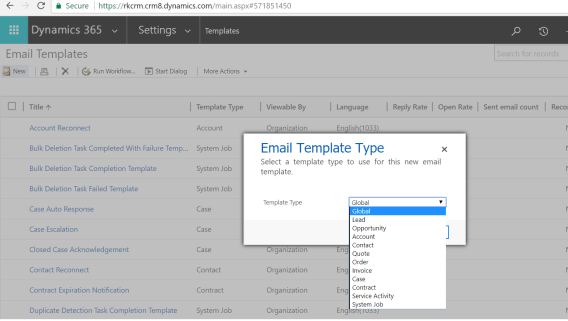
1.Go to Templates from CRM settings and click on email templates ; click on “new” & in the popup select template as “Global”:
1

now if you notice – CRM gives you templates for individual entities as well but since we need one for custom entity – we will have to select global.

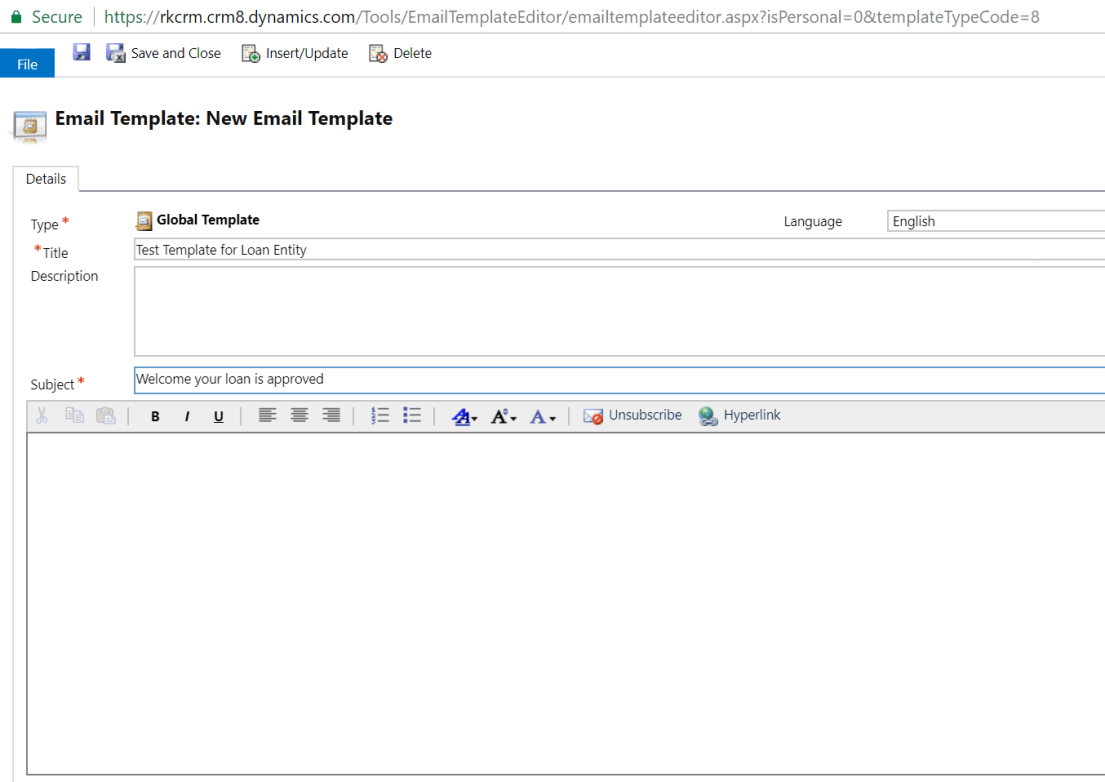
2. In the Template form, fill subject & Title.
2

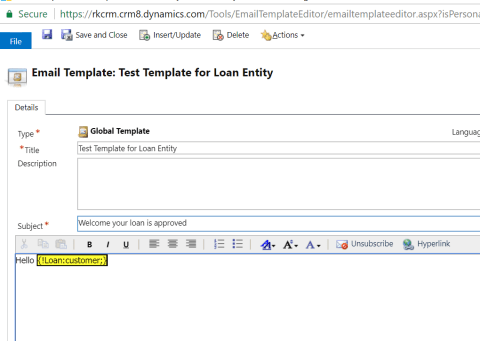
3.In this example – i have a custom entity Loan, i would like to send email from this entity using an email template with Loan amount and customer populated. Customer is a lookup so lets do it.

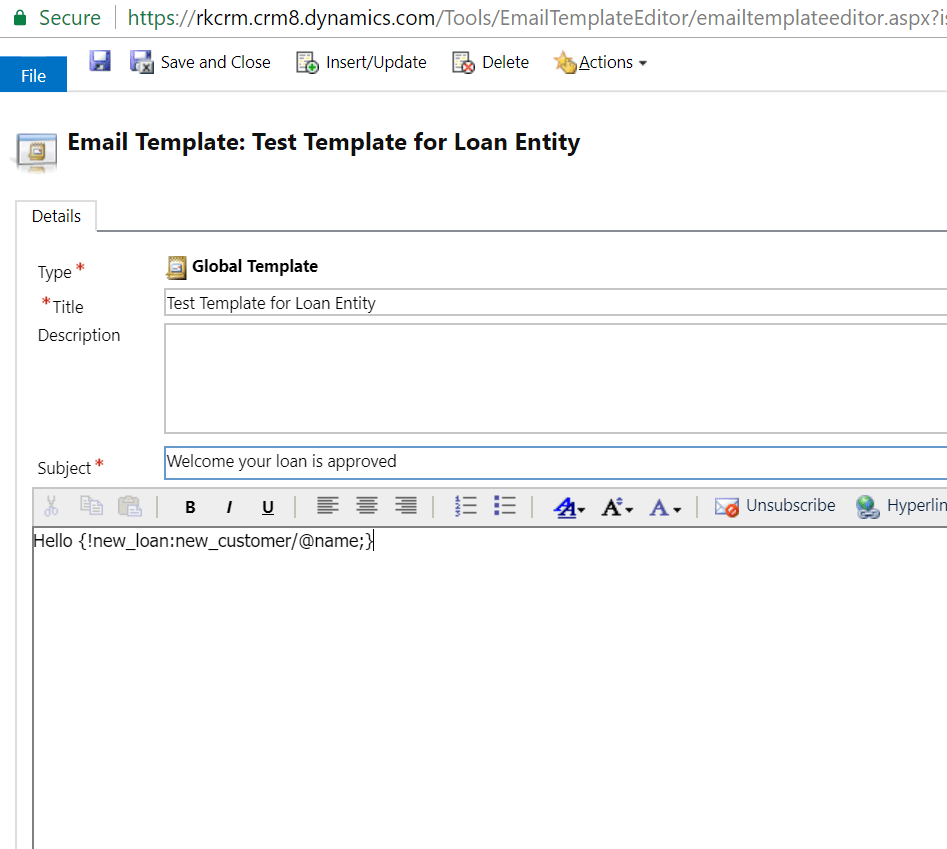
Standard format is : {!EntityLogicalName:FieldLogicalName;}

for lookup values ; you would want to retrieve the name so you have to do it like below :
3

4. Hit save and it will be resolved:

4.png

5. now lets retrieve the loan amount which is a currency field:
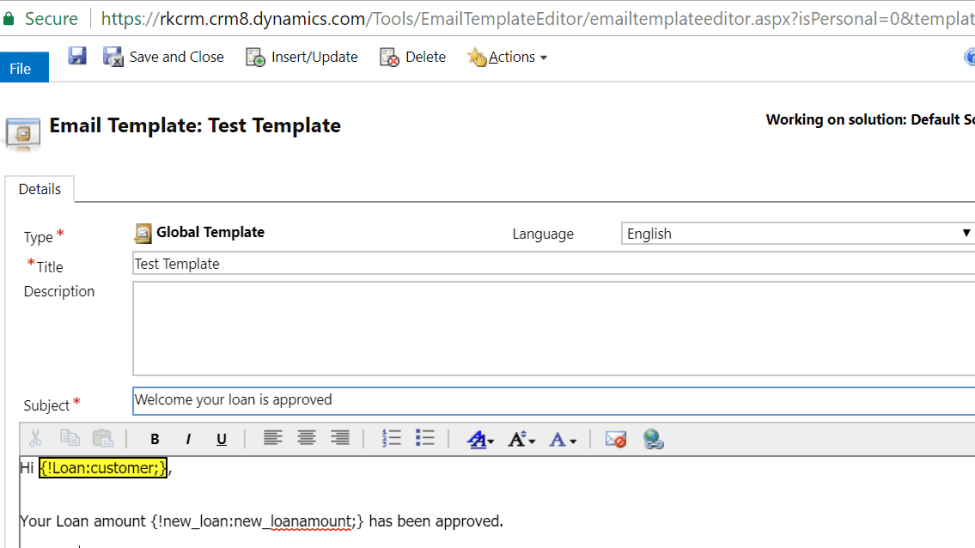
5

6. Hit save and see the how this resolves as well:
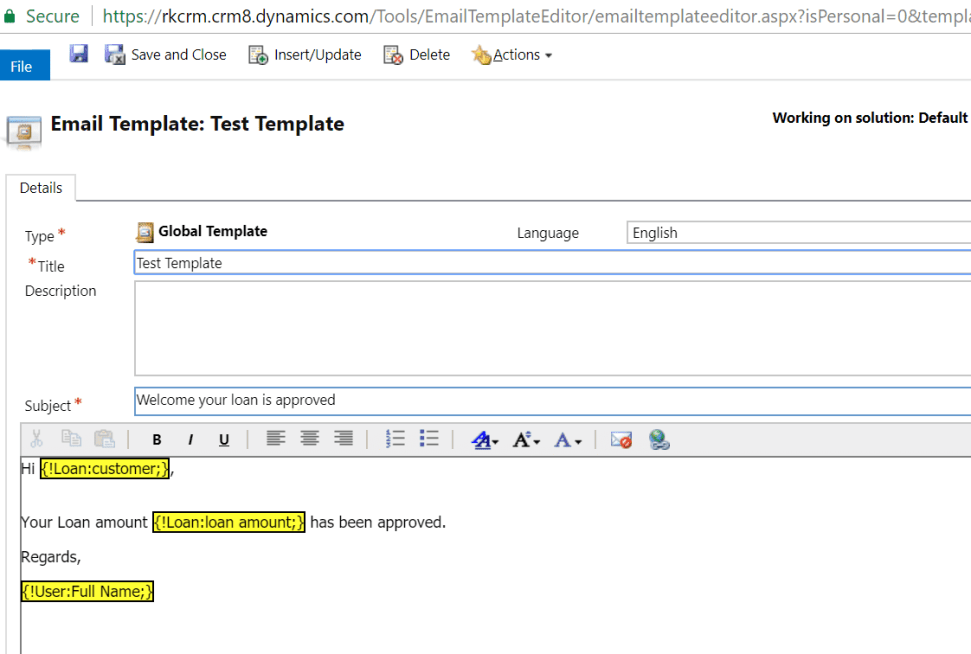
6

if you have noticed – i have also inserted the current user name from out of the box feature “insert/update” from top button.

Similarly, you can do this with other fields like below :

single line of text : {!EntityLogicalName: FieldLogicalName; Default Text}

Date :  {!new_loan:new_approvaldate/@date;}
Time : {!new_loan:new_approvaldate/@time;}

Lookup : as we did above

Optionset : {!new_loan:new_loantype/@name;}

7. Now lets see our template in action ; i will go the loan entity record and insert a template:
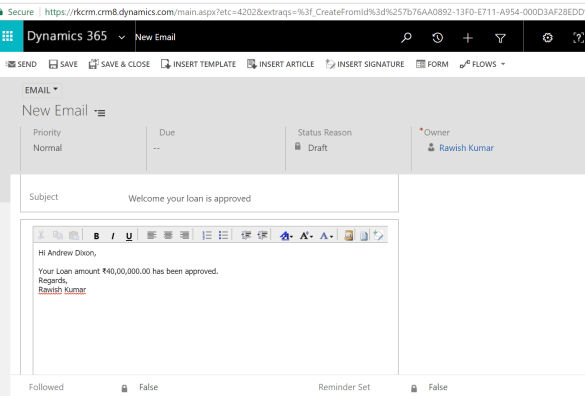
7

Yay! it worked like a charm.

so , that is how it is done. Let me know if you face any difficulties.

Cheers!!


Sample code to retrieve more than 5000 records using FetchXML in CRM

Fetch XML – fetch 5000+ record in plugin – blog by Nishant

Nishant Rana's avatarNishant Rana's Weblog

Hi,

Sharing a sample code to retrieve more than 5000 records using the Fetch XML.

Version 1 :

Version 2 :

Hope it helps..

View original post

Create a Gantt Chart in MS CRM

Nice blog by crm chart guy – made it look easy and simple.

Ulrik (CRM Chart Guy)'s avatarcrm chart guy

Until recently I thought that Gantt charts couldn’t be done in MS Dynamics CRM without turning to some serious development, which I found unfortunate because this is a popular type of chart and users find them easy to read. Turns out you can, and it’s not that difficult to create a simple Gantt Chart in MS CRM.

EDIT regarding CRM2011: This post relies on changing the aggregate of a date field to “min”, which seems to be exclusive for CRM2013. CRM2011 will give you an import error when you make that change to the xml. However, a reader has been kind enough to send me the details of how make it work for CRM2011. In the fetchxml you will need to remove the aggregate=”min” from each of the attributes, and also remove the groupby=”true” along with its corresponding alias in the categorycollection. Thank you Nils for sharing.

In this…

View original post 1,163 more words

Run On-Demand Workflows on bulk records using XrmToolBox – bulk workflow execution

Microsoft Dynamics CRM On-Demand workflows are great and help in so many ways/

you can easily run these on records such as 100 , 500, 1000 & may be on 2000? But wait… how about 10000 records? thats where it might become very hectic but with introduction of a new plugin/tool in XrmToolBox – it has become very easy. – thanks to Andy Popkin 🙂

All you have to do is download XRM toolbox from the main website or github :

https://www.xrmtoolbox.com/

https://github.com/MscrmTools/XrmToolBox

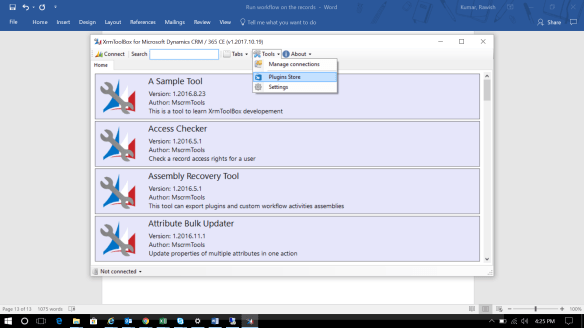
Now once you have this tool and extracted – you might not have the bulk workflow execution tool in it. you will have to go to plugin store from the xrm tool and add it as belowpluginstore

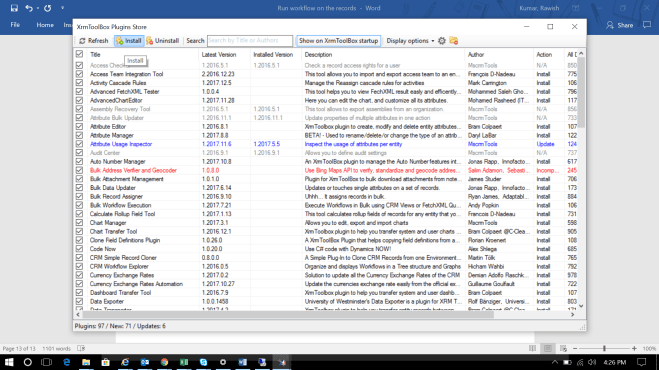
once you go there it will give you hell lot of plugins you have to look for “bulk workflow execution” plugin and install it as below :

installplugin

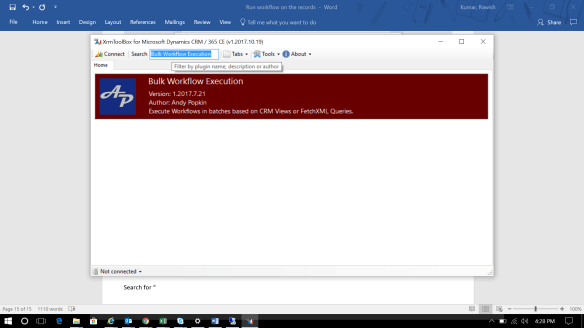
once this is done you should be able to search this tool in your XRMtoolbox :

search&run

double click on it and get into action

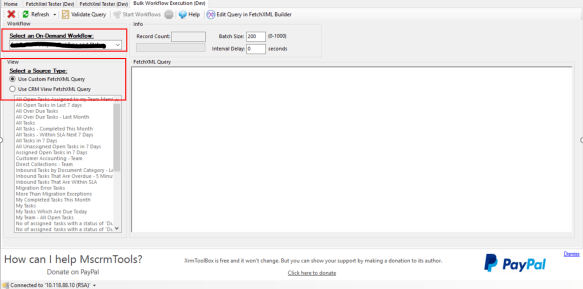
  1. make sure your workflow is already is configured to run as ondemand
  2. all ondemand workflows in the organization will come under the dropdown i have highlighted.
  3. once you select the wofklow – it will give a list of all views from the entity which is a primary entity of the workflow. you can select the view and run your workflows on view returned records.
  4. you can also define your own custom fetch XML query ; which we will do now.

1

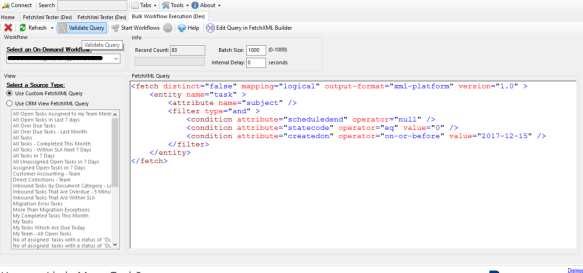
here i am using the below fetch XML as an example :

<fetch distinct=”false” mapping=”logical” output-format=”xml-platform” version=”1.0″ >

<entity name=”task” >

<attribute name=”subject” />

<filter type=”and” >

<condition attribute=”scheduledend” operator=”null” />

<condition attribute=”statecode” operator=”eq” value=”0″ />

<condition attribute=”createdon” operator=”on-or-before” value=”2017-12-15″ />

</filter>

</entity>

</fetch>

2

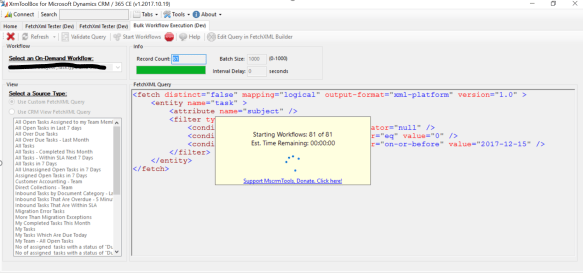
you can click on validate to validate your query ; once your query is confirmed you will have run workflow button enabled next to it and also will show how much record it has retrieved. click on the run workflow button and see the action :

3

it will work like a charm and will definitely save alot of your time.

i will be sharing more cool add-on in XrmToolBox because i am a fan of this tool ; so stay tuned.


cheers!


Escape from waiting condition workflows – Microsoft Dynamics CRM

Waiting condition workflows are definitely great and almost perfect for the functionality where you have to wait for months for something to be triggered.

but are they really good ; should actually keeping them alive for months is a good idea? Well there are certain measures that you can take if you really need them :

  • Combine waits and check condition. So you have a process that emails a customer service representative three days after the case is open. No need to email them if the case has been closed, right? After the wait, have the workflow check conditions to verify that the condition that triggered the workflow is still true. If not, cancel , but stop it.
  • Use a child workflow to do something when wait time is over.
  • Use short wait periods. 20  minute waits are ok. 1 year waits are bad.
  • Use timeouts rather then wait condition.


however apart from the above there is another way which can be effective in terms of your organization performance.

Create an entity to keep the crucial date or timestamps on which you want to do something.

  1. create an entity(workflow task) , with fields as “regarding” & “Due date”.
  2. In your workflow – if you need to do something for example 20 days before the expiration date – calculate that date and create a a new record for the entity created(workflow task) with regarding as the current record and the date in due date field.
  3. Stop your workflow – just end it right there.
  4. Create a bulk delete job -that you should run everyday which checks for the records who’s due date is today and delete them.
  5. Create a workflow on the new entity created(workflow task) – run it on deletion of the record and do the actual things you wanted to on your record from that workflow for example closing the activity , sending email etc.


Best thing about this approach this that you can continue using this logic in your organization with n number of records & entities.


let me know your thoughts on this.

Cheers !

The CRM Mailbox incoming and outgoing email field is setting to “None” Microsoft Dynamics CRM 2016

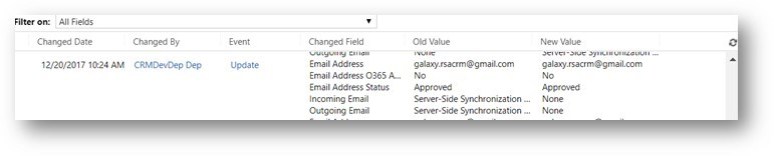
I had a strange issue in production ,so whenever we were doing a deployment ( reference data +solution). After the deployment the mailbox settings incoming email and outgoing is getting set to “None” rather then “Server – side synchronous or email router”.

After performing multiple steps/deployments; I  found the solution to this issue.

I use migration utility tool to export and import the reference data.

Please see below steps:

  1. Removed the default mailbox field from the queues schema, exported the data and deployed to internal test. However it didn’t work and still was taking the incoming outgoing setting from dev; hence made it none again. <field displayname=”Mailbox” name=”defaultmailbox” type=”entityreference” lookupType=”mailbox” />


1

2. Then I started looking these two fields (incoming and outgoing email) in the schema and found below :

<field name=”incomingemaildeliverymethod” value=”0″ />

<field name=”outgoingemaildeliverymethod” value=”0″ />


I removed these two properties and I could see it was excluded from the mailbox update.

2

moral of the story : queue will have so many fields dedicated for its mailbox. we have to make sure what will update what.

hope this helps

cheers!!

Microsoft Dynamics CRM 2016/2015/2013- Dynamic and Static Marketing List

This has been a most population concept in marketing module of CRM ; i would like to share some crucial difference between them:

Dynamic marketing lists is able to save time and ensured that everyone that should be on the list was on the list.

A Static marketing list is a snapshot in time. You add the contacts you want in that marketing list depending on certain criteria…and that was it. If a new contact is added to the CRM database you can manually add them to the marketing list, or if the marketing list is no longer relevant to a contact you can manually remove them.

Dynamic marketing lists removes the manual element. You can create a query (e.g. all customers where their country equals Ireland). This means that any contacts with “Country = Ireland” will be added to the list. As you add new contacts to the CRM database, they will automatically be added to the marketing list if they live in Ireland. If a contact moves and the Country field in the contact card is updated, then they will be automatically removed from the marketing list.


Some other major differences below :

Dynamic List Static List
Member types Leads, Contacts or Accounts Leads, Contacts or Accounts
Adding members The query to select members automatically adds records which meet the criteria You can manually add records using the Add to Marketing List button
Manage Members – Add records using a lookup
Manage Members – Add records using an advanced find
Removing members Members are automatically removed if they no longer meet the dynamic list query criteria Manage Members – Advanced find to Remove records
Manage Members – advanced find to evaluate members
Blocked attribute You cannot block a dynamic list (you can use the copy to static button to copy the members of a dynamic list to a new static marketing list) You can block a static list, which stops members being added or deleted.
Updating list members automatic Manual – a static list has to be updated manually.
deactivated records/members Automatically excluded from the list
Can lists be added to a campaign Yes – All marketing lists can be added to a campaign and both static and dynamic can be added to the same campaign Yes – All marketing lists can be added to a campaign and both static and dynamic can be added to the same campaign


Happy CRM 🙂 cheers!!

Microsoft Dynamics CRM Import Error 0x80040237: Cannot insert duplicate key

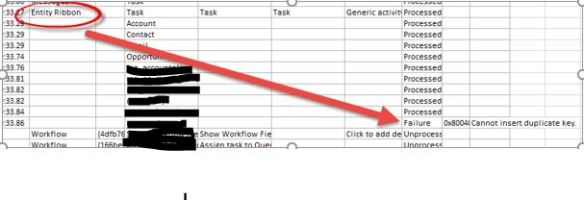
When looking at the import log, check whether the error occurred below the “Entity Ribbon” Item Type:

error import

If this is the case, the most likely cause is duplicate or corrupt CustomControlDefaultConfigs. These are the control configurations that you can add as part of the CRM 2016 new features.  Some forums indicate that there are bugs in CRM for transporting these records which were fixed in SP1, Service Update 5. In the meanwhile the easiest workaround identified so far is to delete from source environment the CustomControlDefaultConfigs following these steps:

  1. Identify which entity caused the failure. For example, from the screenshot above we can see the failure comes from the particular entity.
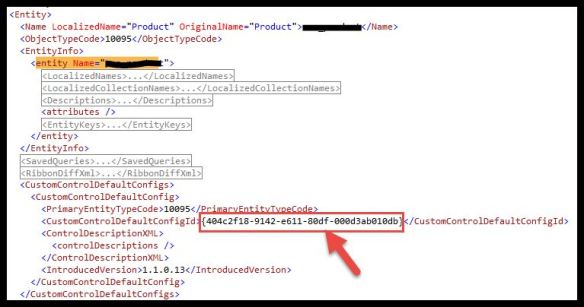
  2. Open the solution customizations.xml file and find the problematic entity. Under that entity find the CustomControlDefaultConfigs node and extract the Guid(s) of the default CustomControlDefaultConfigId:xmlnew
  3. Now delete from the source environment this record. This cannot be done via UI unfortunately so it must be done using the API. Below is an example line of code on how to achieve this:

service.Delete(CustomControlDefaultConfig.EntityLogicalName, new Guid(“404c2f18-9142-e611-80df-000d3ab010db”));

  1. Publish all customizations in source environment
  2. Verify in database of source environment that the record is deleted. This line should return no values (replace with the appropriate GUID):

select * from CustomControlDefaultConfig where CustomControlDefaultConfigId = ‘404c2f18-9142-e611-80df-000d3ab010db’


  1. Re-export the solution and import again.


Hope this helps!

Cheers!

Microsoft Dynamics CRM form on load error with or without javascript

Users Sometimes experience an error while opening a contact/any entity. Its an intermittent error and not reproducible all the time and for all users.

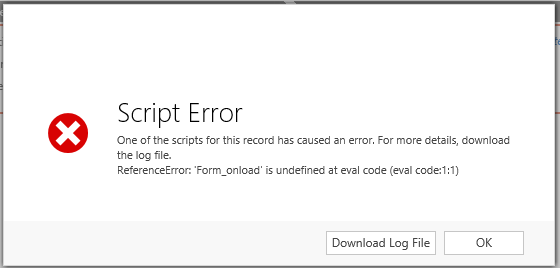
Error looks like this in Dynamics CRM UI :

1300.j1.png-600x600


When you download the error logs ; below is found:

TypeError: Cannot read property ‘form_onload’ of undefined

    at eval (eval at RunHandlerInternal (http://organization/form/ClientApiWrapper.aspx?ver=2115568044:153:1), <anonymous>:1:42)

    at RunHandlerInternal (http://organization/form/ClientApiWrapper.aspx?ver=2115568044:158:1)

    at RunHandlers (http://organization/form/ClientApiWrapper.aspx?ver=2115568044:117:1)

    at OnScriptTagLoaded (http://organization/form/ClientApiWrapper.aspx?ver=21


Resolution:

I created a solution, added the contact entity with forms and exported the solution. Opened the customization XML and found below.

The error has to do with InternalHandlers that is calling a library and a function form_onload  which is somehow attached to this event Hence I had commented out the below InternalHandler property.


<event name=”onload” application=”true” active=”true”>

<!–<InternalHandlers>

                    <Handler functionName=”Mscrm.ContactMainSystemLibraryWebResource.form_onload” libraryName=”Contact_main_system_library.js” handlerUniqueId=”4ea24ebd-795d-434e-af94-6812c3867b54″ enabled=”true” />

                  </InternalHandlers> –>

<Handlers>

<Handler functionName=”custom function” libraryName=”contact.js” handlerUniqueId=”{a2a97e43-583d-a4be-3dcb-2369a34a4193}” enabled=”true” parameters=”” passExecutionContext=”false” />

</Handlers>

</event>


Saved the customization.xml file and zipped the solution; imported back to CRM.

Hope this helps!

Cheers

How to setup a mock service in SOAP UI. See CRM output XML. Integration Plugins Microsoft Dynamics CRM 2016/2015/2013

During my Career in CRM dynamics, I have struggled a lot when it comes to seeing what is going out of CRM so that it can be used to investigate things.

Especially the people who involve in a lot of triaging of issues & developing integration plugins and needs to validate it.

prerequisites:

  1. WSDL of the target service.
  2. SOAP UI(any version would work)
  3. Up and running server where you have SOAP UI installed.

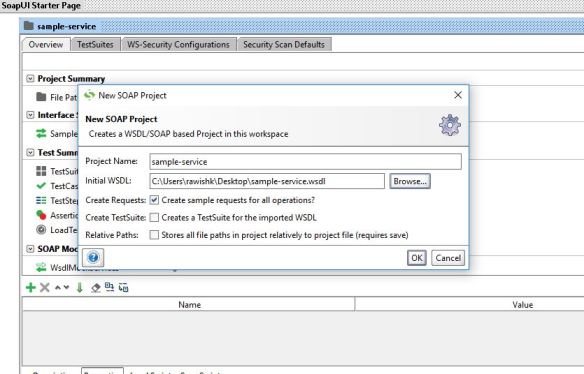
Open SOAP UI and create a new project:

wsdlBrowse to the WSDL and click okay.

now it’s time to generate a mock service:

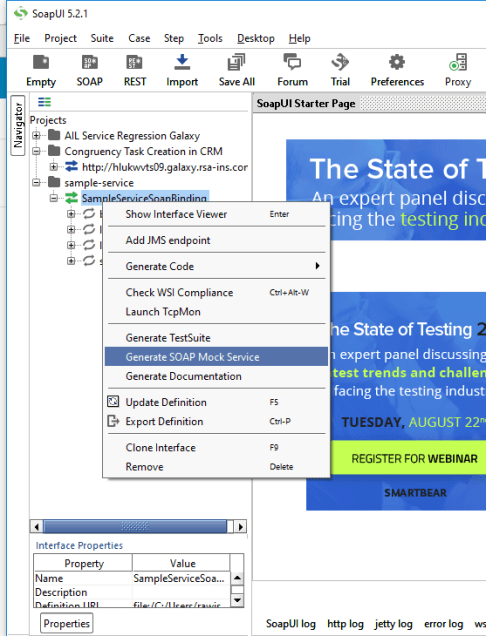
once you have imported the WSDL it will show all the services it contains.You have to select the one you want a mock service for. and then right click on it and say generate mock service like below:

generate mock

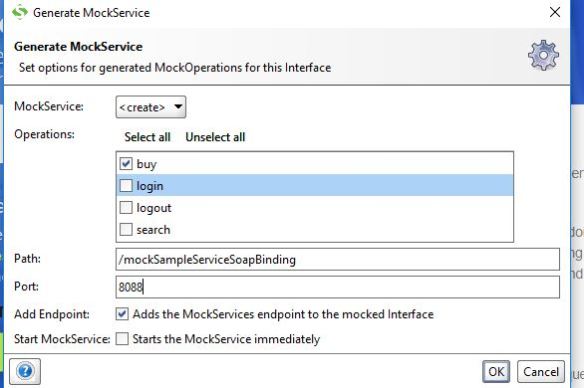
once you do that it will give you the list of operations and the path of the mock service.

Verify the same and click okay:

mock

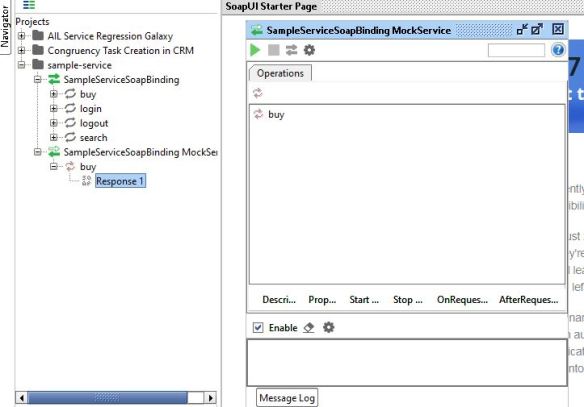
here you go your mock service is ready:

runservice

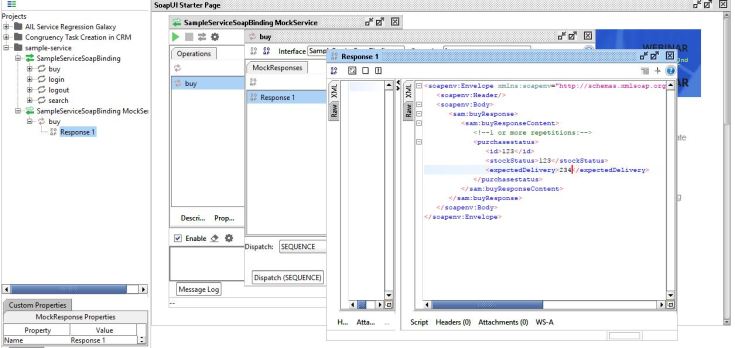
Now you might have to modify the response you are getting from mock service to do that double click on the service (e.g here “buy”) than on the response add whataver you need.

close the box. click on the green button to run this service.addresponse

now in order for your CRM to reach to this service you have to configure this end point. either in your config file or if you read it from a custom entity in CRM.

now the endpoint would be the combination of your server address for.e.g.

10.112.22.10:PortNumber/MockServicePath.

you can get the mock service Path from the custom properties box on the left bottom.side.

side.

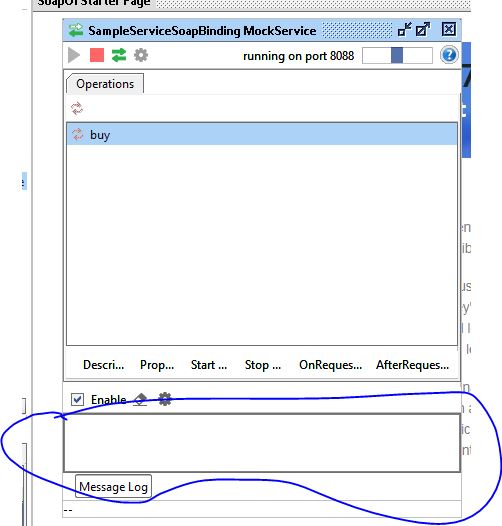
once you do that all you have to do is to trigger the action and once you do that you have the request coming in the mock service in the below section:

request.JPG

double click on that than on the option format XML to see the XML you need.


Hope it helps.

Cheers!