Unknown's avatar

About Rawish Kumar Prajapati

Microsoft Dynamics CRM Consultant MCSE : Microsoft Business Application

MB2-877 MICROSOFT DYNAMICS 365 FOR FIELD SERVICE MODULE 2 TOPIC – Create and manage work orders

This is the 8th blog of this series, before this I have created last blog from module 2 on the topic “Describe the work order lifecycle”  which you can check here :MB2-877 MICROSOFT DYNAMICS 365 FOR FIELD SERVICE MODULE 2 TOPIC – DESCRIBE THE WORK ORDER LIFECYCLE

In this blog we are going to cover the second topic  “Create and manage work orders” from module 2:

  1. Create work order from an incident

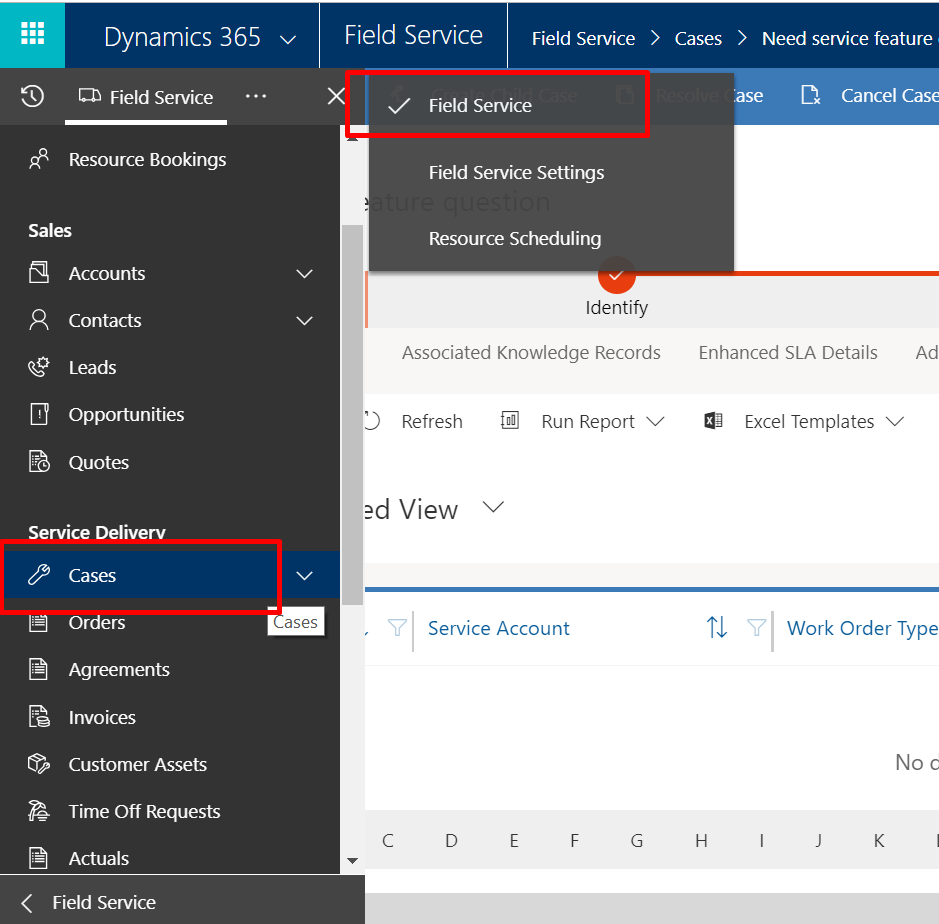
    We have already learned that a work order can be added from a case or an opportunity. To add a work order from case, go from Field Service > Field Service > Case:
    select an existing case or create a new one and click on tab “Related” > Work order :
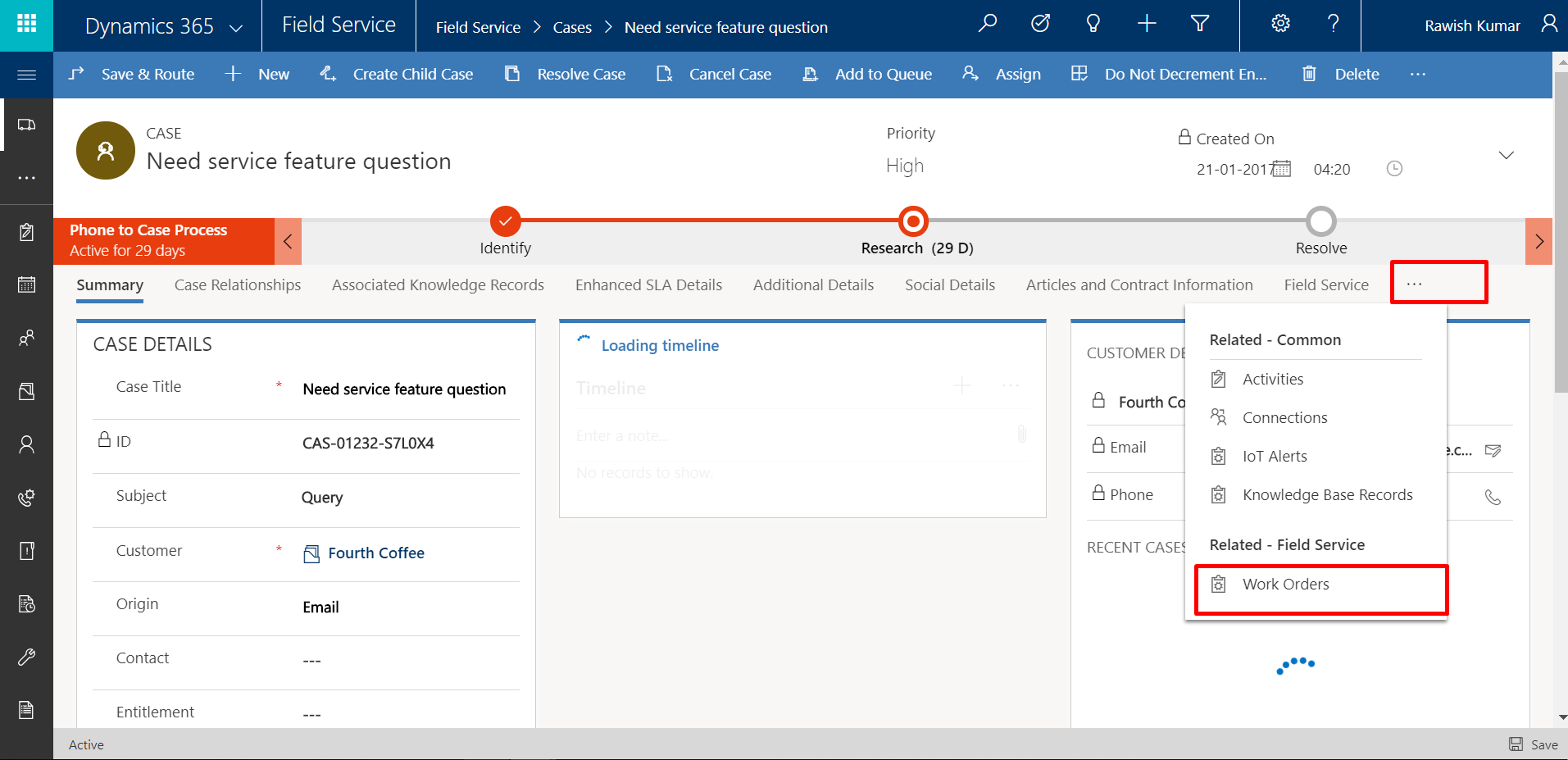
    Then click on “Add new work order” . A side screen will open, fill out the details and click on save & close:
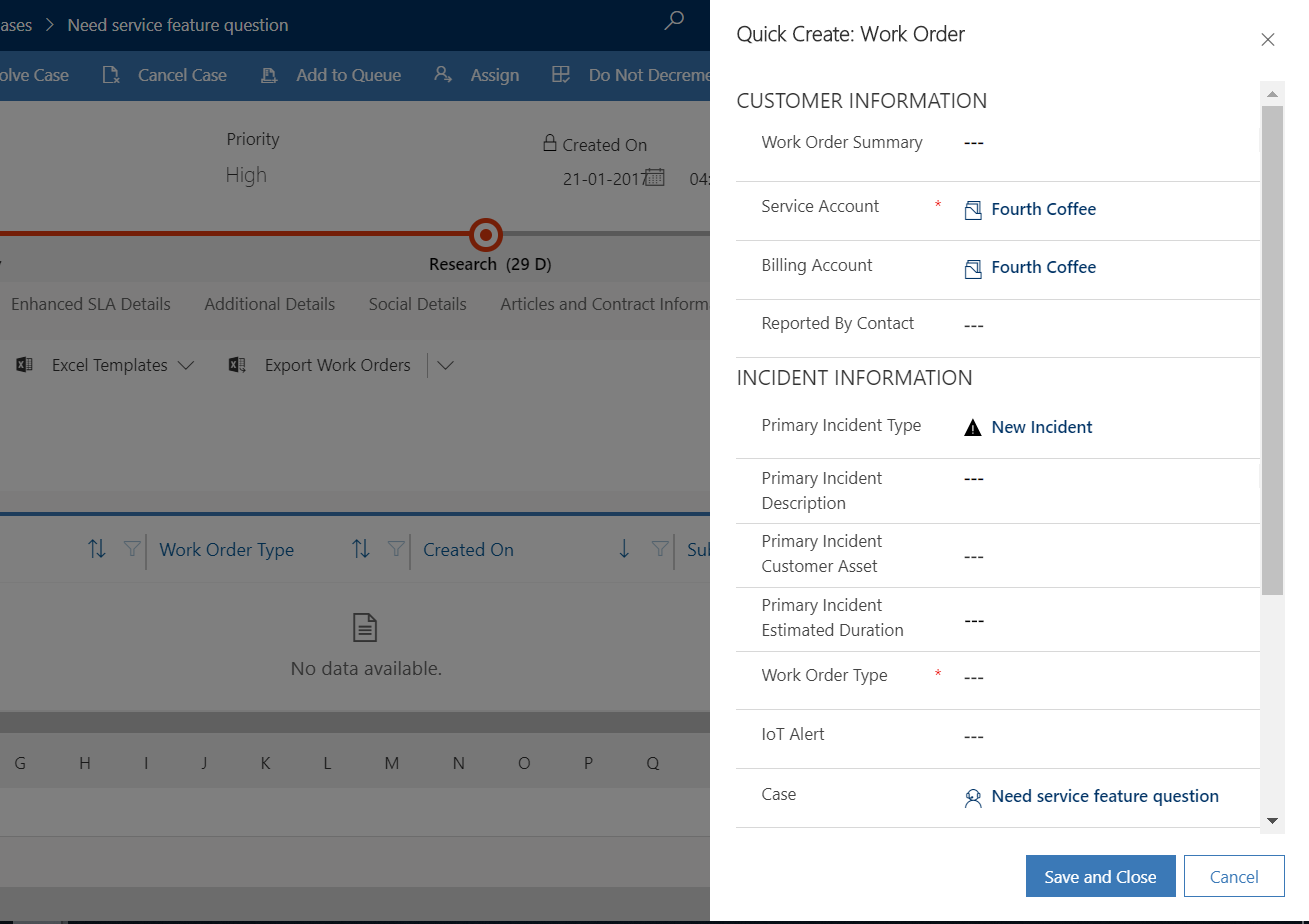
     

  2. Add status and substatus information to a work order

    There are system predefined statuses are available that you can associate with a work which are as below:
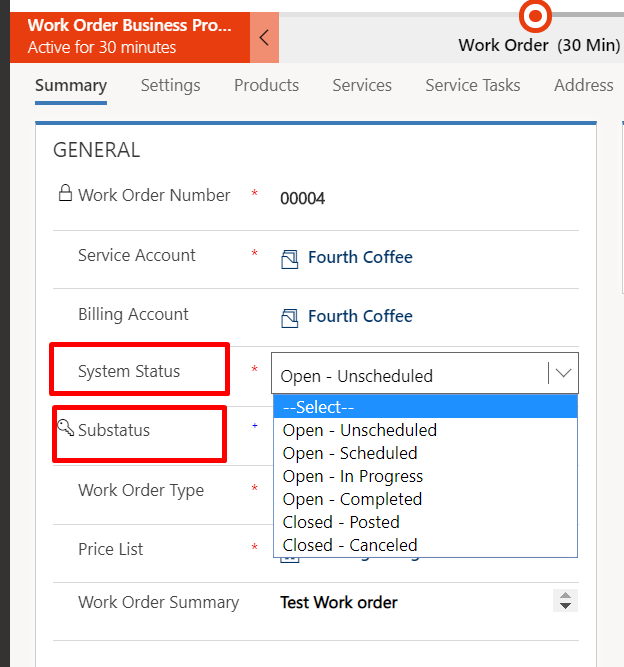
    now these system statuses can have sub-statuses associated with them.
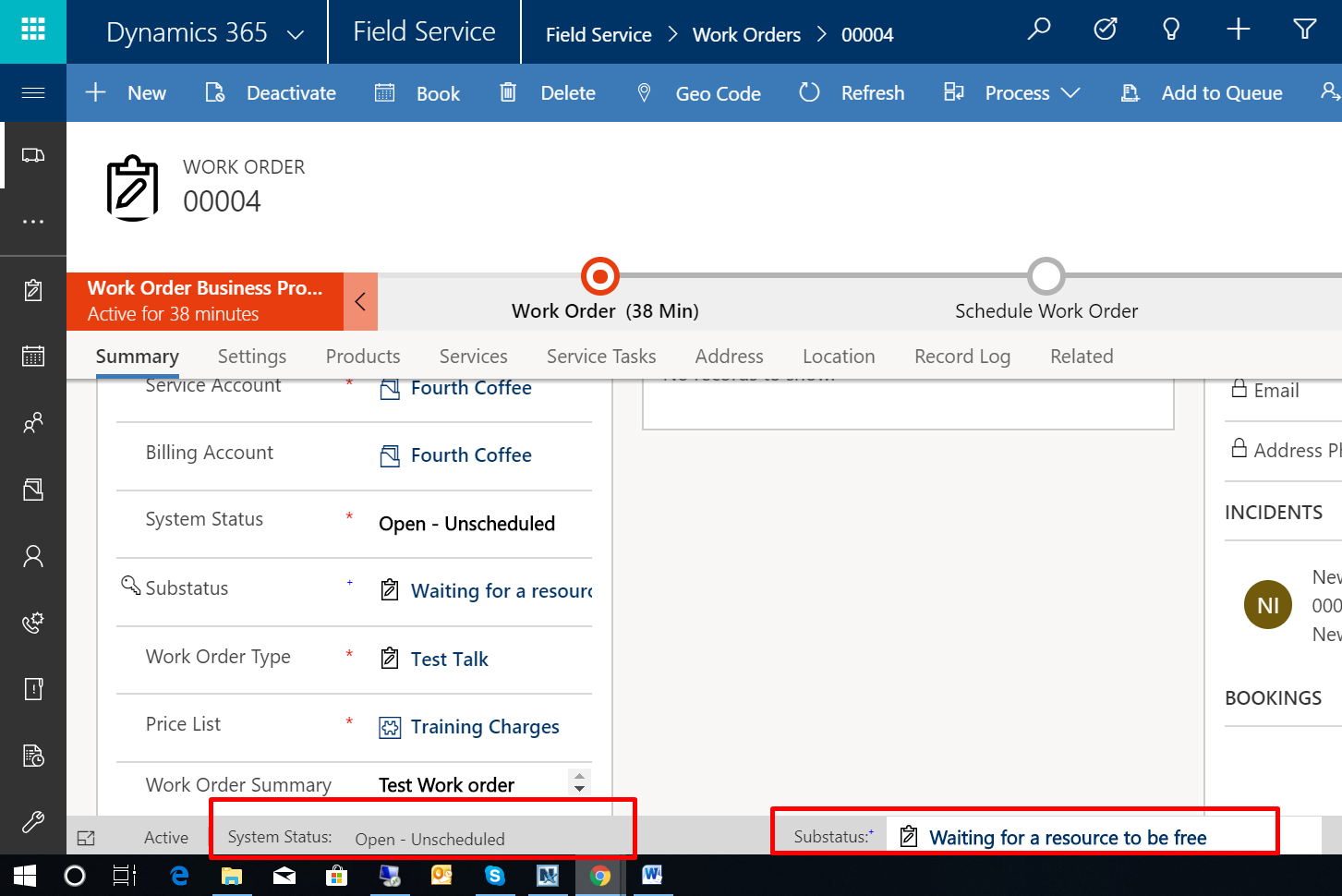
    for i.e under open – scheduled you can have ” waiting for the manager approval” or ” resource not available at the moment” etc.

    Now when you add a sub status and save a work order – it is clearly visible in the footer out of the box:
     

  3. Configure work order type and priority

         A. Work Order Type

    Work Order Type is an option of categorization of work orders such as “Maintenance” , “Repair”, “Training” etc.

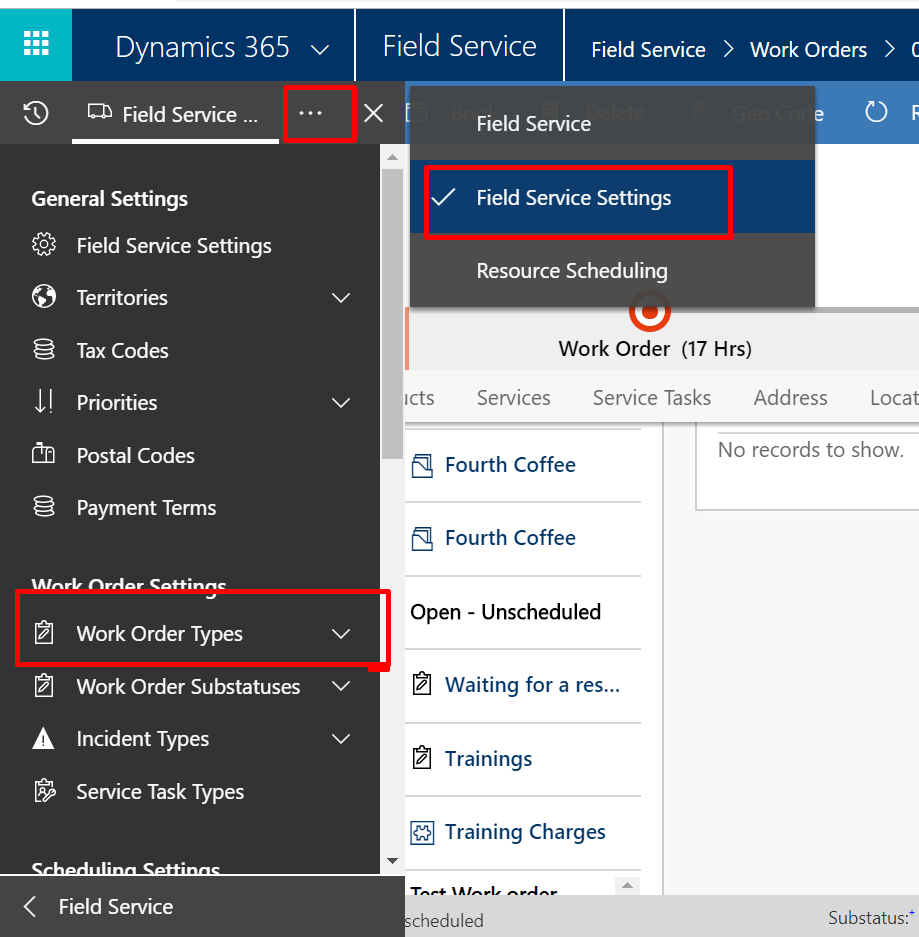
    To define a work order go from field service > field service settings > work order types and click on new :
    Add required field such as incident required , associate a price list :
    The main point here is when you add this work order type to a work order , the price list you add here , that gets added by default on the work order:
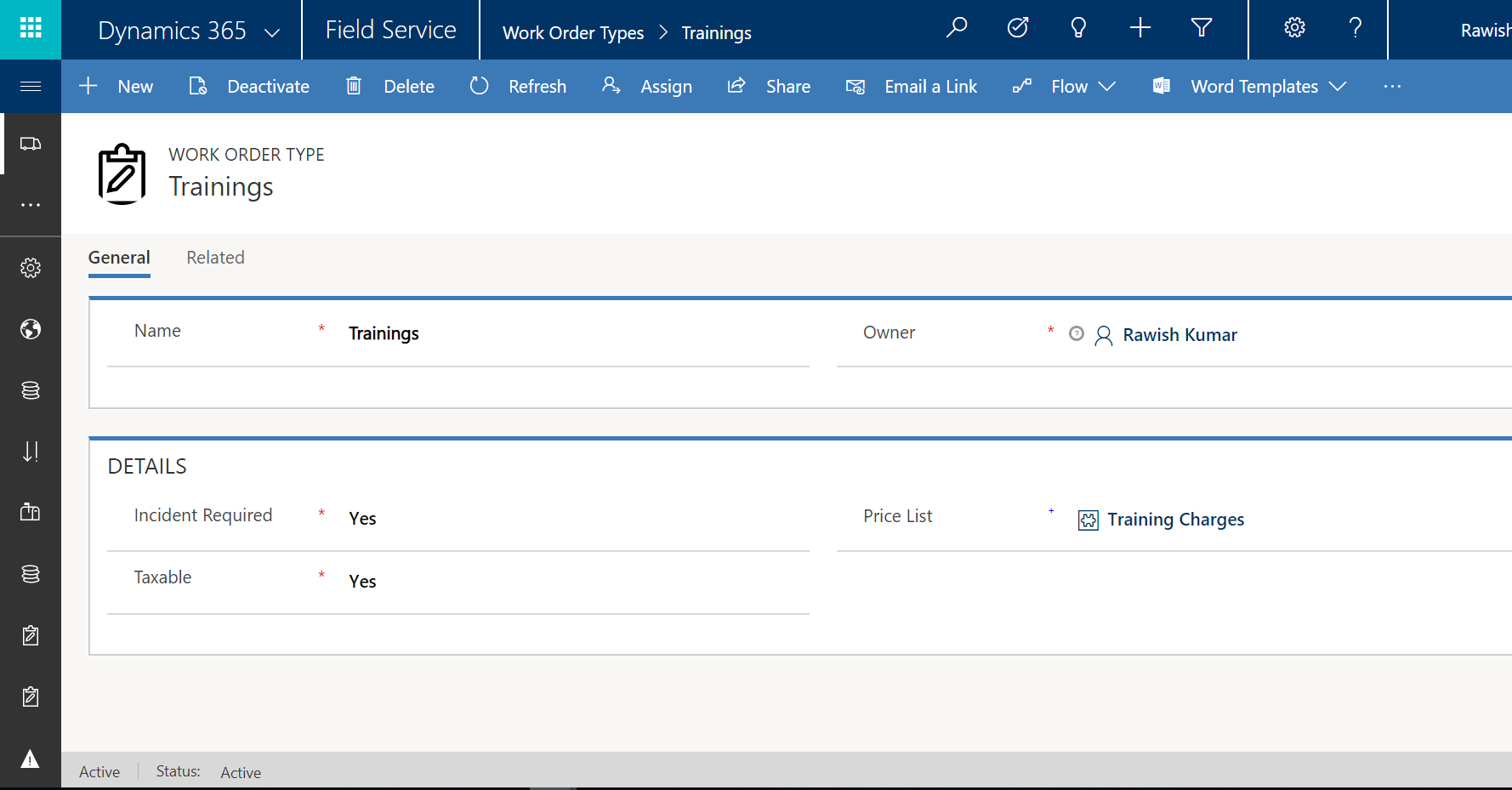
    Then you can associate this with a work order and notice when you do that the price list associated on work order type gets added to the work and becomes a default price list , however you have option to overwrite it.
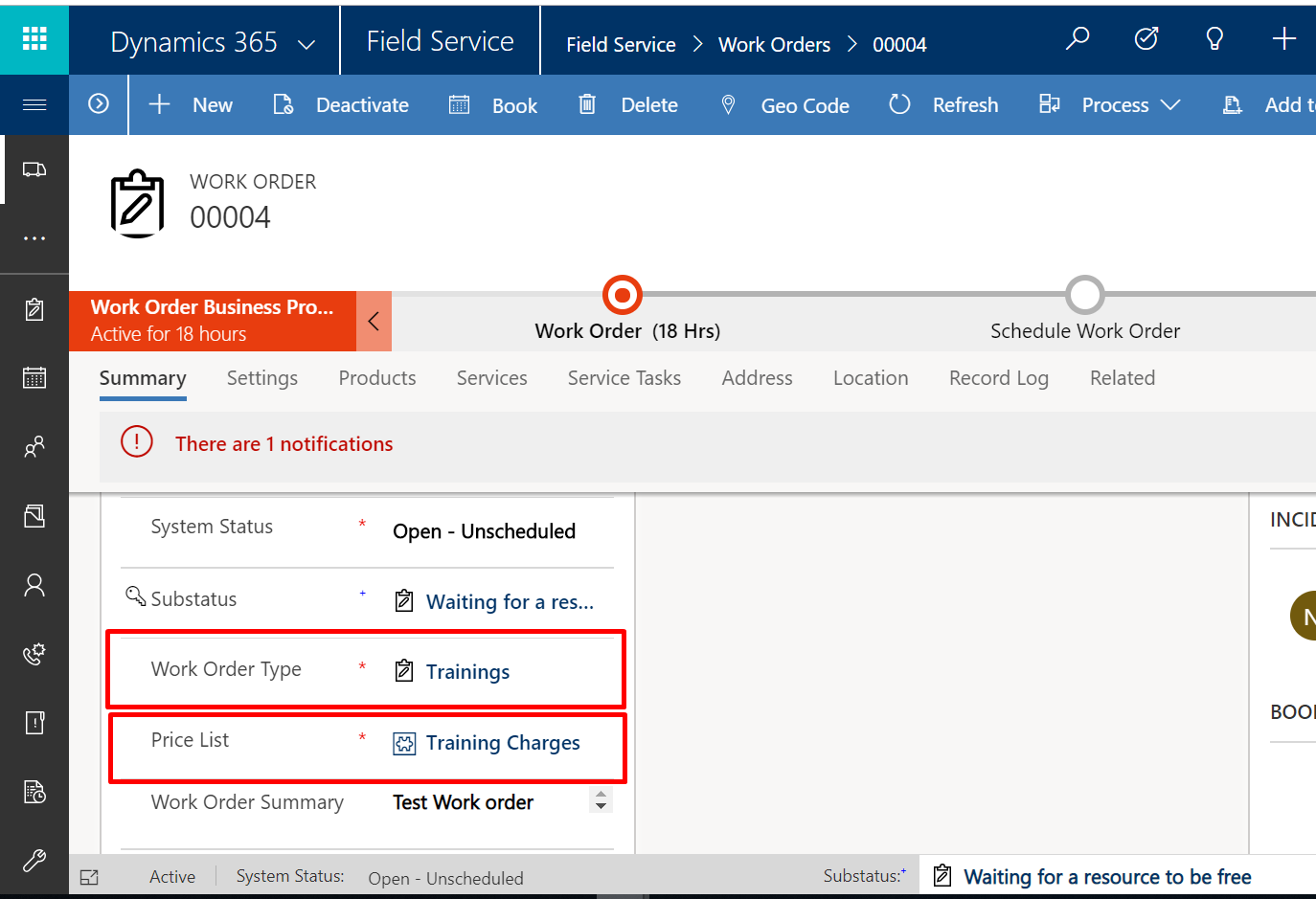
        B. Priorities

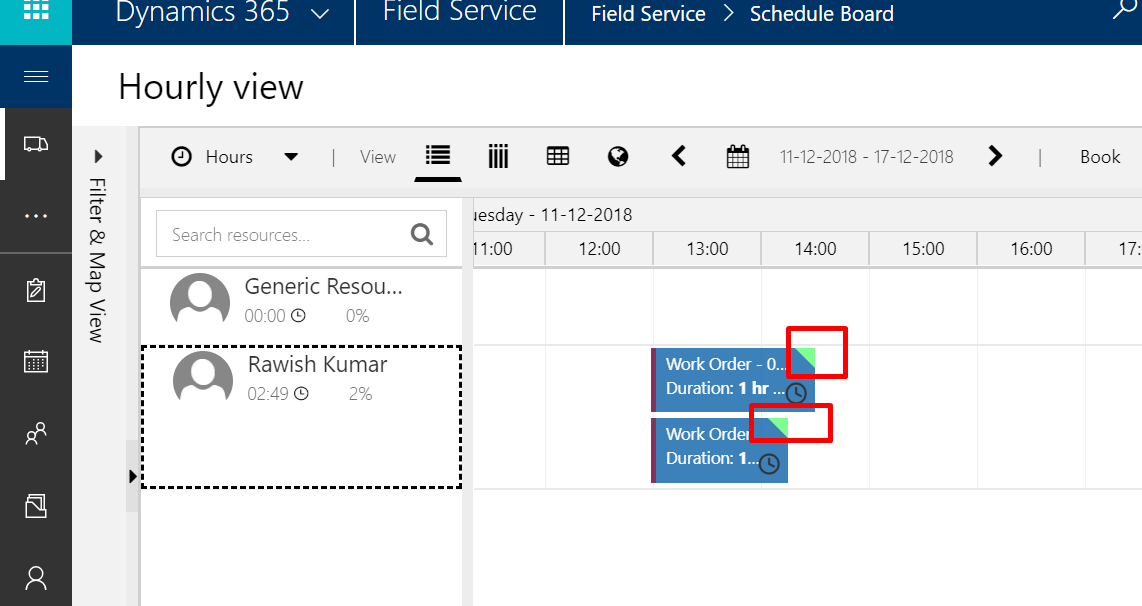
    Priority records let you prioritize your work orders. You can also assign each priority value a custom color, which will display in the outline of the resource booking time slot on the schedule board. This allows dispatchers to visually distinguish a job’s priority while managing the schedule.

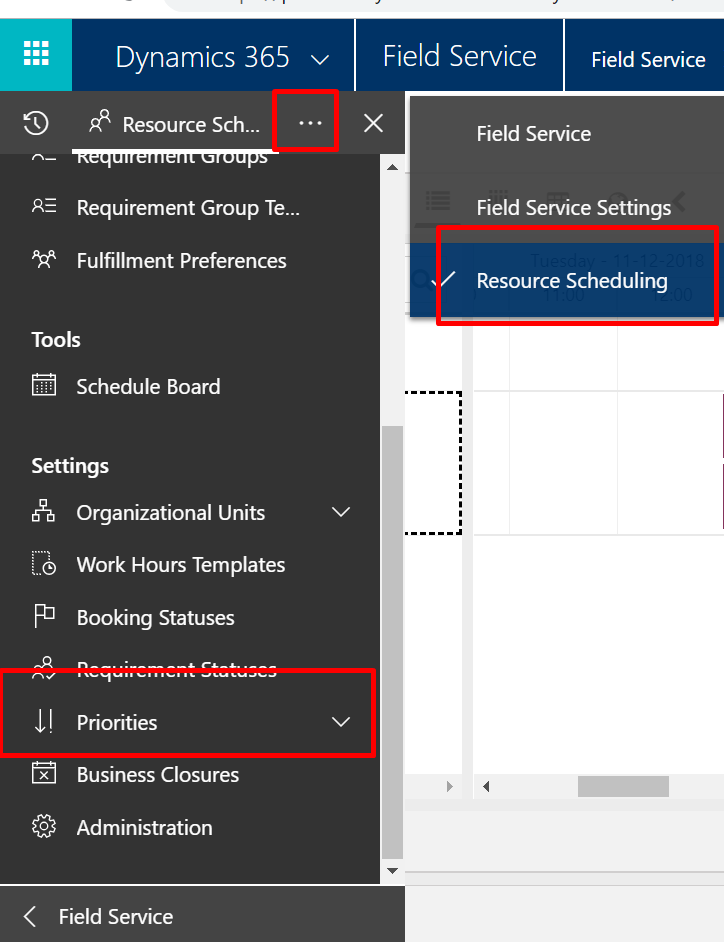
    To create priorities for your field service work orders , go from field service >  Resource Scheduling and click on Priorities :
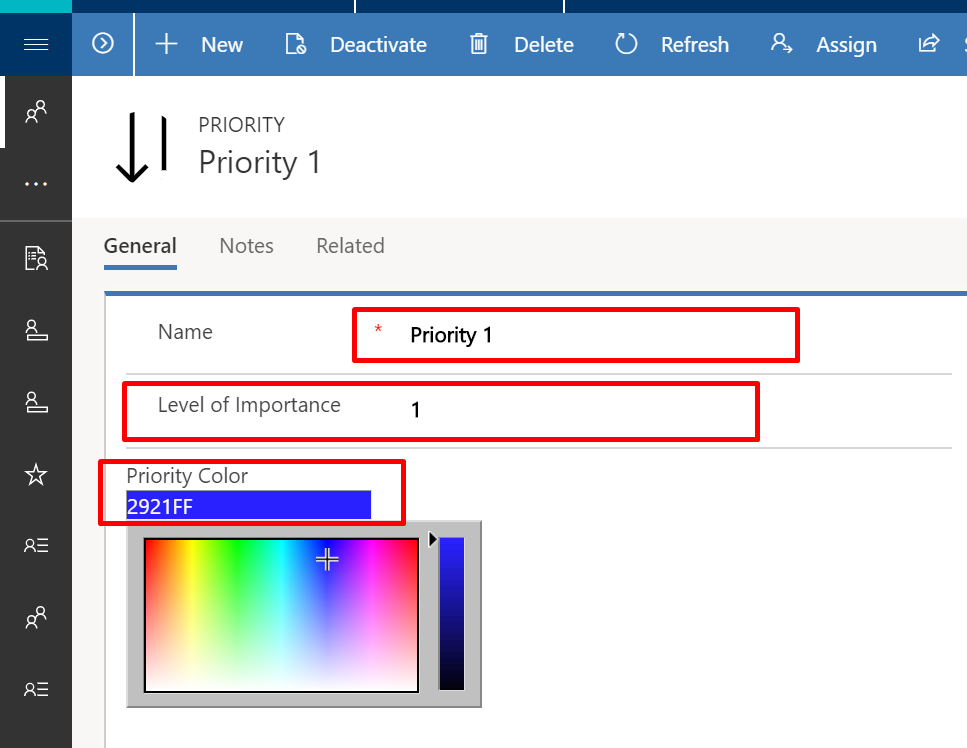
    click on  add new priority and give it a name and select level of important select 1 for the top priority and 2,3,4… for the lower ones subsequently :
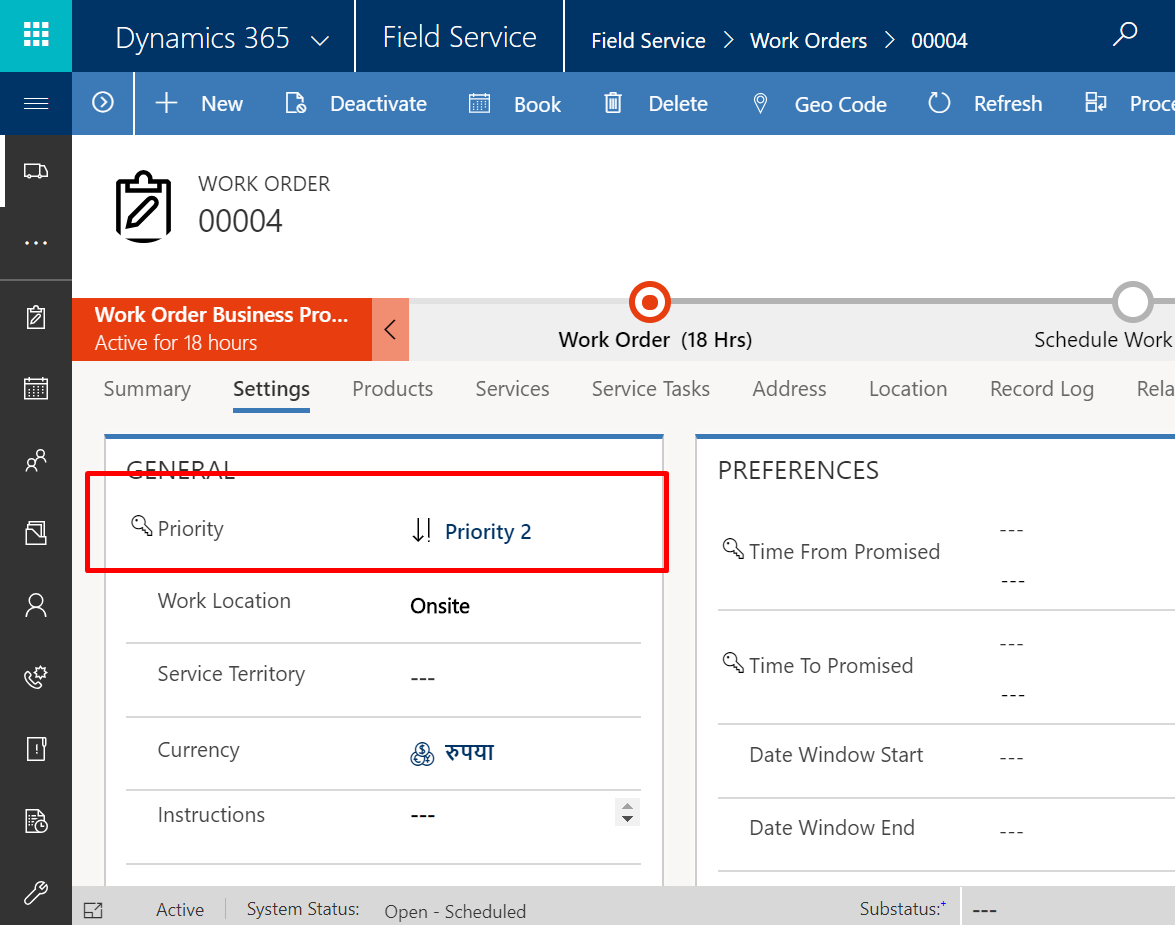
    Late this can be assigned to work order on the work order setting tab:
    this can be seen on the scheduled board with colour representing the priority, in below the green colour represents the priority of the work order :
  4. Organize work orders and resource by geography

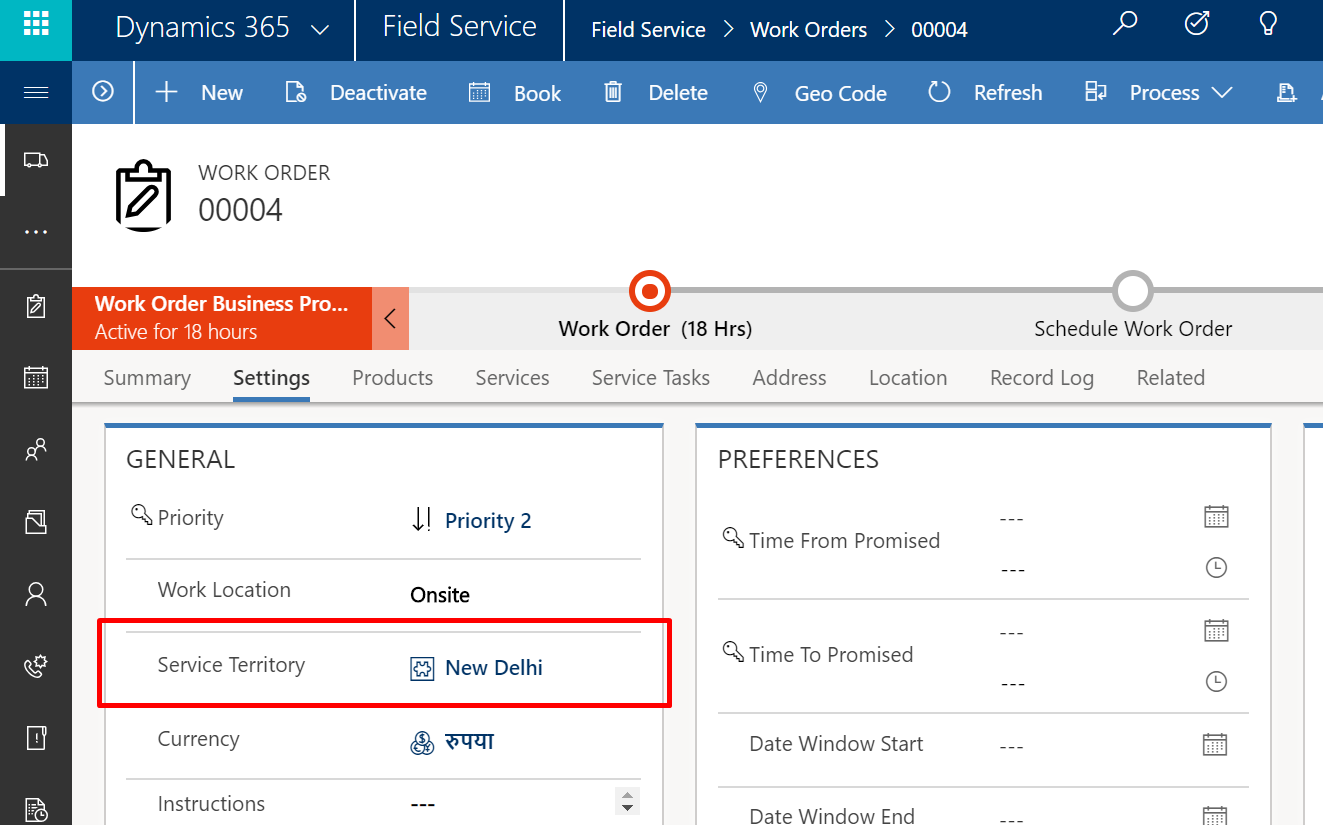
    A Service territory  helps Organize Work Orders and resources by geographical area. 
    In this blog here : Configure Additional Options ,  I have followed an approach to create a territory and assigned that to a resource , you can also associate this territory to a work order’s Settings tab :
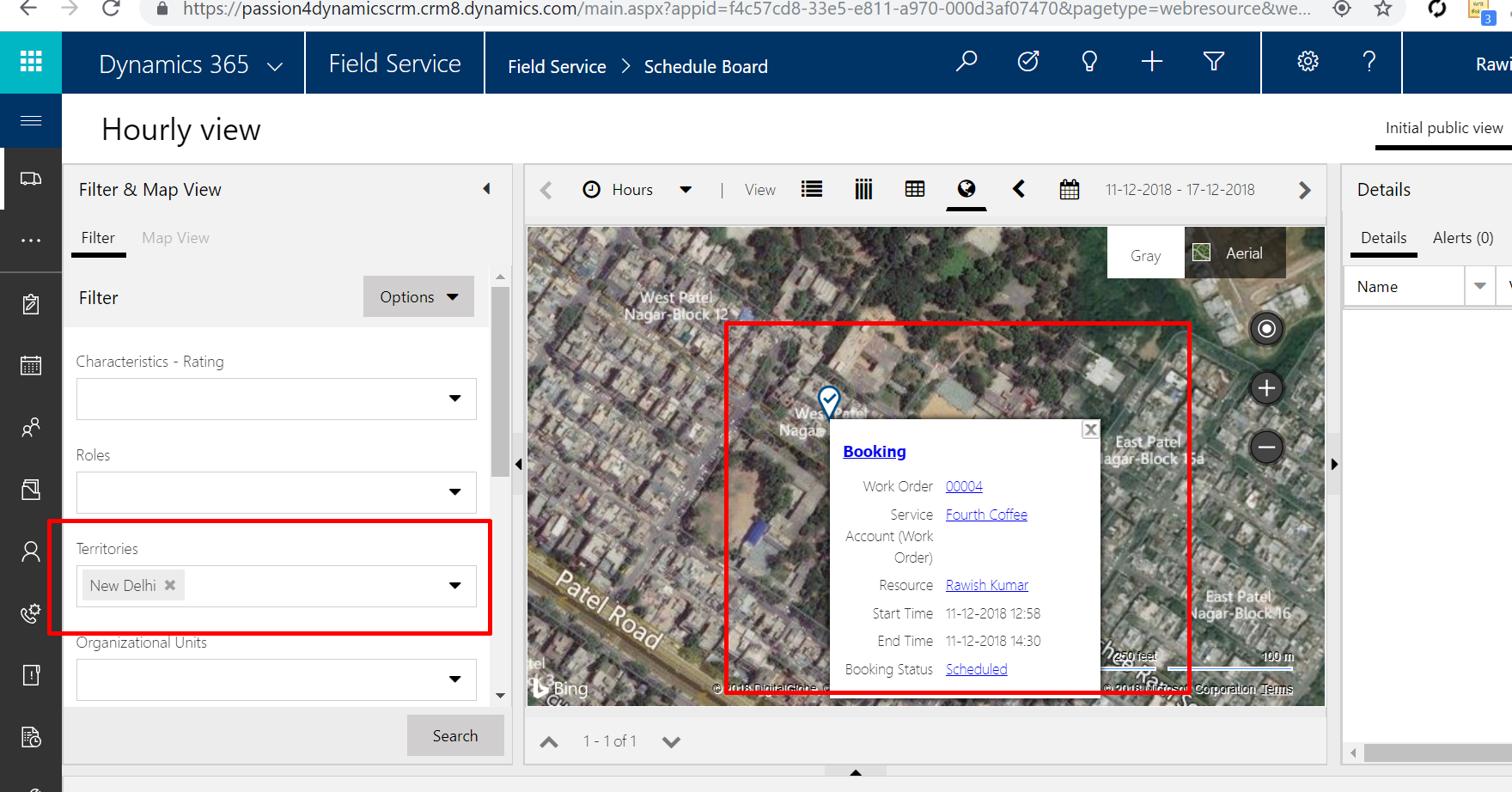
    Which then can easily be located on the map view by adding the territory filter:
     

  5. Describe the process for closing work orders & Close a work order

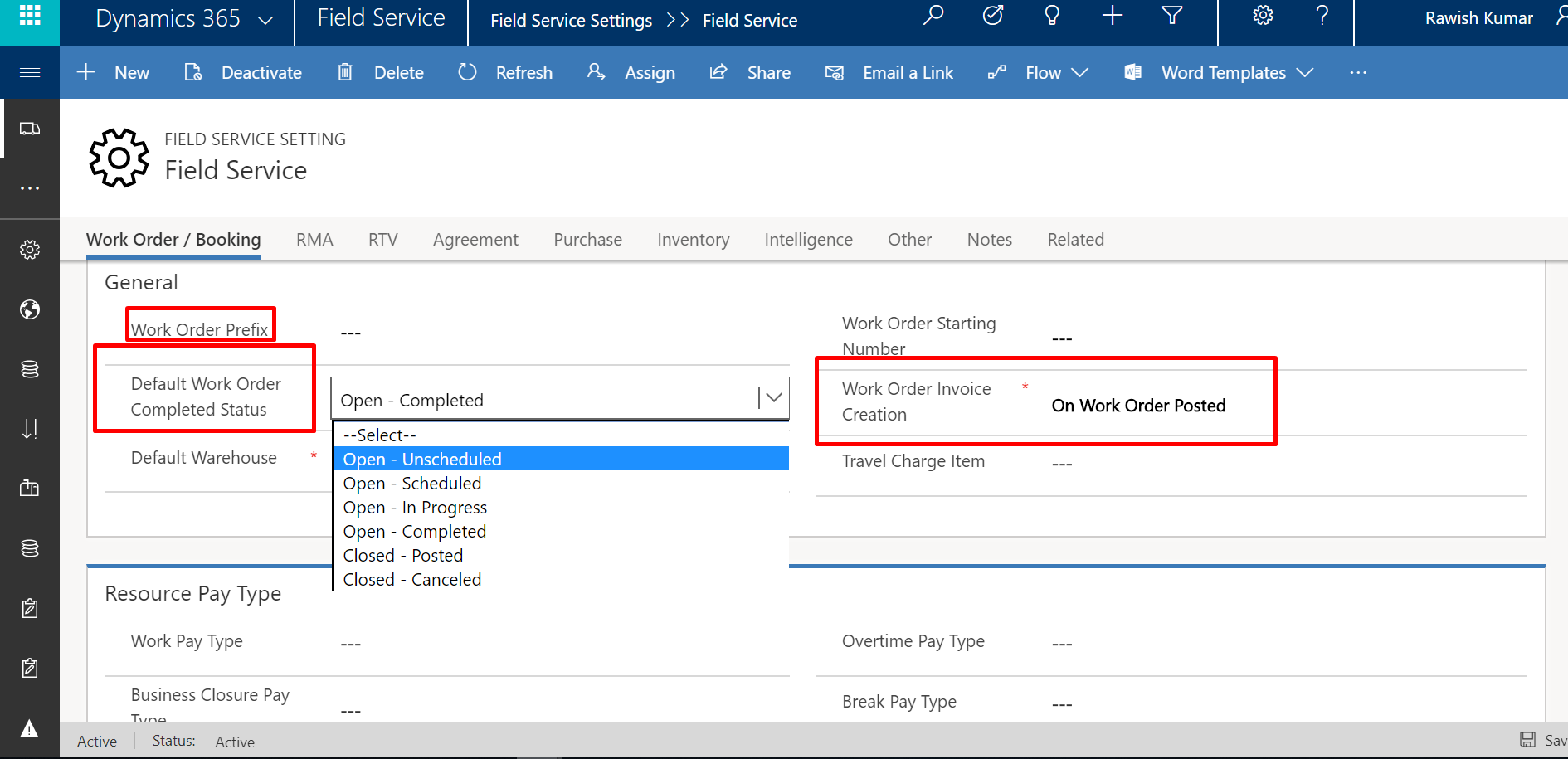
    When you moved through business process of a work order – when work order is completed, the status is set to Open – Completed however that doesn’t mean that a work order is literally completed in crm. There may be some approvals/information required etc before accomplishing the definition of done.
    Finally when everything is done – the status should be changed to “Closed -Posted” which signifies that a work is completed.

    There may be additional Settings that you can do around these settings under field service administration such as what should be the default status when a work order is completed or when an invoice should be created etc.
    That’s it for this blog – i will see in you the last blog “Manage incidents” of module 2 “Manage Work Orders”.

MB2-877 MICROSOFT DYNAMICS 365 FOR FIELD SERVICE MODULE 2 TOPIC – Describe the work order lifecycle

This is the 7th blog of this series, before this I have created last blog from module 1 on the topic “Integrate other tools with Field Service”  which you can check here :MB2-877 MICROSOFT DYNAMICS 365 FOR FIELD SERVICE MODULE 1 TOPIC – INTEGRATE OTHER TOOLS WITH FIELD SERVICE

In this blog we are staring with the module 2  “Manage Work Orders” which is 15-20% content of the exam. The first topic is “Describe the work order lifecycle” :


  1. Describe work order fields

    A work order in Dynamics 365 for Field Service has information on what work needs to be done. It is used to coordinate and schedule resources and activities. It can be used for different types of work, such as installations, repairs, or preventive maintenance.

    A work order is usually created from a case or opportunity. It is then scheduled either manually or using the schedule assistant and then dispatched. Once the work is complete, it is reviewed and approved by a manager.

    When you are creating a work order you will have to capture main important below information :
     
         A. Description of the issue/ work order to be performed
         B. Customer/Account
         C. Location
         D. Products/Services that are required
         E. Tasks or steps to follow
         F. Priority & Estimated time to complete
         G. Skills/Characteristics needed

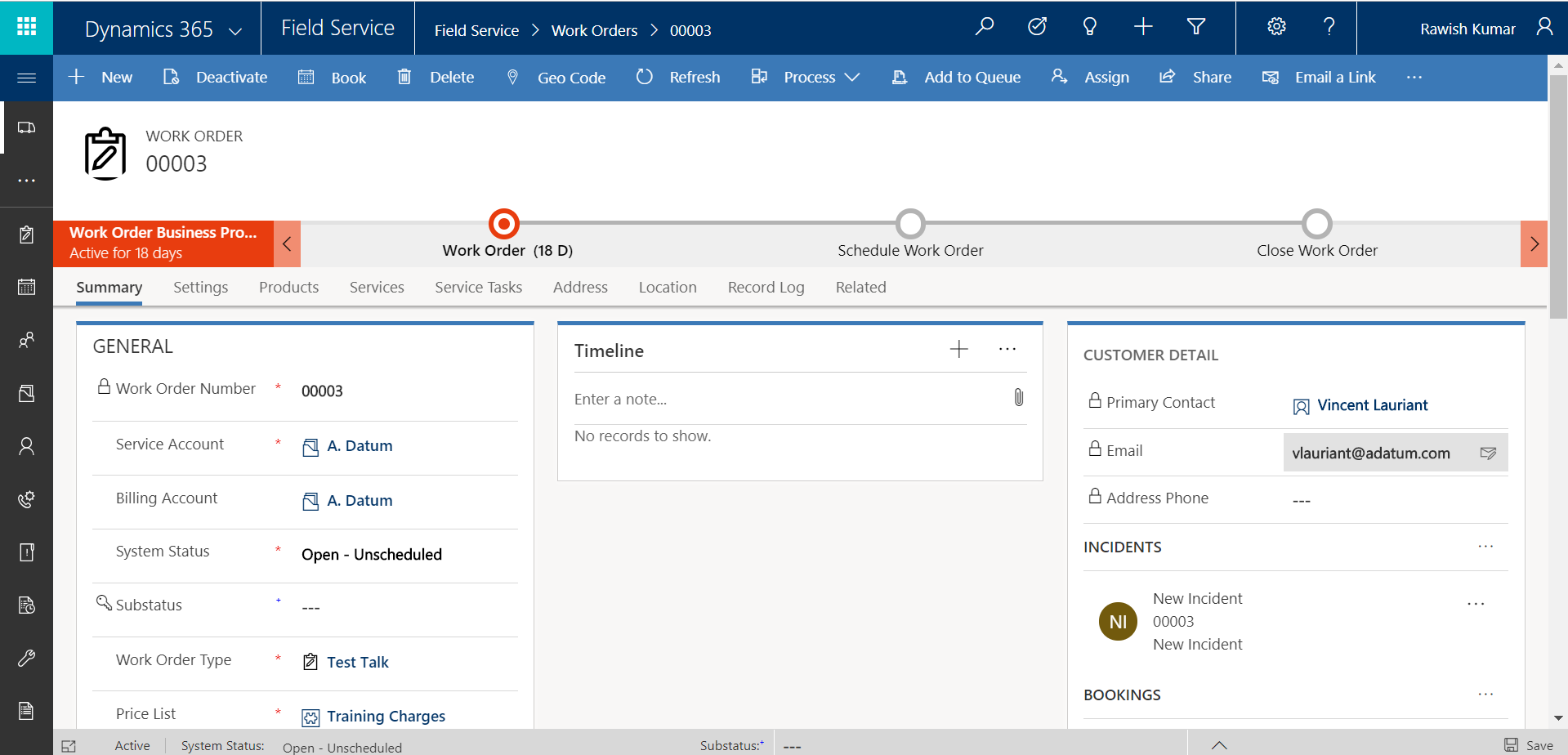
    this is how a typical work order looks like in Dynamics CRM 365 UI :


  2. Describe work order life cycle stages &  3.Identify booking status and work order status values for work order stages

    A work order in Dynamics 365 for Field Service more or less goes through upto 5 stages. They may vary based on the type of service the company provides:


    What happens in each of these stages is very nicely mentioned on docs.microsoft here : Work Order LifeCycle  with categories as below:

        A. What happens in each stage
        B. Who performs the task in each stage
        C. Work order status in each stage
        D. Work order schedule status in each stage

  3. Describe uses and capabilities for billing accounts, service accounts and sub-accounts

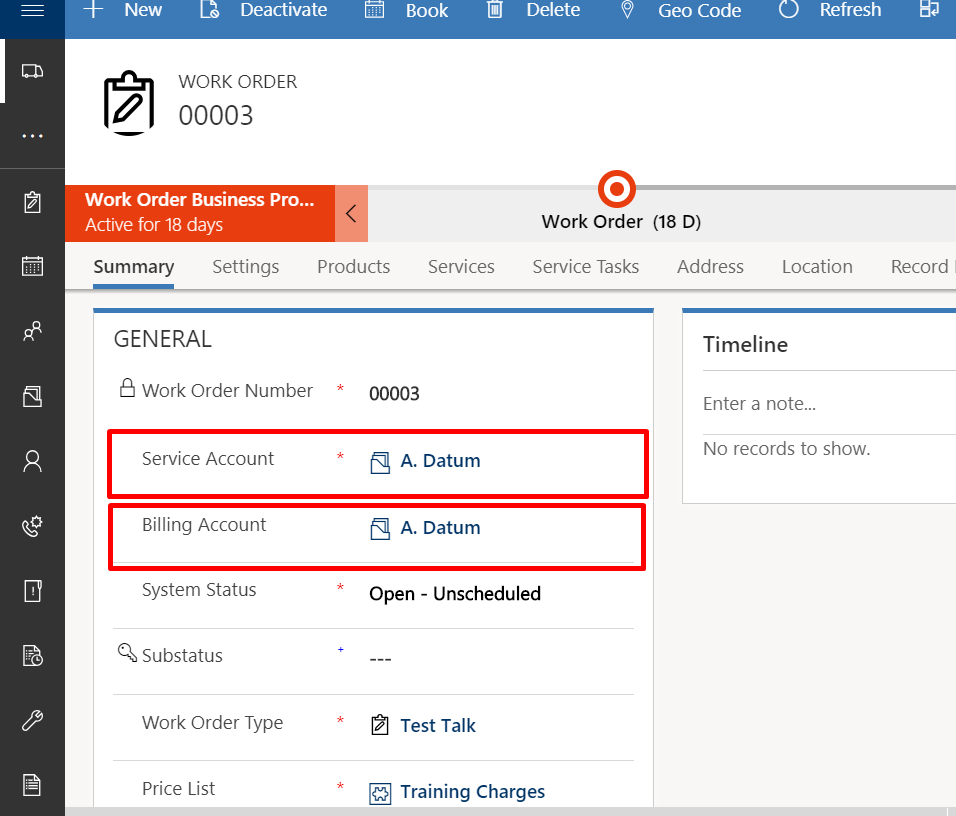
    A service account in Dynamics 365 for Field Service is an account for which a work order is created or requires the service. 

    On the other hand a billing account is the account which will pay for the services.

    let’s have a look on a work order:


    Point to note is : if there is no billing account is associated with the order ; by default service account becomes the payer.

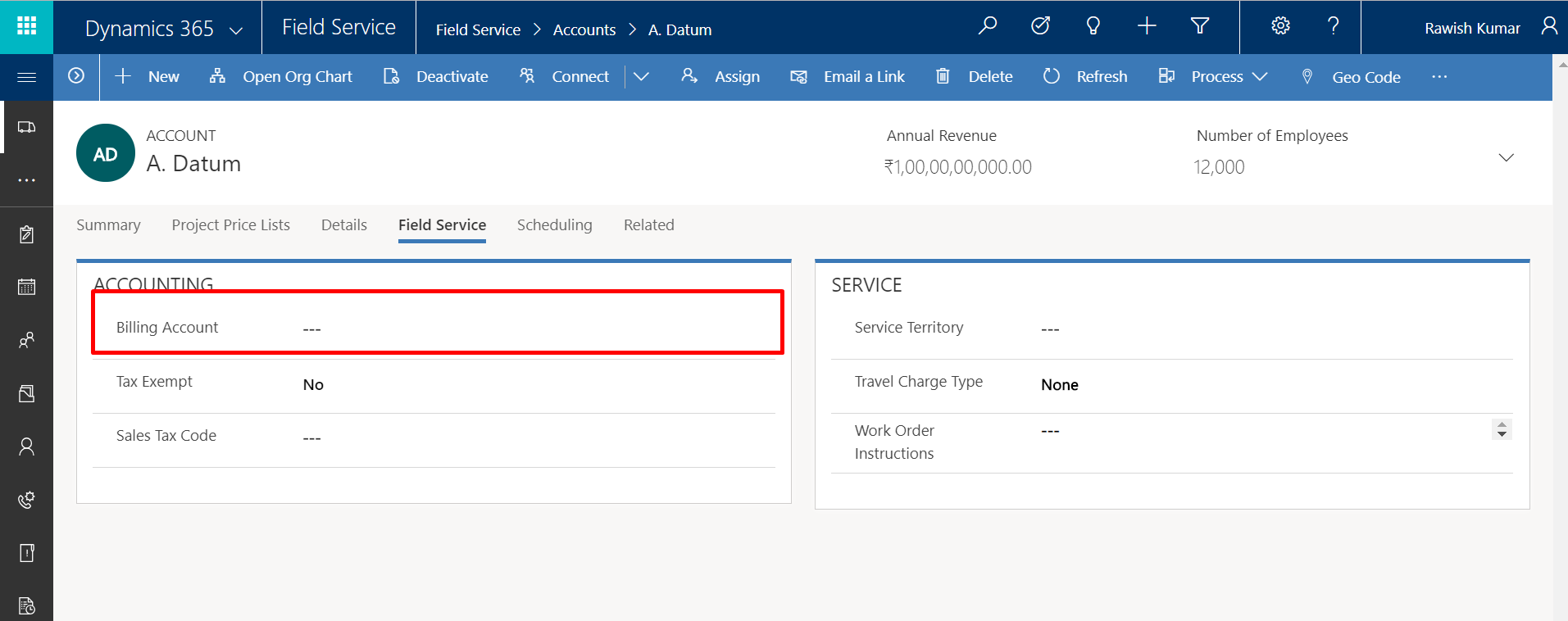
    if you navigate to field service >  Accounts > open an account and open the field service tab you will see below:


    You have option define some field service related information on this account. we will focus on the field “Billing Account”.
        
      A. if these is not filled , the service account will be the billing account on the work order by deafult.
     B. you can define here who needs to pay the bill such as other organization or account.
     C. All future billing for the current account will be billed to the associated account here.  

    So that’s it for this blog and i will see in the next blog with the MODULE 2 TOPIC – Create and manage work orders

How To Access Master & Duplicate Record In Merge Operation Plugin

Here is a quick blog on how to access master & child records during a Merge operation in a plugin.

I recently had to develop a plugin where in I needed to do some manipulation with the records being merged.

You can access three entities in your plugin when a record is merged from Context.InputParameter : 

       1. SubordinateId – the duplicate record
       2. Target – the master record
       3. UpdateContent   – a temp entity contains the final attribute as outcome of the merge operation.


To Access them in the code simply do this:


Entity duplicate = context.InputParameters[“SubordinateId“]; // To access the duplicate record simply retrieve the attributes using service.retrieve and by proving the duplicate.Id.

EntityReference
target= (EntityReference)context.InputParameters[“Target“];

Entity
finalRecord = context.InputParameters[“UpdateContent“]; //To access the final record simply retrieve the attributes using service.retrieve and by proving the finalRecord.Id.

I hope it makes sense:
Cheers!


MB2-877 MICROSOFT DYNAMICS 365 FOR FIELD SERVICE MODULE 1 TOPIC – Integrate other tools with Field Service

This is the 6th blog of this series, before this I have created a blog on the topic “Configure additional options”  from Module 1 which you can check here : MB2-877 MICROSOFT DYNAMICS 365 FOR FIELD SERVICE MODULE 1 TOPIC – CONFIGURE ADDITIONAL OPTION

In this blog we will cover up the last topic from the module 1 “Integrate other tools with Field Service

  1. Automate processes by using Microsoft Flows
    In Your field service you can very well take advantage of powerful Microsoft flows which takes traditional workflows to the next level and allows you to automate processes that span multiple systems. Here are some main points:

    a. Build process automation that span systems
    b. Visual designer to compose automations
    c. Connect to services to access data
    d. Built on top of Microsoft Azure Logic Apps
    e. Can be on demand from PowerApps or triggered by event

    To know more about them : https://flow.microsoft.com/en-us/

  2. Build flows using Visual Designer
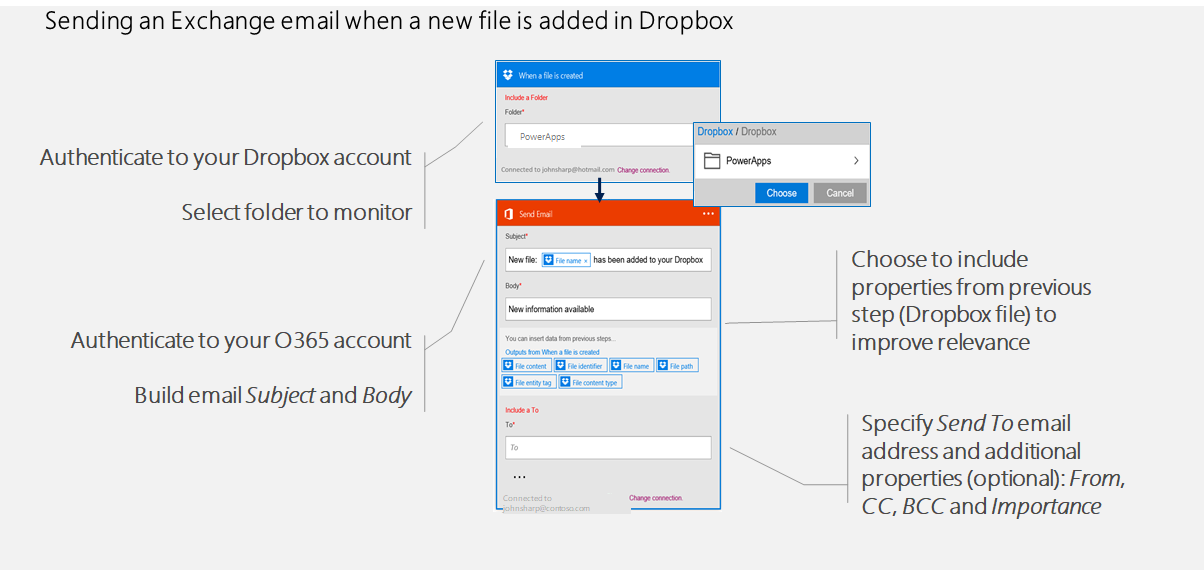
    You will have a visual designer which you use when designing a flow, in the example below you can utilize a flow for sending an exchange email when a new file is added in drobox to anyone:

    Apart from it , you get many predefined flow templates that you can use such as an approval process template , getting text messages on work order processes etc.
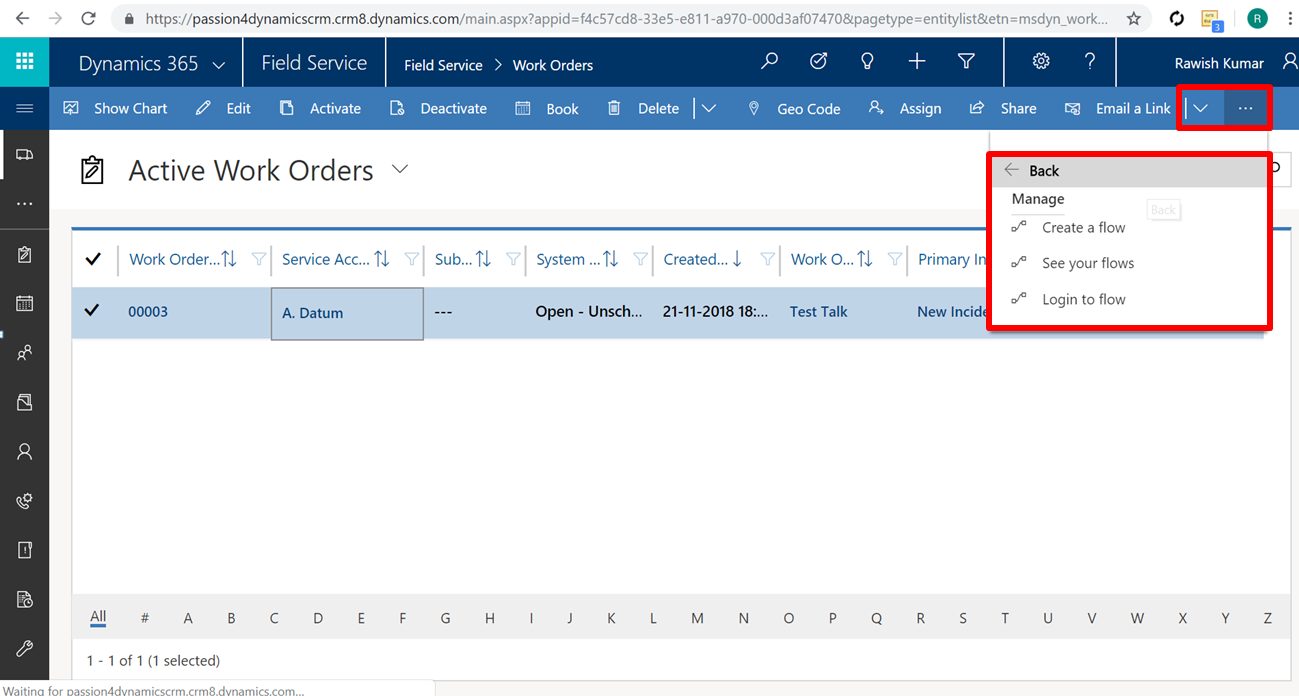
    You can create a flow or utilising existing ones either from the main entity bar:

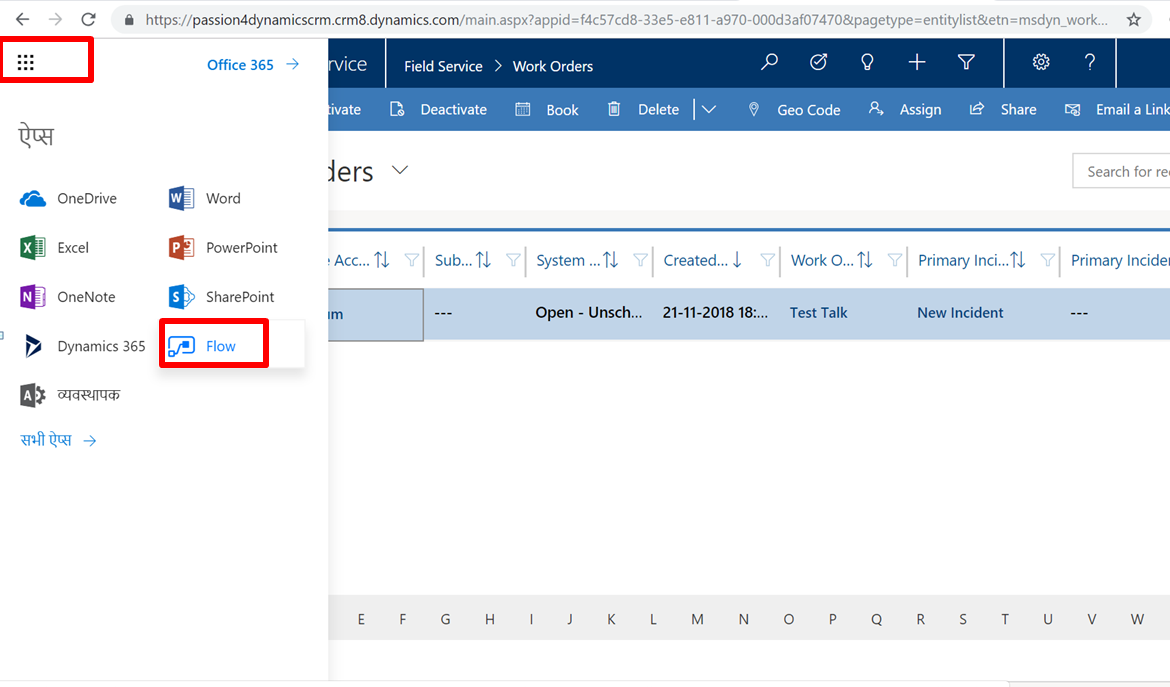
    Or direcly by going to microsoft flows app by clicking on the main 365 navigation and by clicking on ‘Flows‘:

  3. Identify uses for the Twilio solution

    Twilio is an API that allows developers to make phone calls means make and receive phone calls programmatically.  It also has an interface that you can use to send and receive text messages using web service APIs. You can have the same capability using Microsoft Flow because Microsoft Flow does interact with the Twilio APIs as well to send SMS messages using Flow, but there is also a Twilio solution that can be downloaded and installed into your Dynamics 365 organization.

    So main points are:
    a. Allows software developers to programmatically make and receive phone calls and send and receive text messages using its web service APIs.

    b. Twilio has a Dynamics 365 Solution that can be installed into an organization (Requires a Twilio Account)

    Download Solution Link:

    https://www.microsoft.com/en-us/download/details.aspx?id=53586

  4. Identify opportunities to integrate Glympse with the Connected Field Service solution.
    The Glympse solution is available through App Source.  If you go into the Dynamics 365 marketplace, you can download and configure the solution. Its integration that enhances Microsoft Dynamics 365 Field Service experiences with live map technician view and appointment ETA.

    The Main points are :

    • Provide real-time notification to techs & customers
    • Notification sent through SMS or email
    • Uses GPS location in Field Service mobile application
    • Can be configured for voice messages
    • Available through App Source

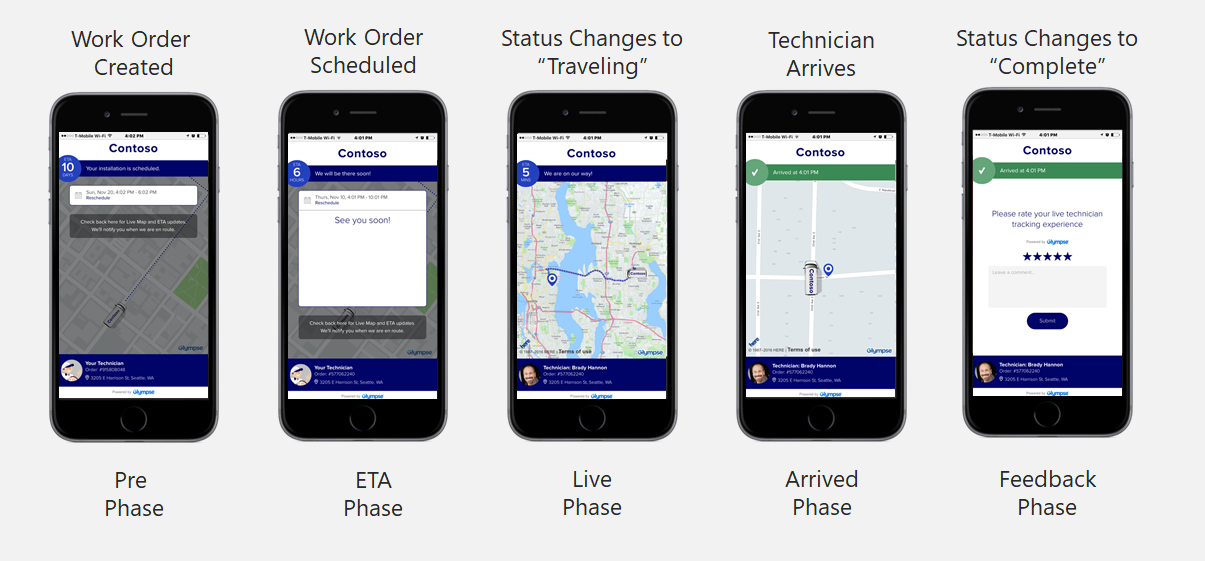
How how these journey would like on the phone:

So, this is the last blog of the Module 1 – “Set Up & Configure Field Service” Which covers 15-20% of the certification.  We have come                  pretty much far but we have long way to go 🙂

I will see you in the next blog with new interesting module : Manage Work Order.

Cheers!

MB2-877 MICROSOFT DYNAMICS 365 FOR FIELD SERVICE MODULE 1 TOPIC – Configure additional options

This is the 5th blog of this series, before this I have created a blog on the topic “Configure bookable resources”  from Module 1 which you can check here :MB2-877 MICROSOFT DYNAMICS 365 FOR FIELD SERVICE MODULE 1 TOPIC – CONFIGURE BOOKABLE RESOURCES

In this blog we will cover up the topic from the module 1 “Configure additional options

  1. Configure territories and organizational units
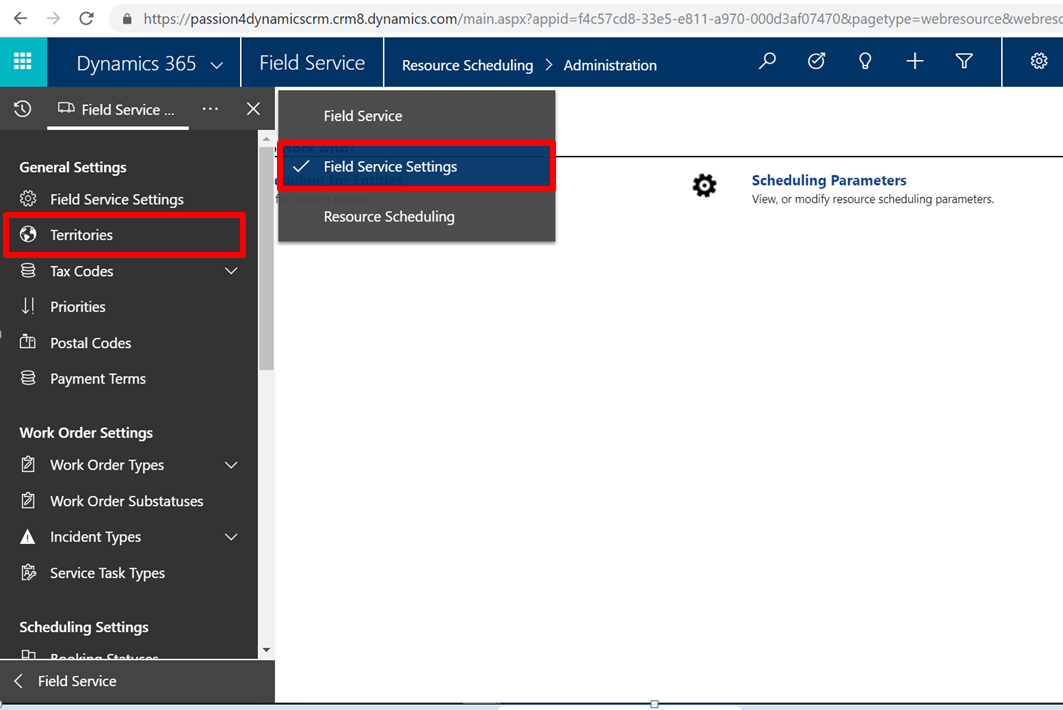
    You can create territories for your resources in field service.Now, remember that traditionally when you’re using territories with Dynamics 365, you’re really just dealing with one territory per resource.  But in this situation, a resource might service multiple territories.  So I do have the capabilities to add multiple territories in here based upon my specific situation. To add a territory go from field service > Field Service Settings  > Territory :
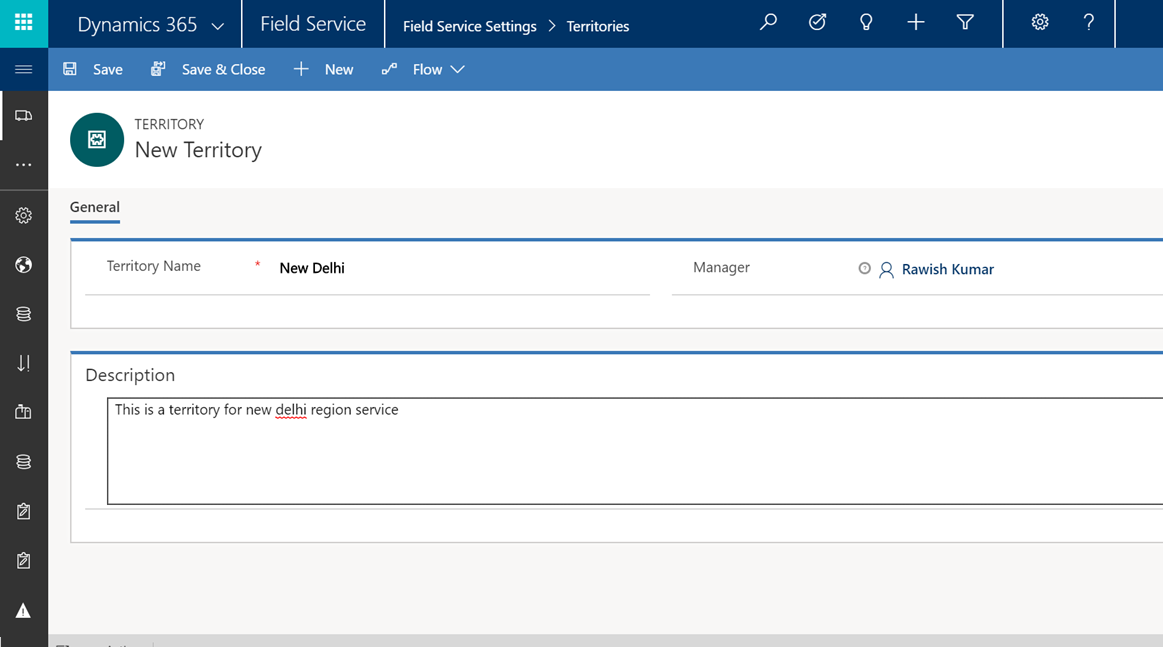
    Click on “Add new territory” and fill out below information such as “name” and manager which is optional:

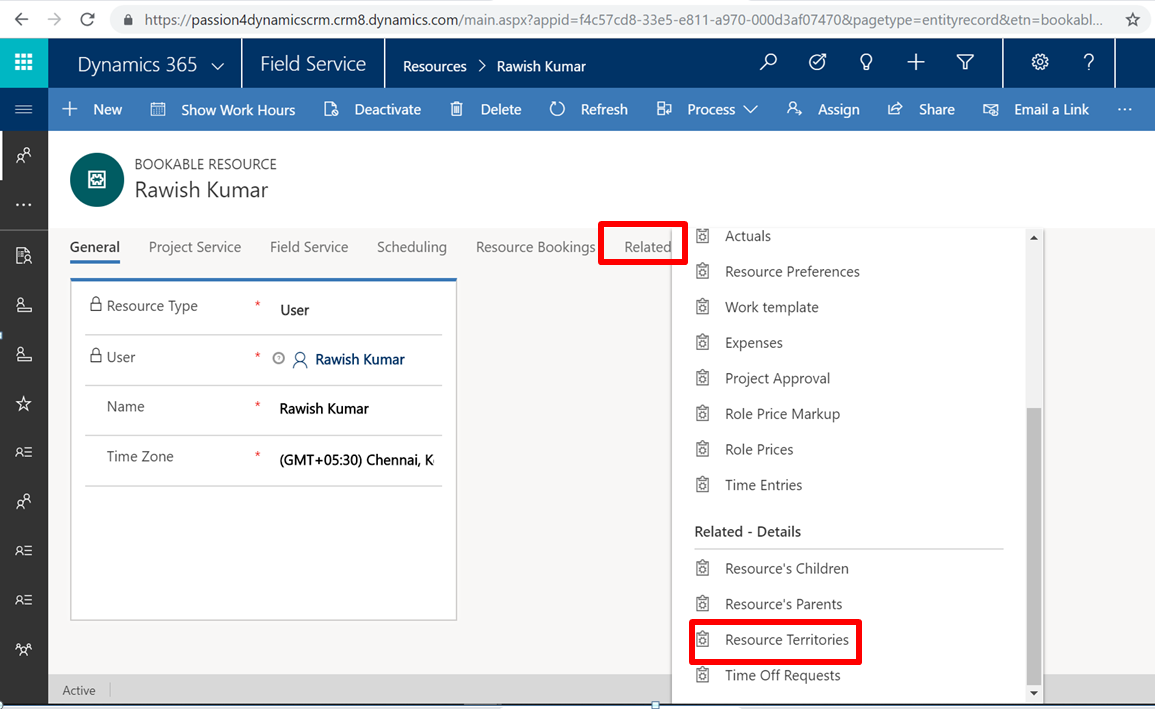
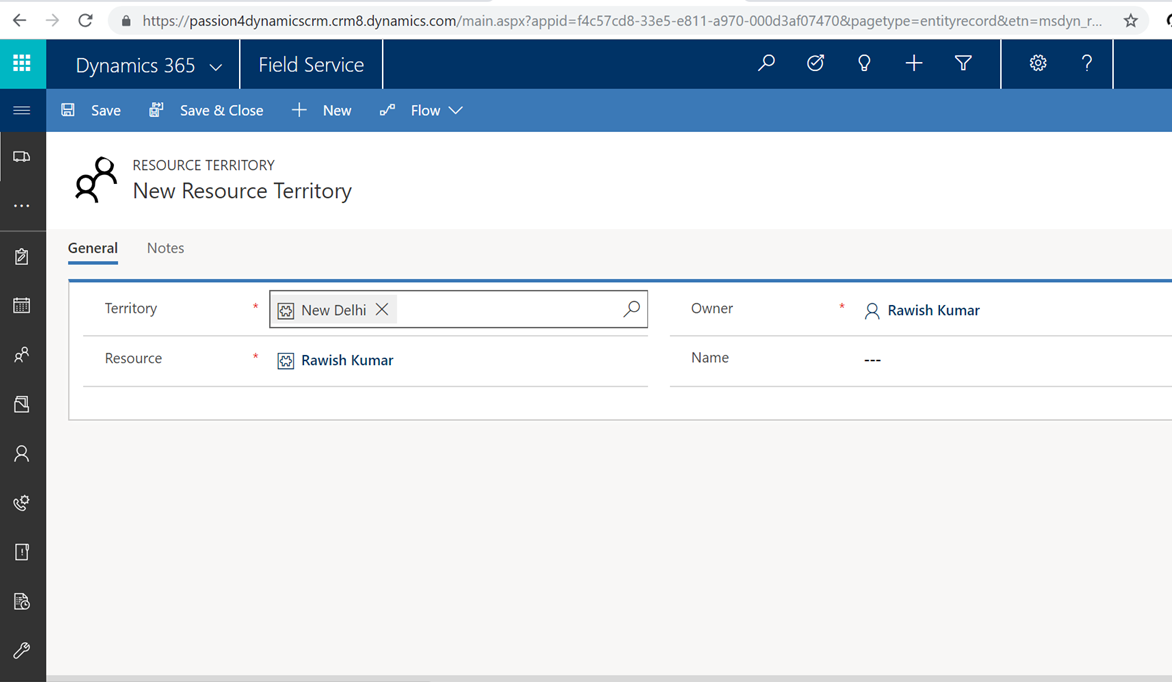
    Once you save and close this territory now you can go and assign this to your resource by following below steps. Open Resource and click on “Related” Tab and select “Resource territory.” Finally say add a new resource territory which will help you to use the recently created territory:

    Save and close:

    Organizational Units.
    Below are the main points on organization units before we configure them:
    a. They are Different from Business Units

    b. Organizational units represent how your consulting company categorizes its different businesses.

    c. Each Organizational Unit can have Latitude and Longitude define to assist in the scheduling process.

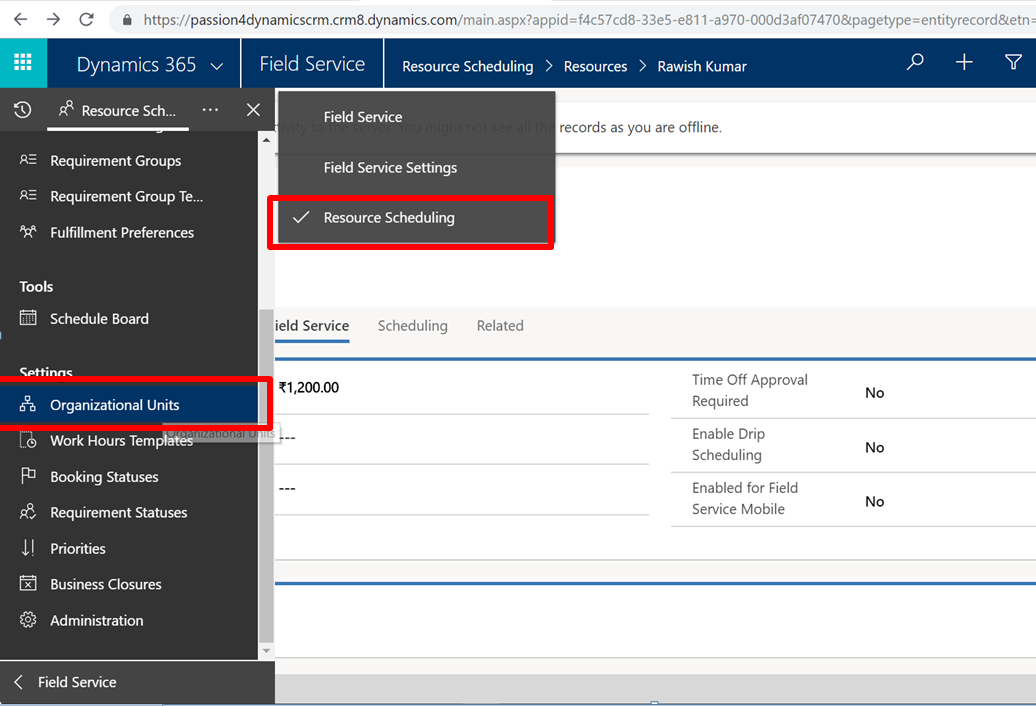
    To Configure an orgnizational units go from field service > Resource Scheduling >  Organization Units and click on add new organization unit:

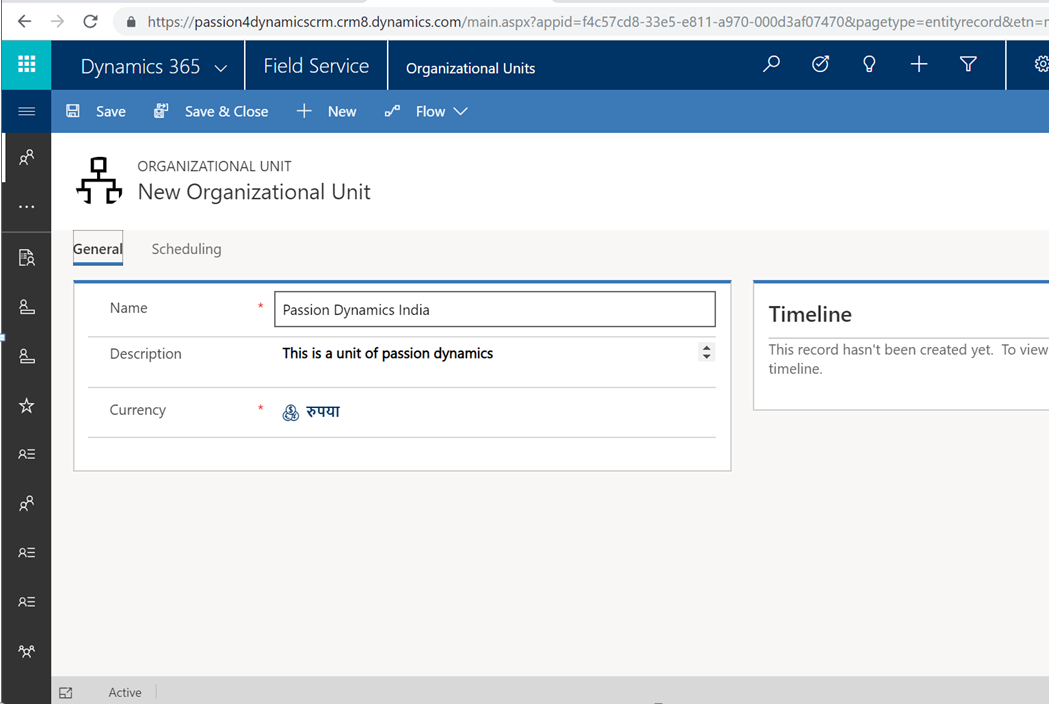
    Add below information and save and close. Later you associated this with a resource:


  2. Identify skills types
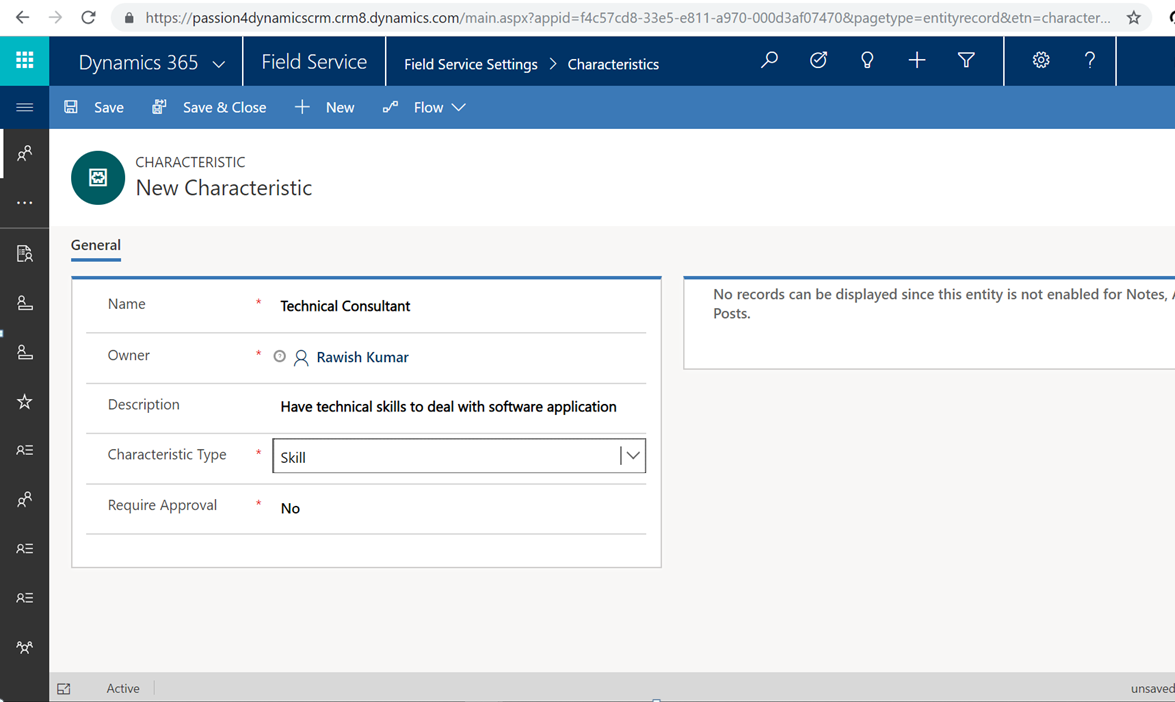
    Now when you are setting up your resource you might want a placeholder to say this resource has this skill i,e a consultant or technician etc.  To Define a skill or characteristic for a resource  go From Field Service > Resource Scheduling > Resource Skill and click on New > Add required field such as name of the skill and select the type as “Skill” > click on save and close:

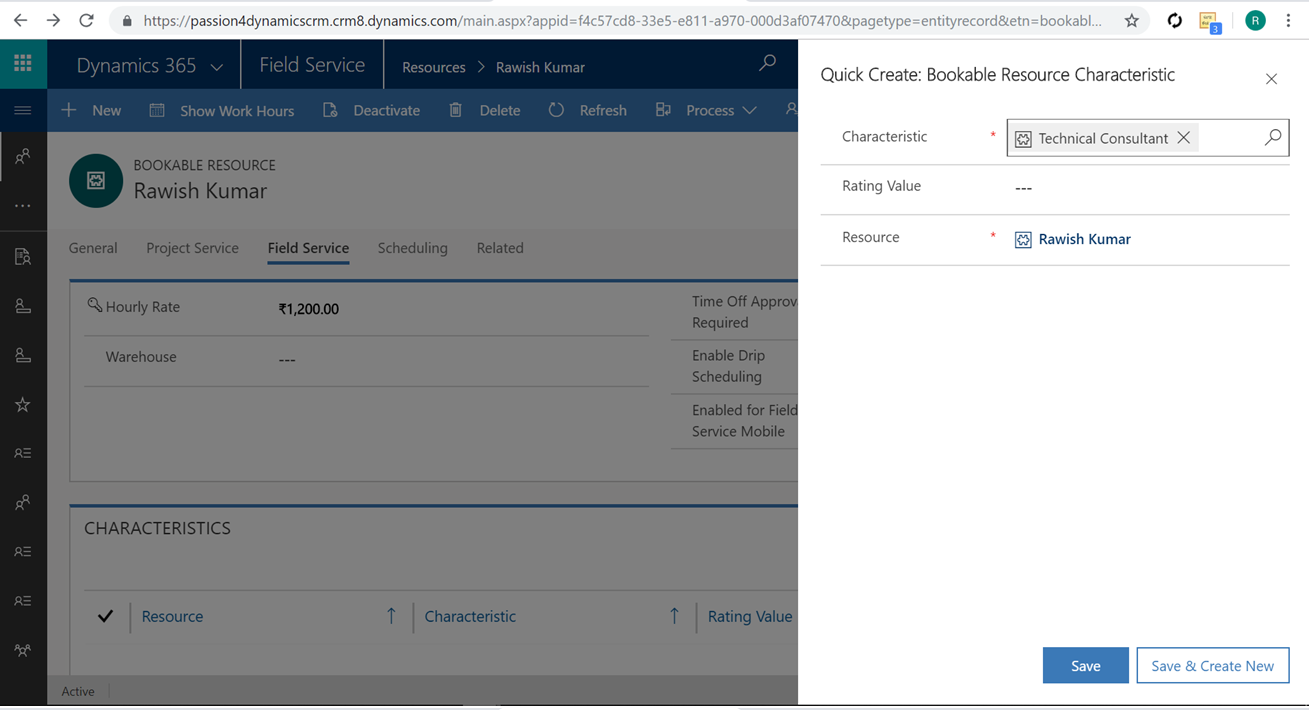
    Post this this, it will be available to be associated to the resource. from your resource click on ” Field Service” Tab and in the “Resource Characterstics” Subgrid , click on New. Look for the skill that we have created and click on Save:

  3. Configure characteristics and skills & Configure proficiency models below are useful points about characteristics/Skill:
    a. Skills / Characteristics are used to define areas in which resources are proficient

    Can be broken into two types:

    • Skill
    • Certification

     b. Used with proficiency models to denote a specific skill level in an area.

     c. Proficiency model is look up to additional values can be added or removed.

    Configuration:
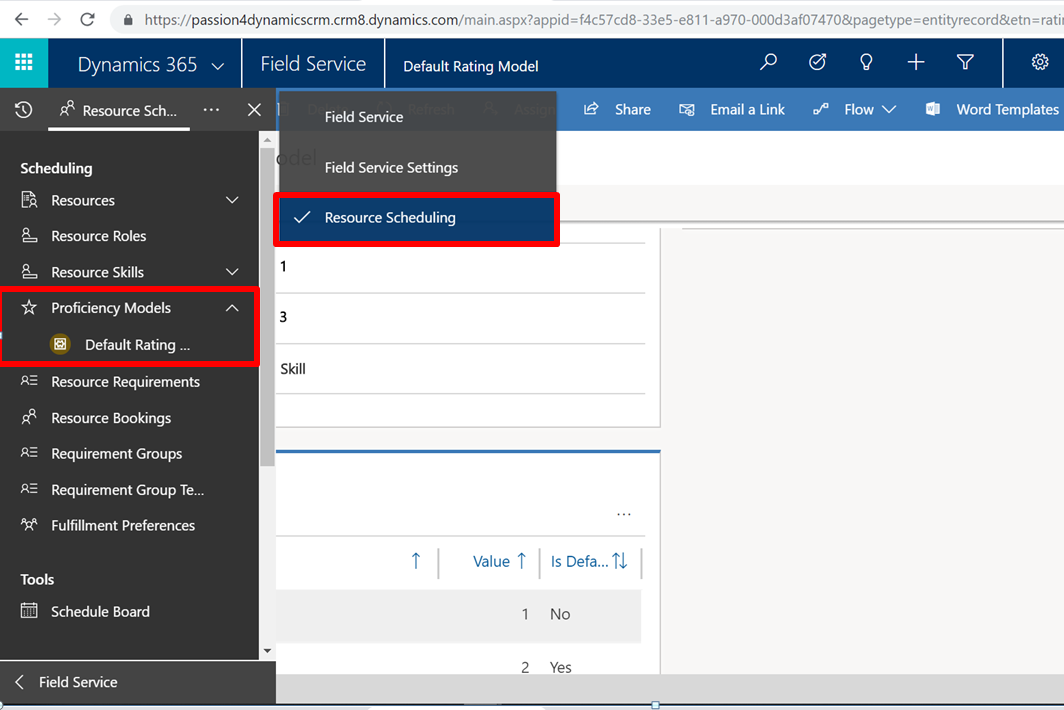
    Before configuring Characteristics and skills we will first have to define a proficiency model as this is linked to a skill. You can configure a new one but i am going to use standard out of the box rating model by going to field service > Resource Scheduling > Proficiency Model:

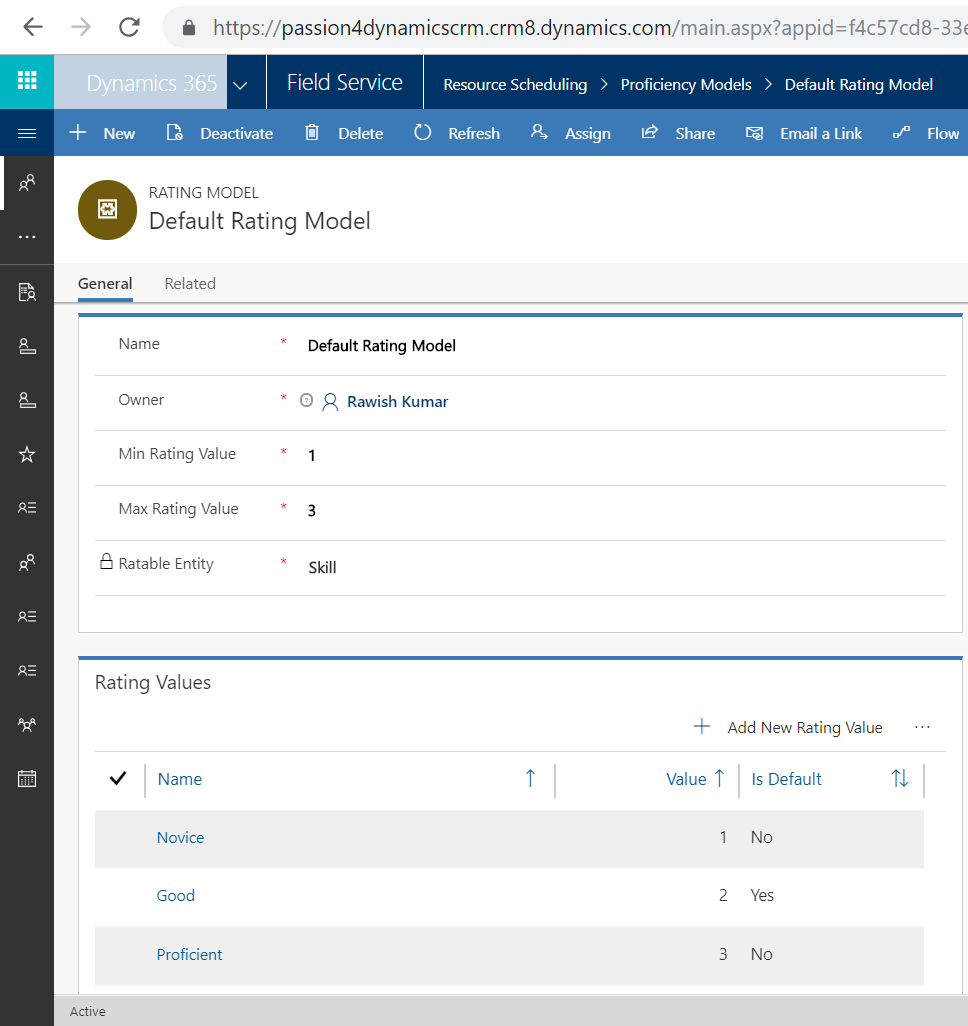
    Open the default existing model and you will field like min and max rating and also a sub grid below which actually tells the rating:

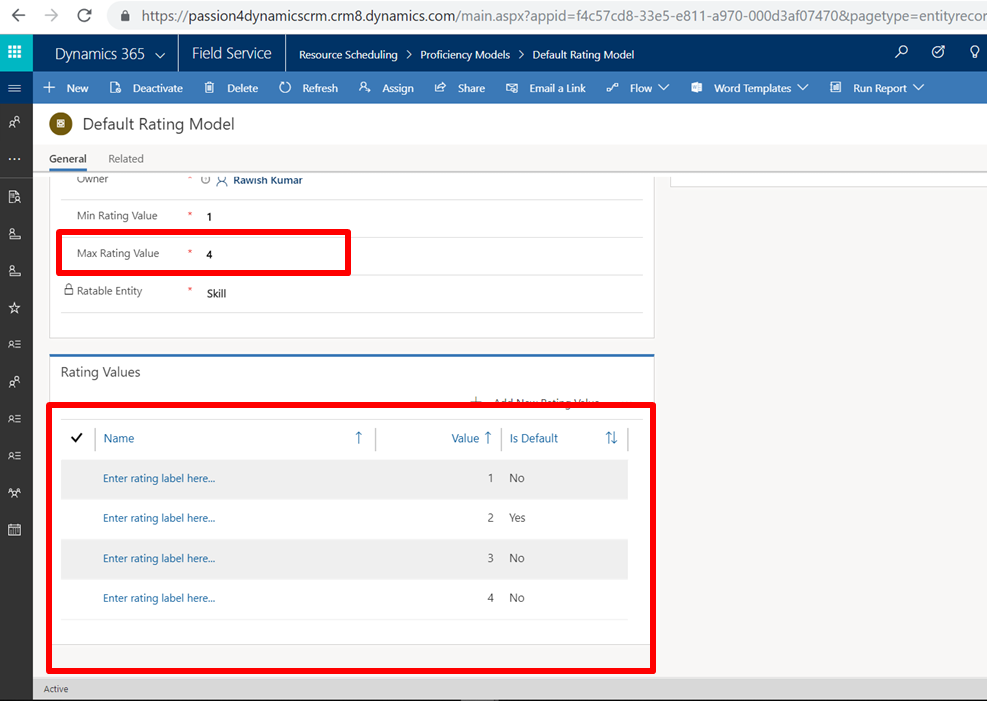
    Now if you want to lets say customize it and would like to add a new rating ‘Expert’ what you will have to do is first make the max rating to ‘4’ so that 4 rating can be added. To that and save the record and what it does it add 4 options to the  grid and ask you to enter the names for 4 rating:

    select each rating and edit the label and we are ready to go and configure a characteristic to do this follow the steps given in the 2nd step above ‘Identify a skill type’ wherein i have added a characteristic as ‘Technical Consultant’.  Now if you go to resource and add characteristic for it you will add the skill as ‘technical consultant’ and rating value as well which we defined.

    One Important Point : We have been talking about Characteristic & Skill alot but on the grounds these two are exactly the same so dont get confused.

  4. Implement resource roles and categories
    This option allows you to define what specific roles that a particular resource is going to play inside your organization.  few points:

    a. Define the role that a resource can play within an organizationb. Can be used for filtering on the Schedule Board

    c. Often used with Project Service Automation to define generic place holders for needed resources on projects

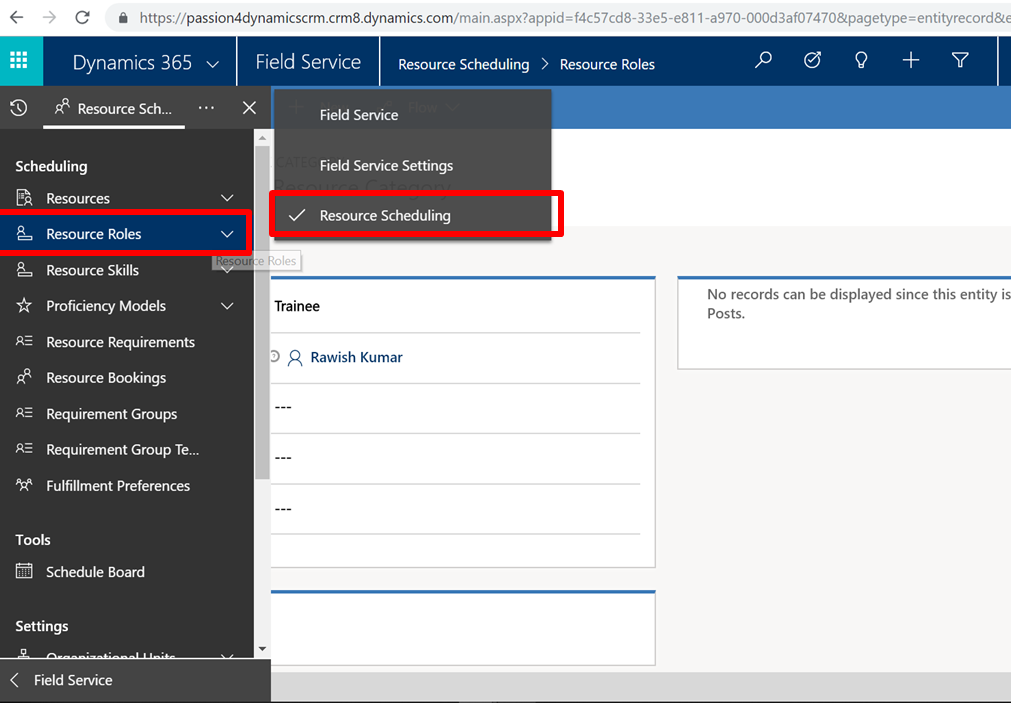
    To add a Resource Role/Category, go from field service > Resource Scheduling >  click on Resource Roles:

    add below information such as name, I have taken as ‘trainee‘ and other details such as utilization and Billing Type etc and click on save &  close:

    Now you will be able to associate this to a resource.

    One Important Point : We have been talking about Roles & Category alot but on the grounds these two are exactly the same so dont get confused.

  5. Explain differences between organizational units and business units They are very much different. The major difference between them is that a traditional business unit drives the security structure of you dynamics crm however an organizational unit is just a placeholder for categorization  of your business.
    That’s it for this blog, I will see in the last topic of this module in the next blog.

    —————————————————————————————–

MB2-877 Microsoft Dynamics 365 for Field Service Module 1 Topic – Configure bookable resources

This is the 4th blog of this series, before this I have created a blog on the topic “configure products and services pricing”  from Module 1 which you can check here : MB2-877 MICROSOFT DYNAMICS 365 FOR FIELDSERVICE MODULE 1 TOPIC – CONFIGURE PRODUCT AND SERVICE PRICING In this blog we will cover up the topic from the module 1 “Configure bookable resources
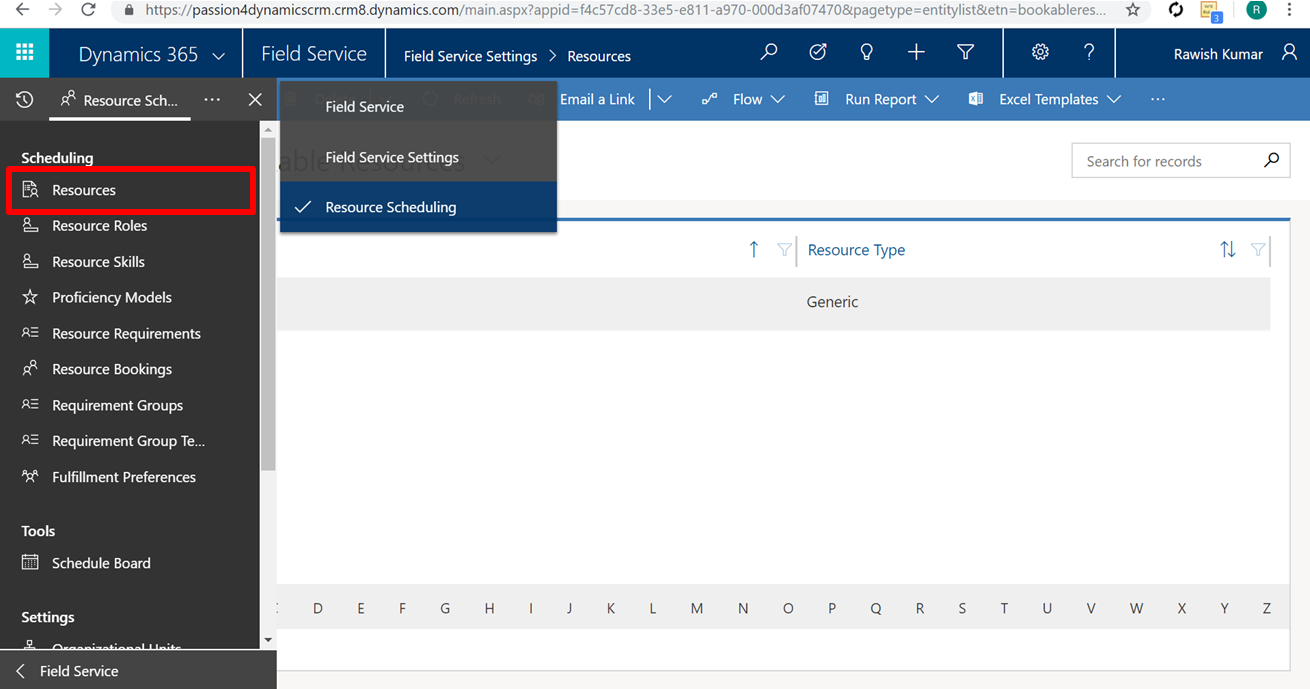
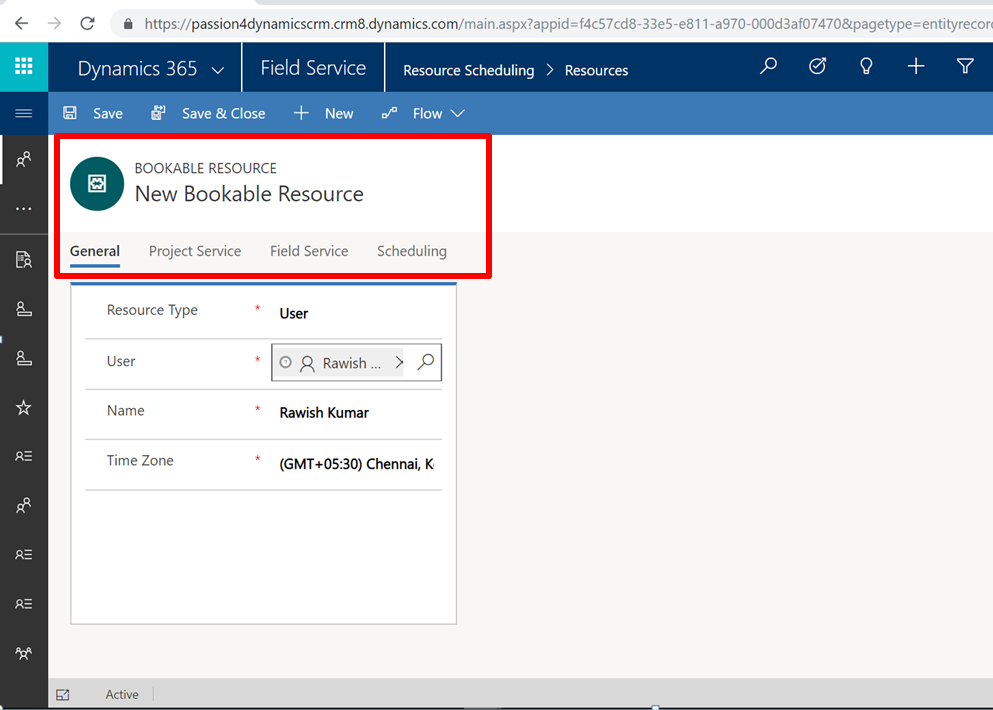
  1. Identify Fields for bookable resources Let’s understand what is a bookable resource, well, a bookable resource in Field Service is anything that you’re going to need to carry out a work order.  Now, it could be a user, so an employee of your organization that is actually going to go out in the field and work through something. And it doesn’t necessarily have be a person it could be anything in field service. To create a bookable resource ,from your field service >click on “Resource Scheduling” and then on “Resources”:
  2. below the are main fields that needs defining when creating a bookable resource:       Resource Type – Can be of type User or Contact or Account etc. Skills & Certifications – Resource Skills and achievements Roles & Categories –  Resource’s Roles Working Schedule – Resource’s work routine i,e start & end time. Hourly Rate – Resource’s Charges.   Location Information –  Work start and end location.   Schedule Board Display Options –  Yes/No Territory Information –  Territory a resource belongs to.
  3. you will have to complete all this information here on the different tabs available below such as “project service”, “field service” & Scheduling:
  4. Enable mapping functionality You can enable mapping functionality which is a concept of geo location, making sure that, when a work order is created, that we understand the exact physical location of where that work order is to be executed from a service technician perspective. By default this is Disabled in field service + Project Automation.
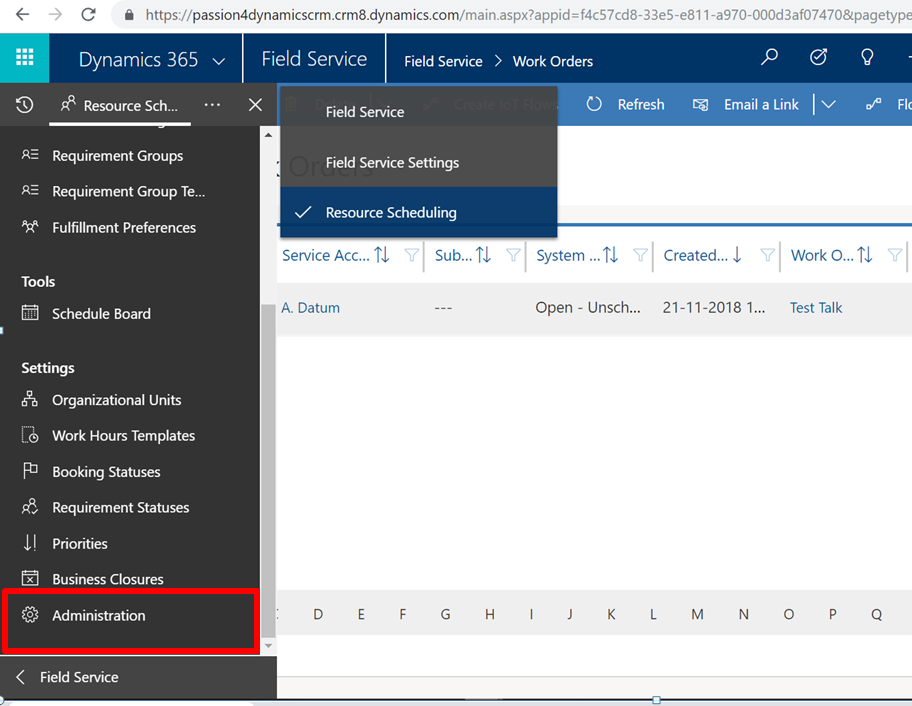
  5. To Enable go to from Field Service > Resource Scheduling > Administration and click on Scheduling Parameters:
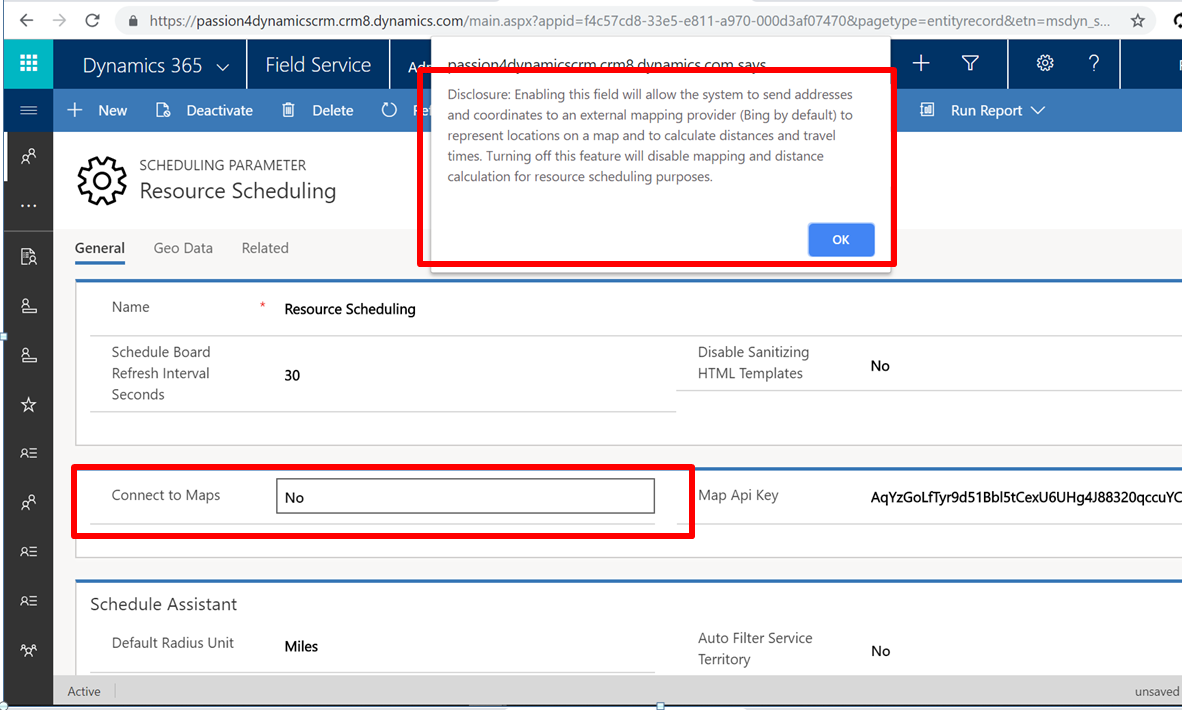
  6. Change “Connect to Maps” field to “Yes”. Once you do that you will be presented with a warning popup. Click okay and the mapping functionality will be enabled.
  7. Identify entities that are geocoded Out of the box, accounts and work orders are all geo located to ensure that they are physically tied to an actual, mappable address that can be used through like Bing Maps or Google Maps or something similar to that functionality.
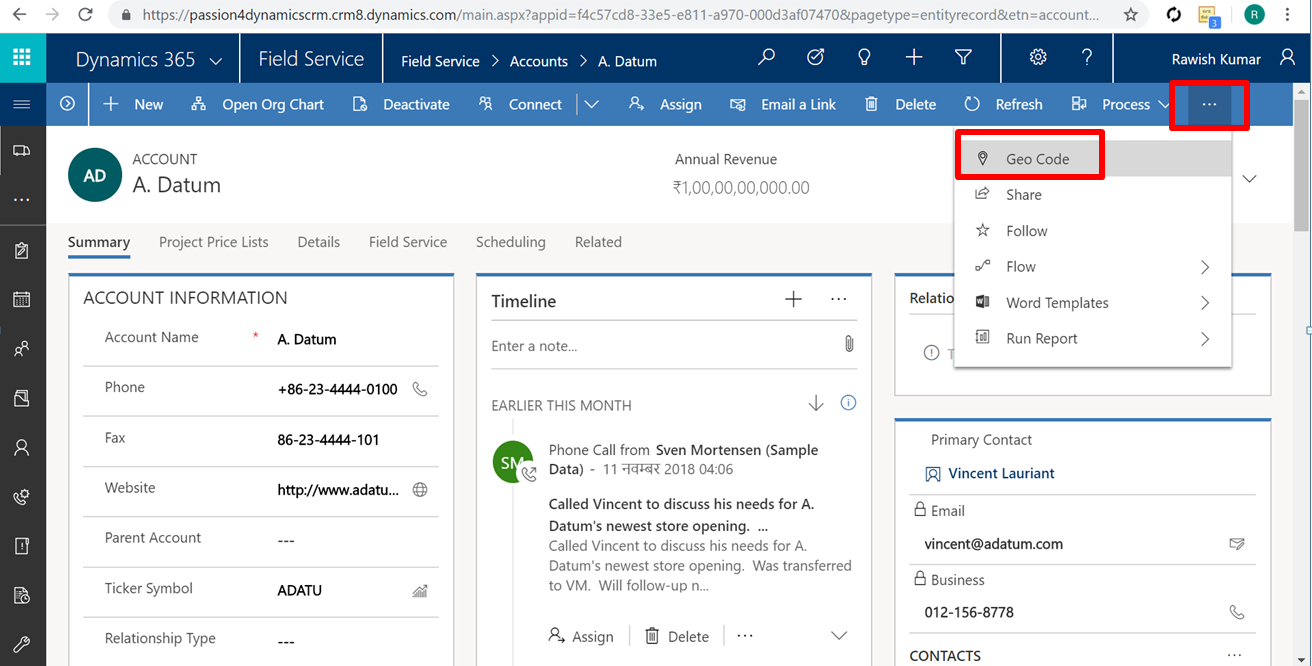
  8. To see this open an account and from ribbon navigation click on “Geo Code“:
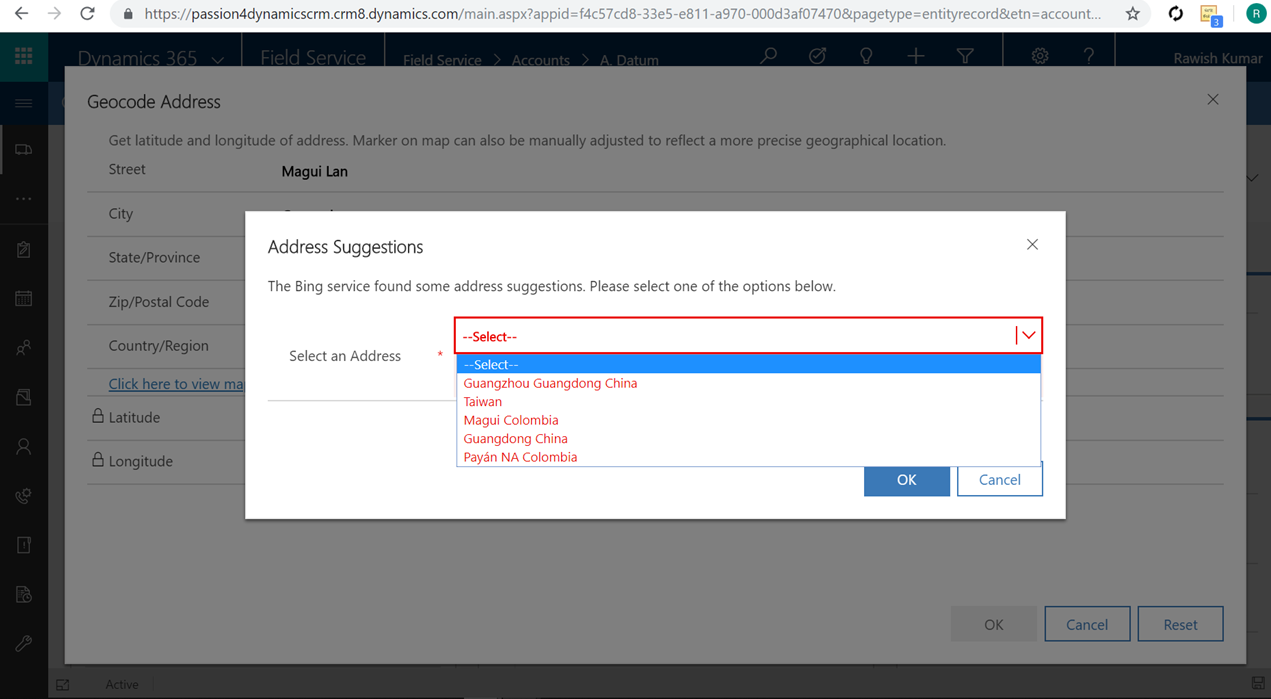
  9. It will then actually try to map the address given on this account to an actual physical address on the map and give you suggestion. select and click okay and save the account.
  10. Define start and end location for resources  & Identify differences between address types A resources might physically start their day at the office.  So it might be a situation where the technician’s going to come into your office.  Once they come into your office, they’re going to get the all the accessories they need for that particular day, their stack of work orders, and then they’re going to head off into the office.  So with the option of start and end location you will be able to map your routing information based upon where they start their day.  So if they start their day at the office, you know that that’s how you want to work through it.  The other option could be that they’re starting their day from their physical resource address.
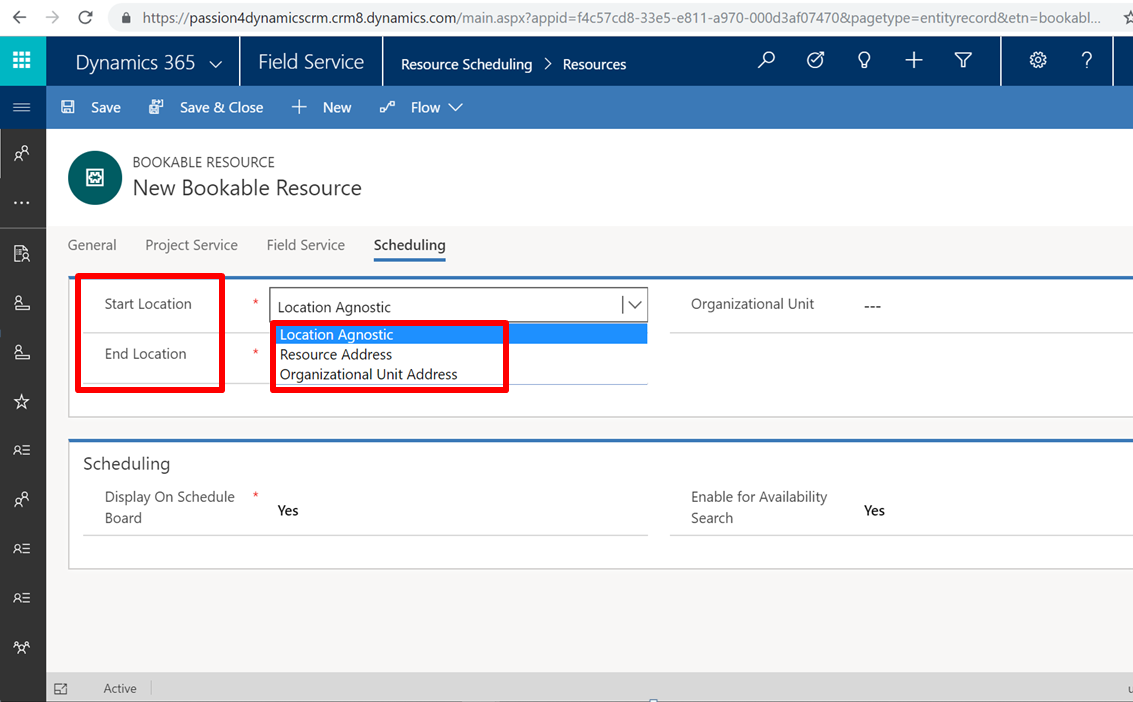
  11. To define this – follow step  1 given above for creating a bookable resource and go to “Scheduling” tab:
  12. you get couple of option which means as below:

  13.  a. Resource start and end locations are used to help plot a                             resource’s daily route
  14.    b. Start and end locations can be defined as:
    •  Location Agnostic: Does not have a defined address
    • Resource Address: Uses the address defined for the resource
    • Organizational Unit Address: Uses the address defined on the resources organizational unit
  15.   c. Address play a direct role in whether a resource is suggested for           a Work Order in the Schedule Assistant
  16. So, this is it – i will see you in the next blog.

MB2-877 Microsoft Dynamics 365 for Field Service Module 1 Topic – Configure product and service pricing

This is the 3rd blog of this series, before this I have created a blog on the first topic “Perform initial configuration steps”  from Module 1 which you can check here : MB2-877 Microsoft Dynamics 365 for Field Service Module 1 Topic – Perform initial configuration steps

In this blog we will cover up the second Topic from the module 1 “Configure product and service pricing

NOTE : Before we start the module I would strongly suggest you to understand product catalogue in dynamics crm as we will be using price lists, products, unit groups etc alot :   https://docs.microsoft.com/en-us/dynamics365/customer-engagement/sales-enterprise/set-up-product-catalog-walkthrough   and if you have the knowledge already lets begin:


  1. Configure product and service pricing features including minimum charge amount, minimum charge duration, and the flat fee option
    You can add default “Standard” Price List to your Product in field service, however when you think about “Service” you might want to handle its price list slightly different. In Field service to accomplish this “Field Service Price List” has been added to dynamics CRM:
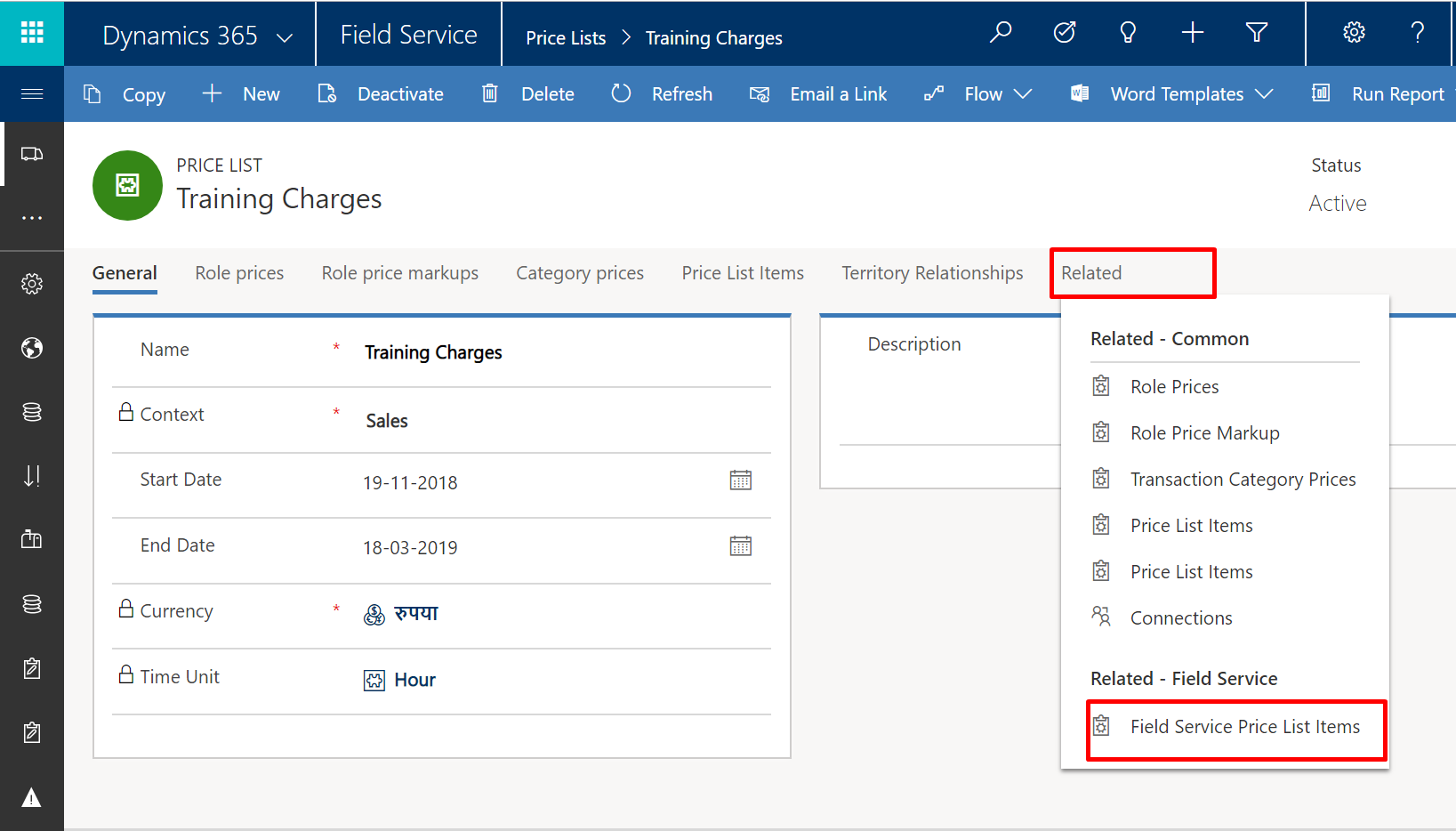
    Once you have configured a price list , you then navigate to “Related” option and click on “Field Service Price List Items”.

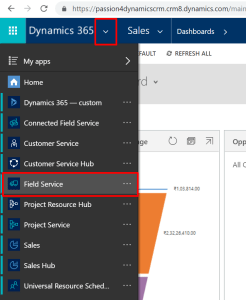
    ( Note that My field service is in Unified Interface so don’t get confused, I am intentionally using field service application – Once you have created a dynamics CRM trial for yourself which should include field service module too, you will see the field service app which you can access :

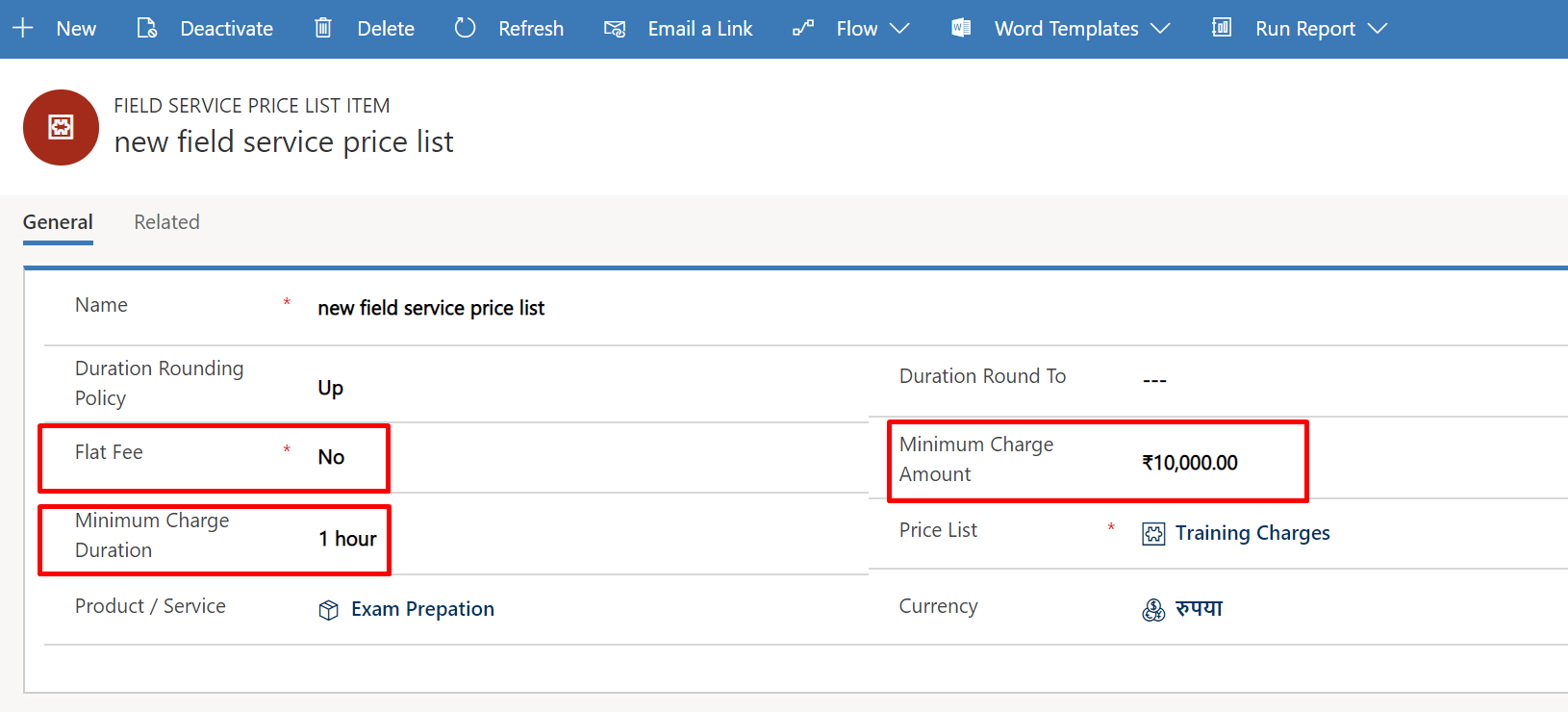
    So, Once your default price list – navigate to the related Field service price list and click on “Add new field service price list”

    If you see above I have set Flat Fee, Min Charge Amount & Minimum Charge Duration. Let’s understand what these options are:

    Flat Fee – If enabled then the pricing of this item will be not be multiplied by the quantity  and also Let’s you decide if a fixed fee for this service applies.

    Minimum Charge Duration–  If this field has a value , The Min charge will first apply to the minimum duration and beyond the min duration the standard charges will apply in short it will make some amount of time service free.

    Minimum Charge Amount –  As name suggest these are minimum charges for this service which correlates to the min charge duration. 

    lets do some math, assume my training per hour charge is 20,000 INR.
    now if  I apply above field service price list. The requirement is for 5 hours of training. then the math goes like this:

    Minimum Charge Duration defined by me is 1 hour. The requirement is 5 hour which means the bill will be for 4 hour which is 4*20,000= 80,000 INR then on this my minimum charge amount will be added which is 10,000 INR. So the final bill will be 90,000 INR.


  2. Add Products & Services to Incidents

    To this, simply navigate to Field service > Incident Type and add incident type. Once you do that; Now When you creating a work order and select incident there – it creates an incident for you which will have the product or service associated. so on a work order you can add product or services via incident.

  3. Determine when a Product has default Price List and a work order price list.

    Here are some quick points to cover up this topic. As we know Price List can be associated to following entities:

    • Account
    • Work Order
    • Agreement
    • product or service

    There there can be a clash in which price list to be used when they combine such as what if work order has a price list & also associated product has a price list too, in that scenario we’ll consider below:

    a. The Work Order Price List is used if a product has a different default price list than the Work Order

    b. The price of the product will come from the list price on the product if an Item is not on the Work Order Price List


  4. Associate Products & Services to Price Lists.

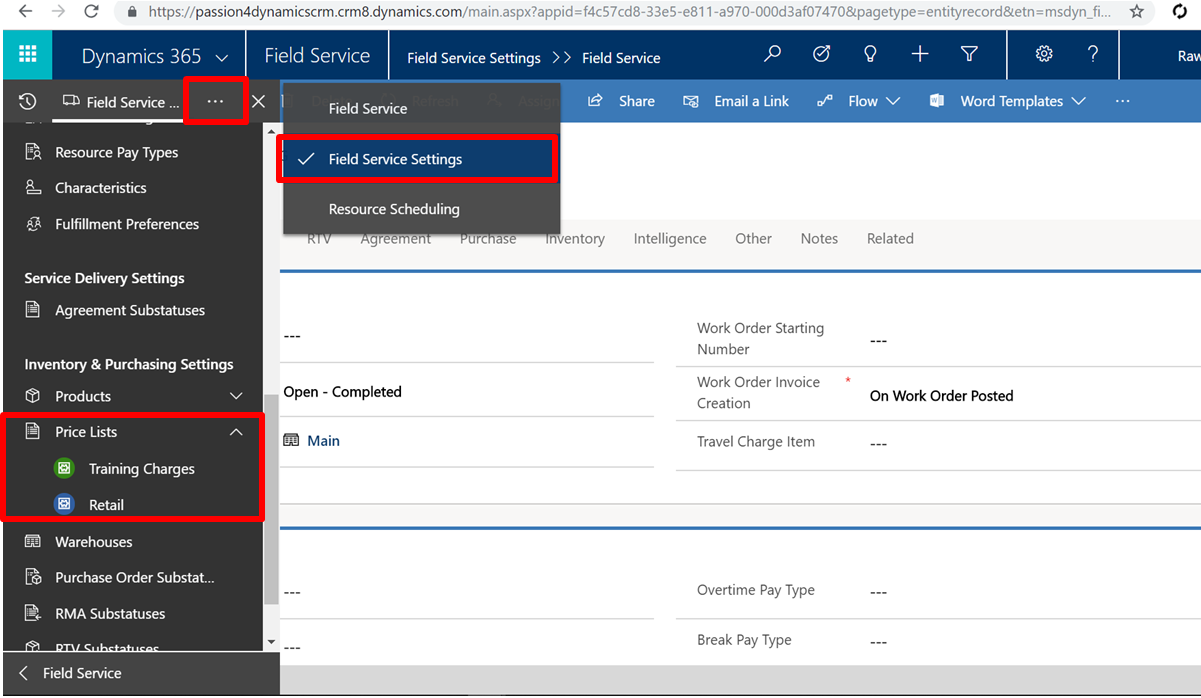
    Its Quiet easy and straight forward to associated a product or service to a price list. To do this go from Field service navigation > Field service navigation then click on an existing price list or create new as needed.


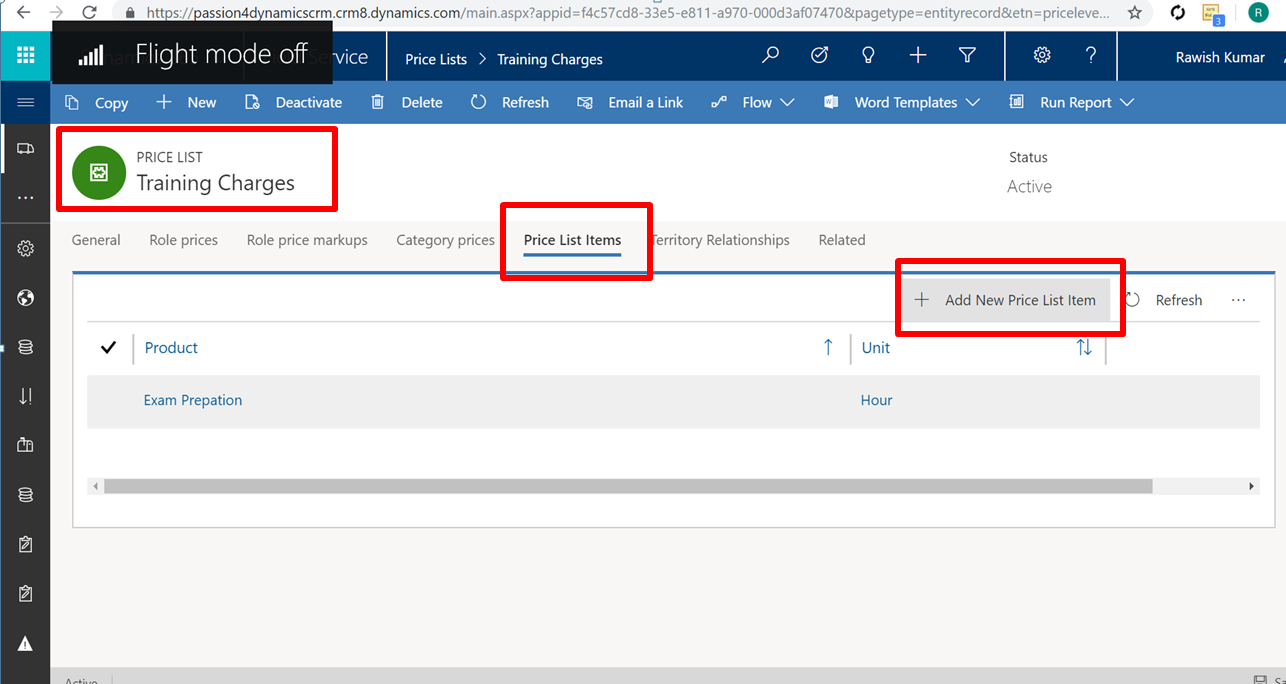
    Open an existing price list or create new one and click on “Price List Items” & click on “+Add New Price List Item”:


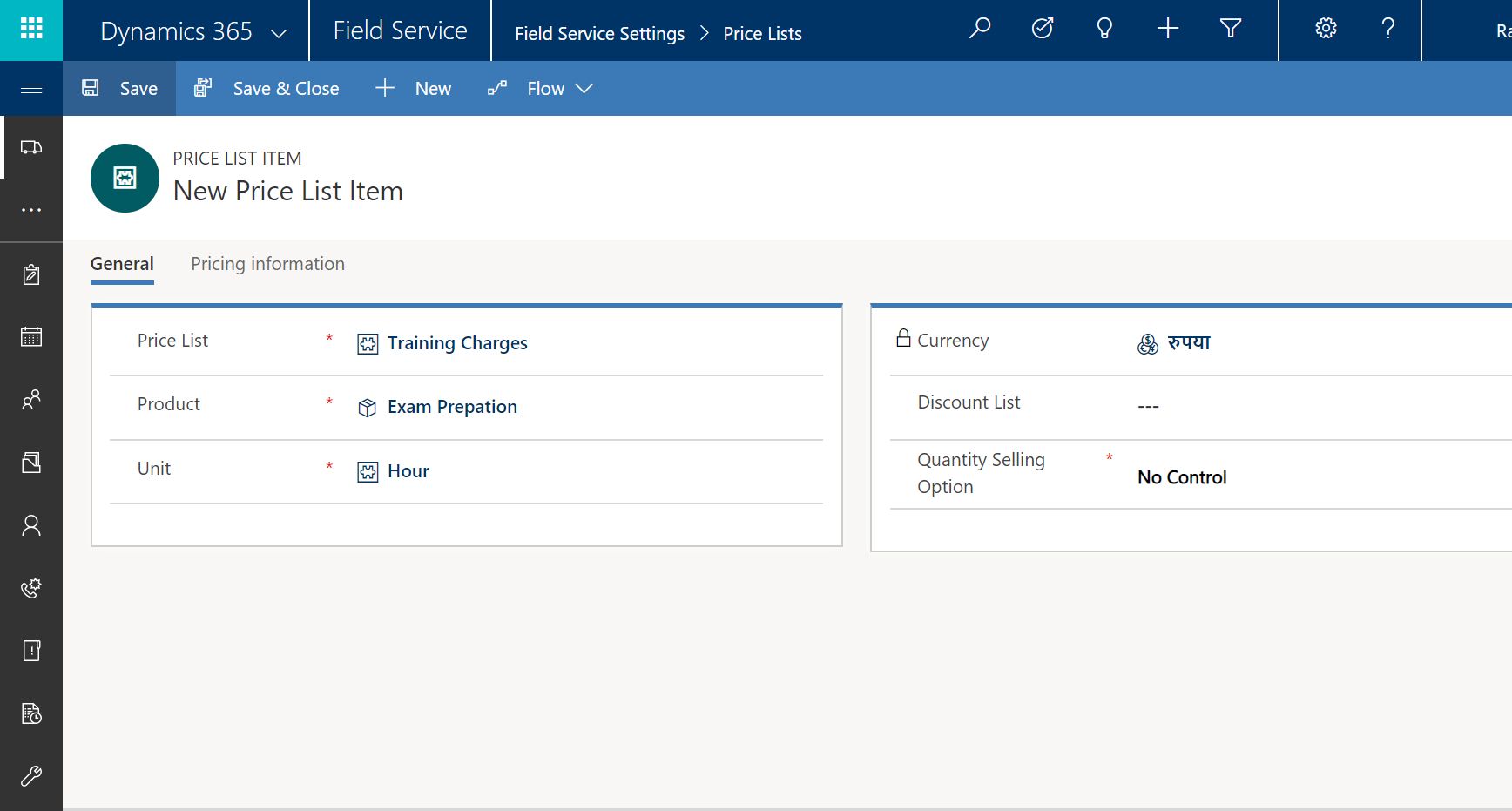
    Add the Product to it in my case I have added as “Exam preparation” and its Unit in “Hour” which is all defined on the product level and click on Save and Close.


  5. Define tax code.
    You can define tax code within your dynamics CRM field service. Remember you can have different scenarios/requirement to have different – different tax codes.

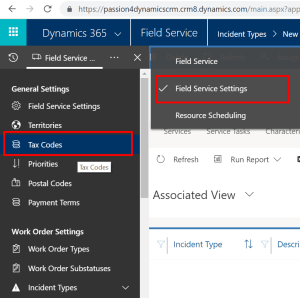
    To define a tax code, click on the dynamics 365 navigation from within field service app and click on field service setting and then on “Tax Codes“:

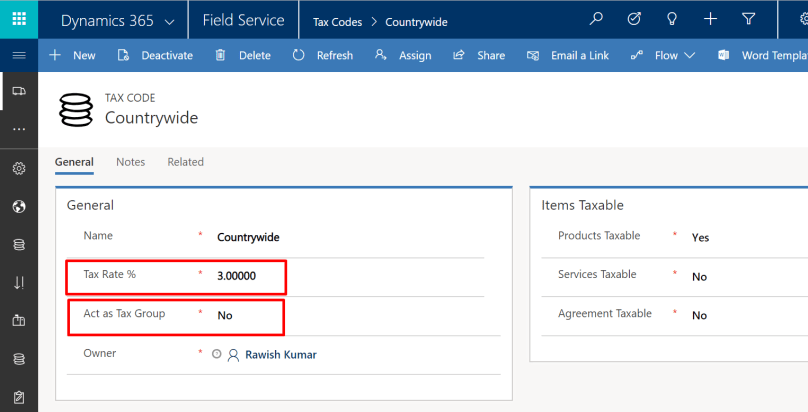
    Click on “Add new tax code”:

    Few important points on Tax Codes:  
    a. Used to define how tax on Work Order charged
    b. Tax options for products,
    agreements, and services
    c. Can be individually defined
    for each taxable item
    d. A tax code can contain
    multiple child tax codes and hence the total tax is defined by the sum of all the children.


MB2-877 Microsoft Dynamics 365 for Field Service Module 1 Topic – Perform initial configuration steps

Before this blog – I have provided an overview about this exam which you can see here: MB2-877 Microsoft Dynamics 365 for Field Service Exam Overview

In this blog we will be focusing on the module 1 “Set up and configure Field Service” and first  topic “Perform initial configuration steps”:

2

  1. Identify key security roles.

    A user in Field Service is a member of your organization who will use a Field Service license. Security roles define which entities a user can view as well as how they can interact with those entities. Field security profiles define which fields a user can see. As an example, a user may have permission to see accounts but not to see specific fields for an account. Field Service comes with four predefined security roles and field security profiles:

    • Field Service Administrator: Generally assigned to key people within the organization who need access to the Administration tile. Global access to all Field Service entities.
    • Field Service Dispatcher: Generally people in the organization who are responsible for scheduling and need to manage resources and work orders.
    • Field Service Resource: Generally people within the organization who will access Field Service from a mobile device.
    • Field Service Inventory Purchase: Generally people within the organization who are responsible for inventory, purchase orders, RMAs, and RTVs.
    • Field Service App Access: these would be the people who really only need to have access to the Field Service mobile application.  So they don’t necessarily need the full gamut of functionality from a resource standpoint, but they do need to be able to login to the application, see what work orders have been assigned to them, and carry out some basic day-to-day functionality.
  2. Identify resource scheduling options.

    Resource Scheduling is all about understanding who and what resources you have available to be able to work through these different projects or service tickets that need to be done.  So as part of the resource scheduling scenario, this gives you kind of a one-stop shop or a single point of contact to be able to go out and manage some of the different shared scheduling components in the application.

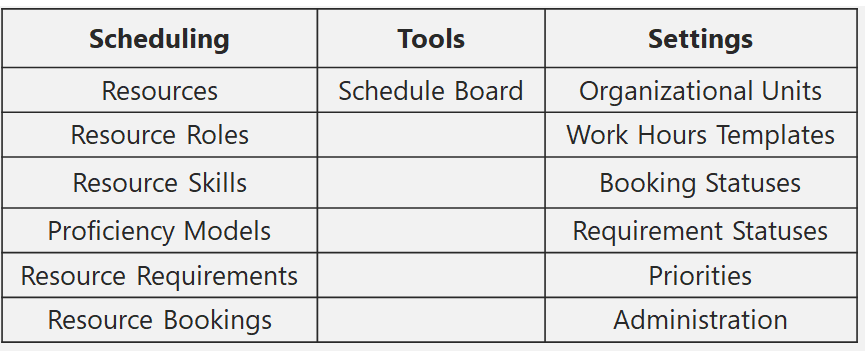
    This can be divided into 3 categories:

    In short to understand this, You define resources , resource roles & skills etc and then you can schedule work orders using the Schedule Board. Also you have some Settings that you can do for example setting up Orgnizational Units i,e you may have services that you provide over different countries so you can create different organizational units such as one for India, One for UK etc.

  3. Identify entities that can be customized with administrative settings.

    This allows an administrator to customise entities as per business field service requirement. Below entities can be included in this process :

    • Characteristics
    • Territories
    • Priorities
    • Warehouses
    • Postal Codes
    • Products
    • Bookable Resources
    • Price Lists
    • Time Groups
    • Payment Terms
    • Incident Types
    • Tax Codes
    • Booking Statuses
    • Service Task Types
    • Booking Rules
  4. Identify Product & Services Categories. Before Understand the Product Categories, lets understand what is a Product and a Service.
    • Products are anything the company sells
    • Services are products that are designated as a service the company provides
    • Can be added manually to a Work Order when created
    • Can be added automatically to a Work Order from an associated Incident Type
    • May be marked as “used” billed to a client or left as “estimated” on a Work OrderField Service related products can be defined as any of the following:
      • Inventory: Products sold and deducted from inventory
      • Non-Inventory: Products sold but not tracked in inventory
      • Services: Sold on time and materials basis & Price and costs are hourly rates

                      Duration of Service:

      • Manually Entered on mobile by field agent
      • Derived from elapsed time between work order schedule statuses


      In the next blog, we will go through the topic 2 from module 1 – Configure product and service pricing

MB2-877 Microsoft Dynamics 365 for Field Service Exam Overview

I have been planning for this certification since quiet a while now. I am very much attracted towards the field service addition to dynamics CRM hence I decided to finally schedule the exam.

So will be preparing for this exam for next couple of weeks & as I go, I will be creating blogs on my study for this exam. I will try to put as much as details and explanation to understand the concepts.

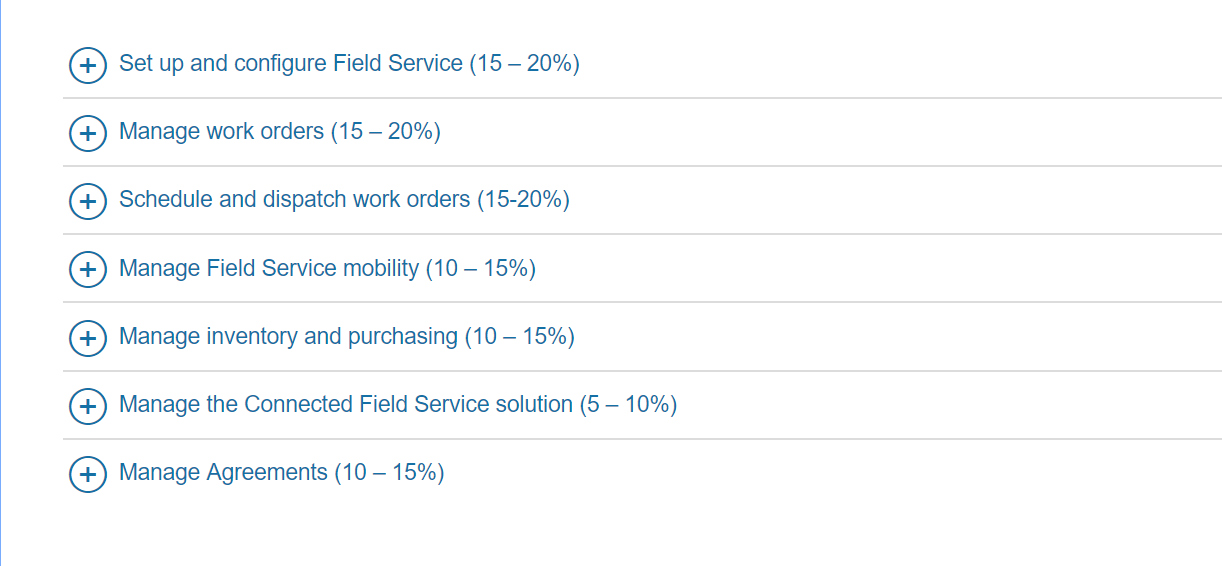
The blog series will be fully aligned with the exam pattern given on the Microsoft learning page:

1.png

Visit this page here :  https://www.microsoft.com/en-us/learning/exam-mb2-877.aspx & familiarize yourself with this exam.

What will you get out of this exam?

Well, I should have wrote this question in the beginning of this blog but it is not too late to talk about this now!
If you have a client which very much customer oriented and does a lot field work such as proving services as at home such as Instillation, uninstallation, fix/repair/service of the products that company offers,  The field service module of dynamics CRM is perfect for them. Hence you have to have knowledge on this module of dynamics CRM.

I am very much excited to start the series and hope so are you.
In the next and very first blog, We will go through the the first main topic “Perform Initial Configuration Steps”  from Set up and Configure Field service module.

2.png

So, I will see you in the next blog shortly! Make sure you subscribe to my blogs to get notified on next blogs!

Handle Boolean/Two Option Fields In Scribe Data Migration/Bulk Update

I know many CRM developer get into Data migration or bulk update operation from CRM system to other external/CRM system.

I have gathered few useful tips while dealing with boolean fields as in how to check the value , reverse the value , use nested if with OR & AND conditions etc. I have categorised them into below and provided explanation & solution.

  1. Check Values from Source & Set New Value 

    To check value of a boolean field from source do this and set other value:

    IF(S1=1, 0 , 1)

    (Here i am checking if S1 field value is “1” which is “TRUE” then set the new value to “0” which is “FALSE” otherwise the default will be to “1”.)

  2. Check Combination of boolean fields and Set New Value

    To check the combination of values i.e If a=1, b=0 then set some new value, Do this:

    IF(AND(S1=1, S2=1), 0 , IF(AND(S1=0, S2=0),1 ))

    (here i am checking if S1=1 AND S2=1 then outcome should be “0”.
    please note: you can use “OR” operator as well as per your requirement.)

  3. Check If the value is Null or Any error in retrieving the value and set default value

    You might have to handle null values in the package, to do this:

    IF(ISERROR(S1),TRUE(), FALSE())

    (here I am checking if S1 is null or any error then i am setting the value to TRUE otherwise FALSE.)

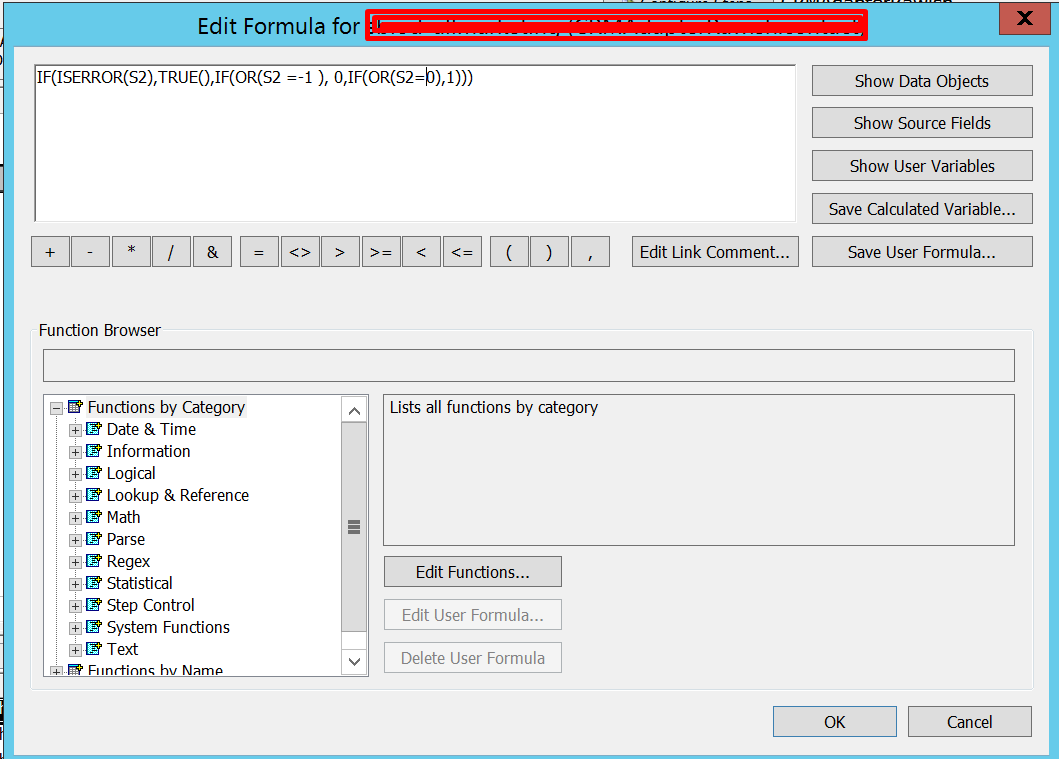
    you can also combine this with checking other values to such as if S1 =1 then 1 , S2=0 then 0 & if S2=Null then TRUE().

    IF(ISERROR(S1),TRUE(),IF(OR(S1 =1 ), 0,IF(OR(S1=0),1)))


    I hope this helps! I will try post help blog on other types of fields.
    cheers!